How to make a responsive website in Figma
Make a Figma website adapt from phone to desktop with auto layout, a frame per breakpoint, and variable modes that switch with the screen width.
Last updated
Step 1: make the design responsive in Figma
The page’s top frame must be responsive in Figma: give it auto layout, and make it hug its content vertically.

Figma’s own guides and many tutorials cover responsive design with auto layout.
Tip: give the top frame a max width (auto layout required): figma.to.website respects it and centers the page on wider screens.
Breakpoints with variables
A collection of variables whose modes are named after devices switches mode with the screen width. Use it for anything that changes per device: font sizes, spacing, visibility…
| Mode | Used from (default) |
|---|---|
Phone | 0 px |
Tablet | 401 px |
Laptop | 769 px |
Desktop | 1025 px |
- You don’t need all four modes: two or three work too.
- The widths follow your site’s breakpoints, set in the plugin under Settings → Breakpoints.
- To set a mode’s width yourself, add a number variable named
min-widthto the collection, with a value per mode.
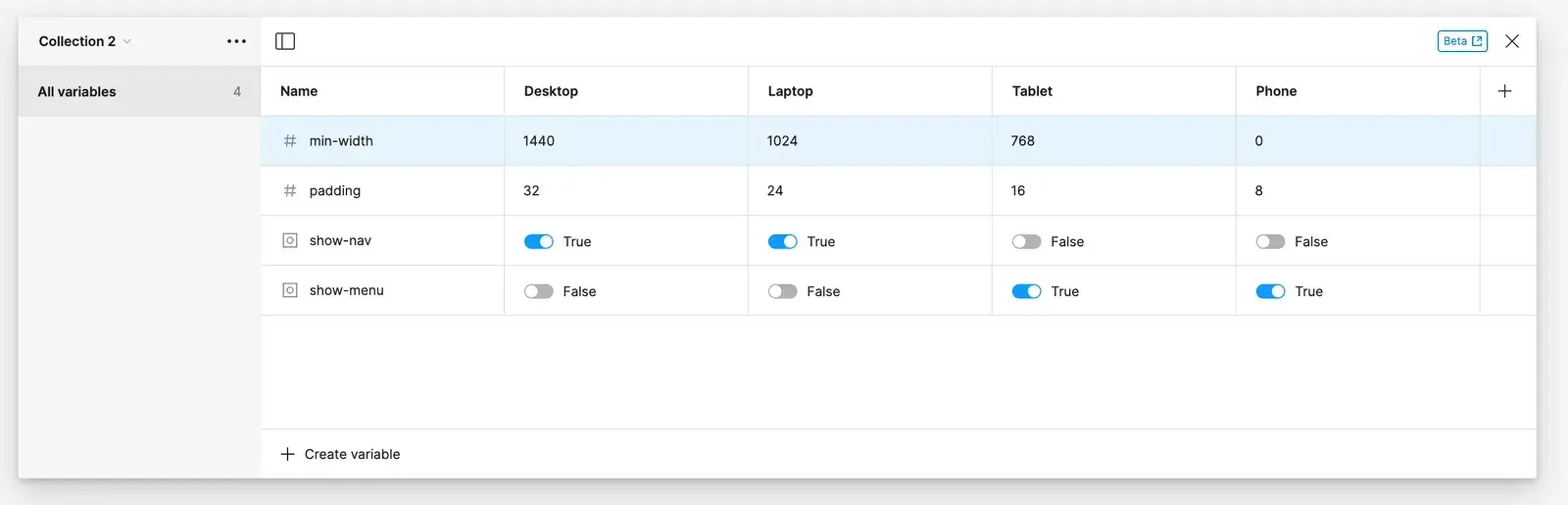
Use the variables in your design: the mode switches with the browser width in the plugin’s preview and on the published site. Figma prototypes don’t switch modes. See Figma’s guide to variables to learn more.
Several variable modes in one collection need a Figma Professional plan or above.
See every mode on the canvas
On the canvas, a resized frame doesn’t switch mode by itself, and you can only show one mode per frame. To see every screen size while you design, turn the whole page into a component and place one instance per mode: you design once and see the result at every size.
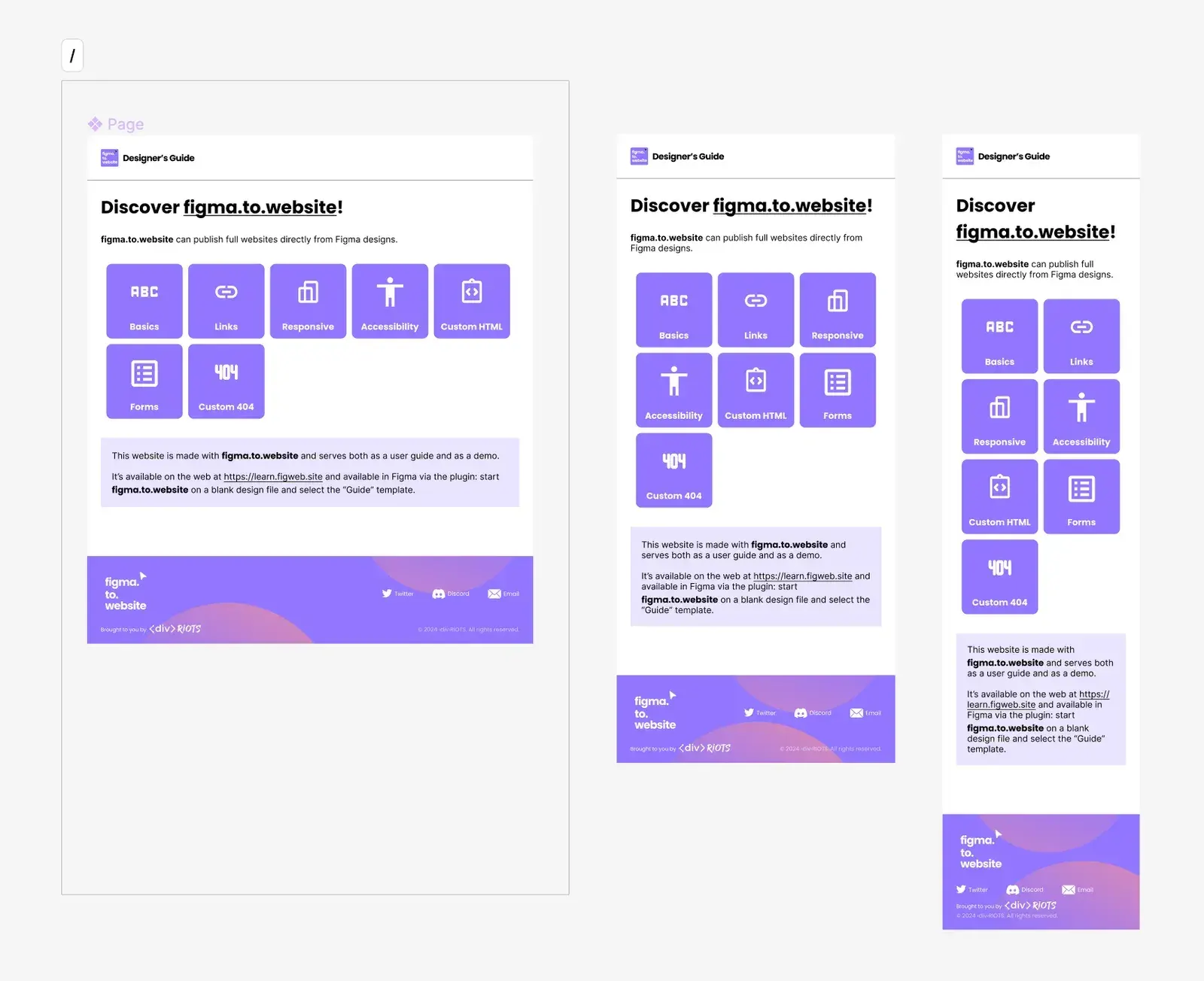
Keep these instances outside the page’s section: figma.to.website doesn’t need them, since the modes and variables handle the breakpoints.
Breakpoints with frames
When auto layout isn’t enough and the layout must change more radically with the screen size, put several frames in the page’s section, up to four, of different widths.
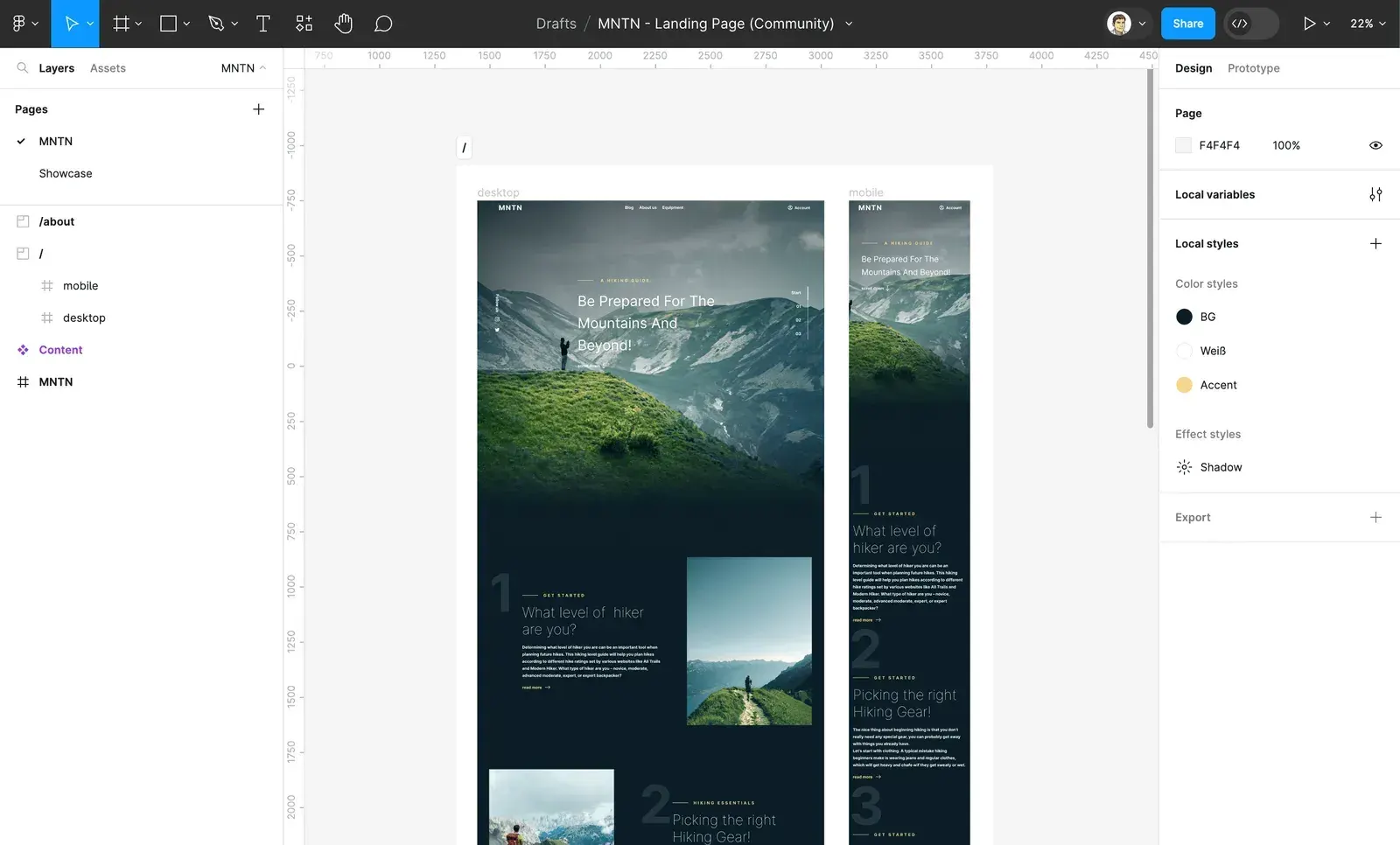
figma.to.website uses the frame widths as breakpoints and shows each visitor the frame that best fits the screen.
Tips:
- Frames can have a min width and a max width (auto layout required): figma.to.website uses them to pick the best frame.
- The narrowest frame ignores its min width, so phones never scroll sideways.
Avoid duplicating content
With several frames per page, keep the content in one place: make it a component, even the page content, and use an instance of it in each frame. Editing the main component updates every frame; override an instance’s properties for changes specific to one breakpoint. A wrong override can be undone at any time with Reset all changes on the instance.
Combine variables and frames
You can use both on the same page: frames for the layouts that variables alone can’t achieve, and variables for the rest.
For changes based on the device rather than the width — touch or mouse, portrait or landscape — see Device-specific content.