Basics: how a Figma file becomes a website
With figma.to.website, each Figma section is a web page named by its URL path, and its frames are published as HTML and CSS, prototypes included.
Last updated
How do I define the pages of my website?
- Design each web page in a frame inside a section.
- The section name is the page’s path.
- Name the home page’s section
/.
For a site published at https://pokemon.figweb.site:
| Section name | Published URL |
|---|---|
/ | https://pokemon.figweb.site/ |
/pikachu | https://pokemon.figweb.site/pikachu/ |
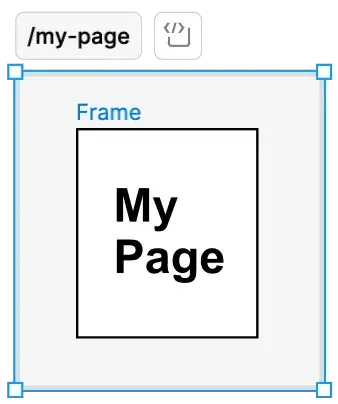
A section can hold more than one frame, to control the design on different device sizes — see Responsive design.
Design in Figma as you always do
Design each page inside its frames with the Figma features you already use: figma.to.website turns the frames into HTML and CSS.
Figma designs tend to be static, with many fixed-size frames. For a layout that adapts to the screen, use auto layout in the frames that should be responsive — see Responsive design.
Do prototyping, animations and variables work?
Yes. Use Figma’s prototyping features to add effects and interactivity: figma.to.website turns them into CSS or JavaScript on the published site. See Links and Scroll-based animations.
The conversion to HTML and CSS improves continuously. If something doesn’t publish the way you expect, tell us on Discord.
Do I need to optimize images first?
No. Use unoptimized, high-resolution images in your design: figma.to.website optimizes every published image and serves the right size for each device, so phones download smaller images than desktops, with no visible loss of definition.
For best results, use PNG for images that need lossless compression, such as screenshots, and JPEG for photos, where lossy compression is fine.