How to use Notion as a CMS for a Figma website
Connect Notion to a website made in Figma: generate a page per Notion item, repeat layers per item, and fill text and images from properties.
Last updated
Manage your design in Figma and your content in Notion. figma.to.website connects to your Notion databases and uses them as a CMS (content management system): blog posts or lists of items are added to your site automatically.
Pages are templated with Twig, by Symfony: its guide for designers covers everything the syntax can do.
More CMS sources will follow: tell us which one you need.
Create a Notion database
If you don’t have a Notion database yet:
-
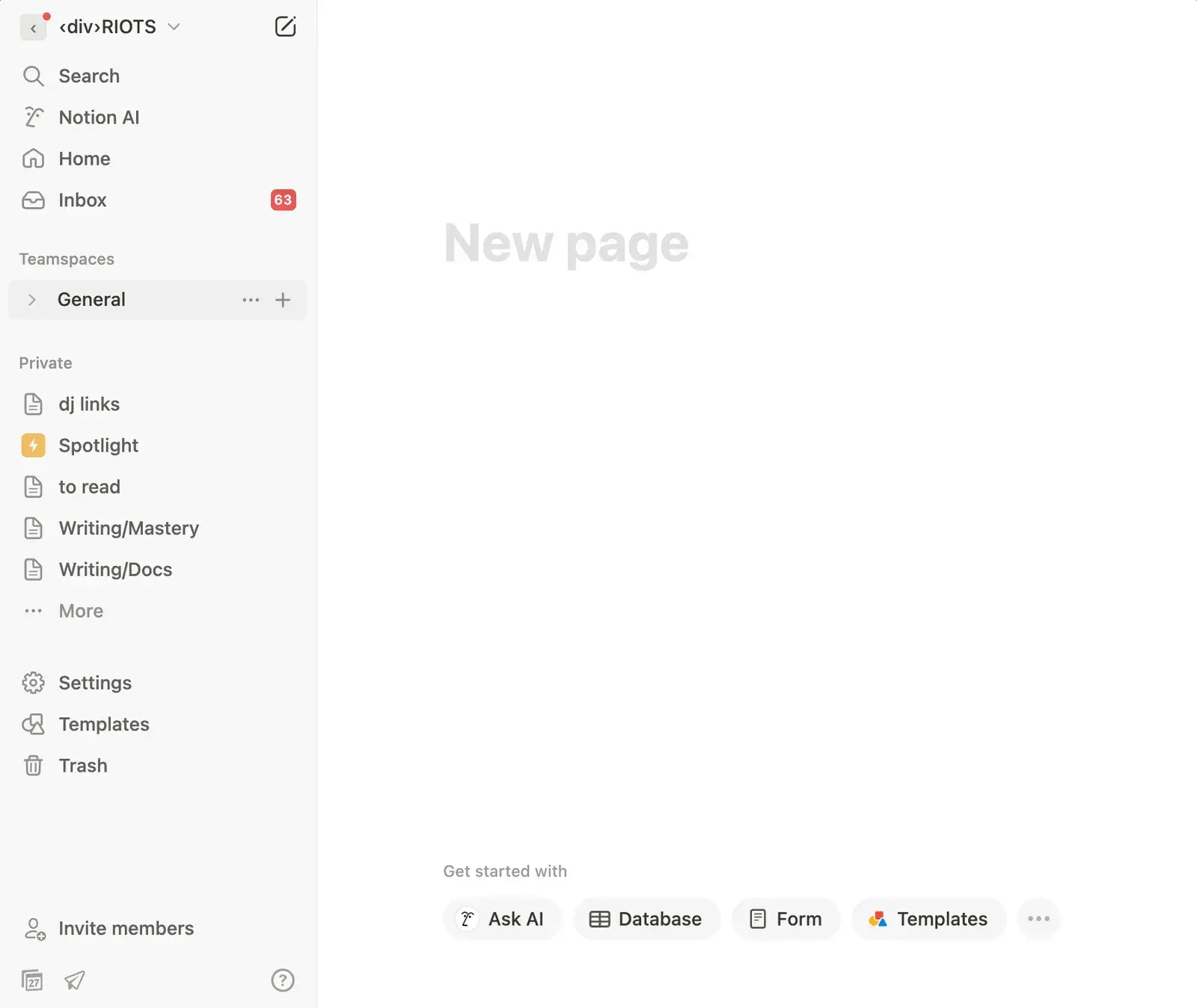
Create a new page in the right Notion space.
-
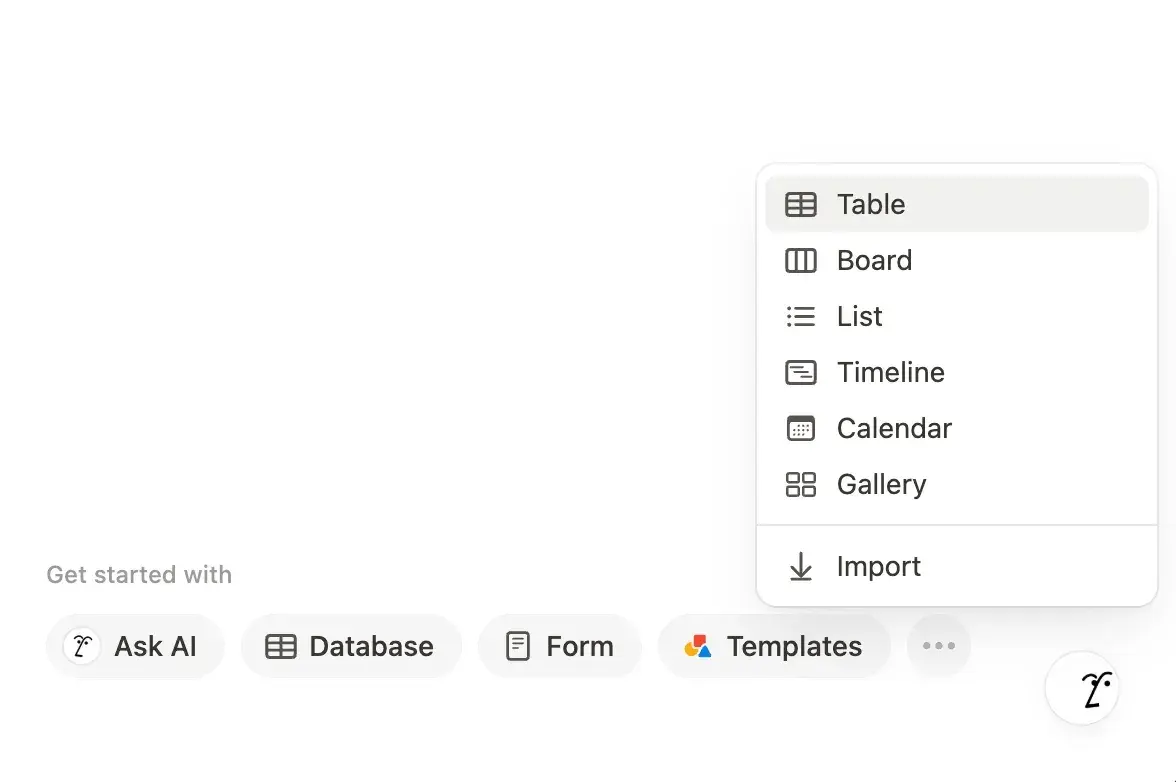
Add a Table.
-
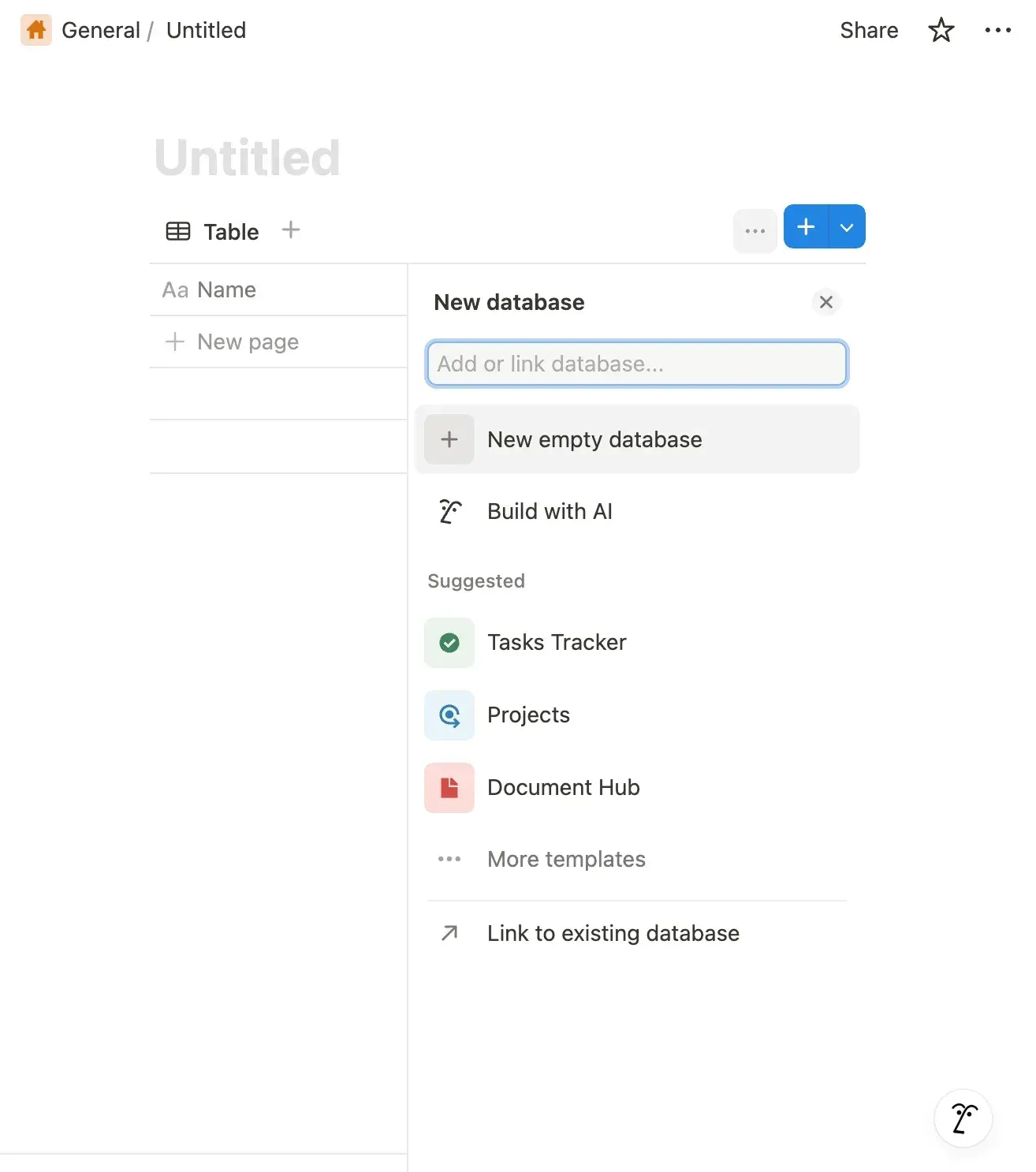
Select New empty database.
-
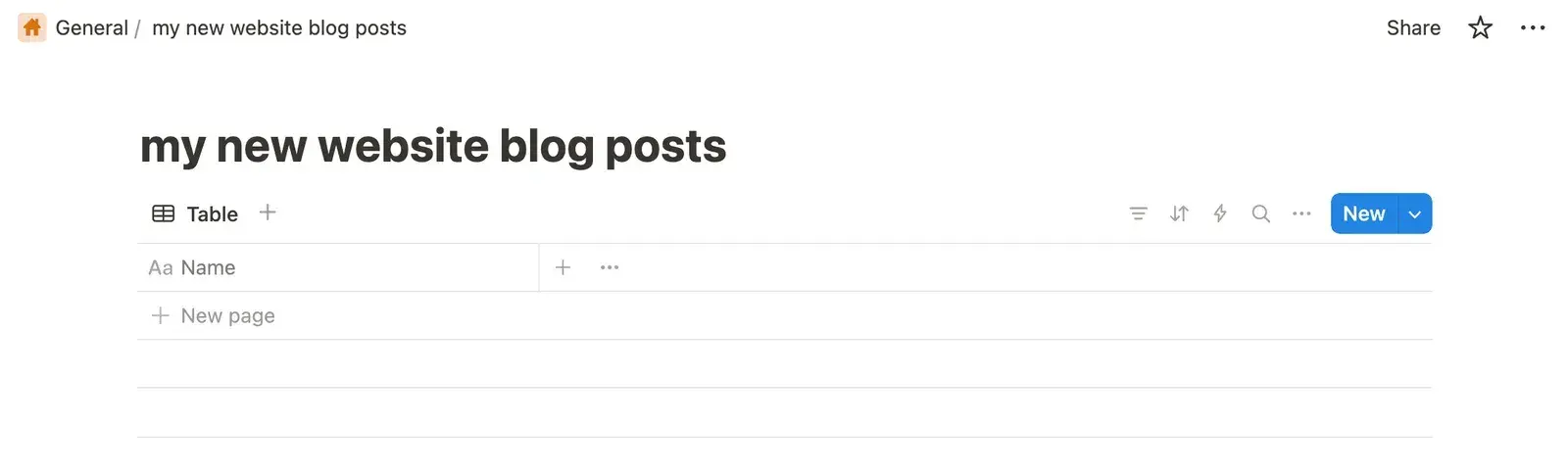
Give it a distinctive name: you’ll look it up by name later.
-
Create your first page and open it in the page editor.
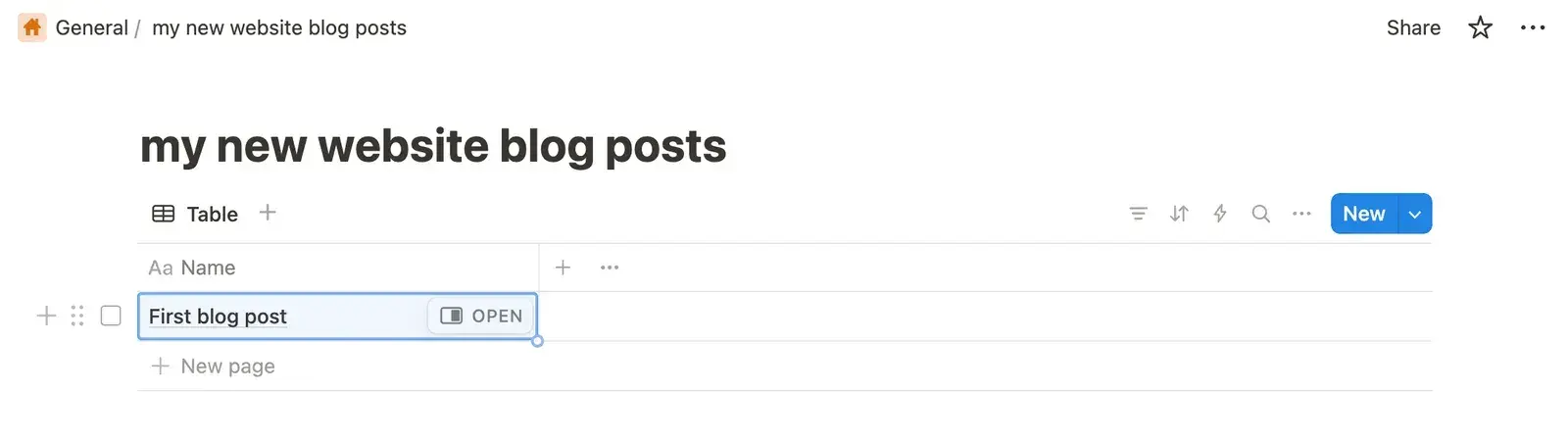
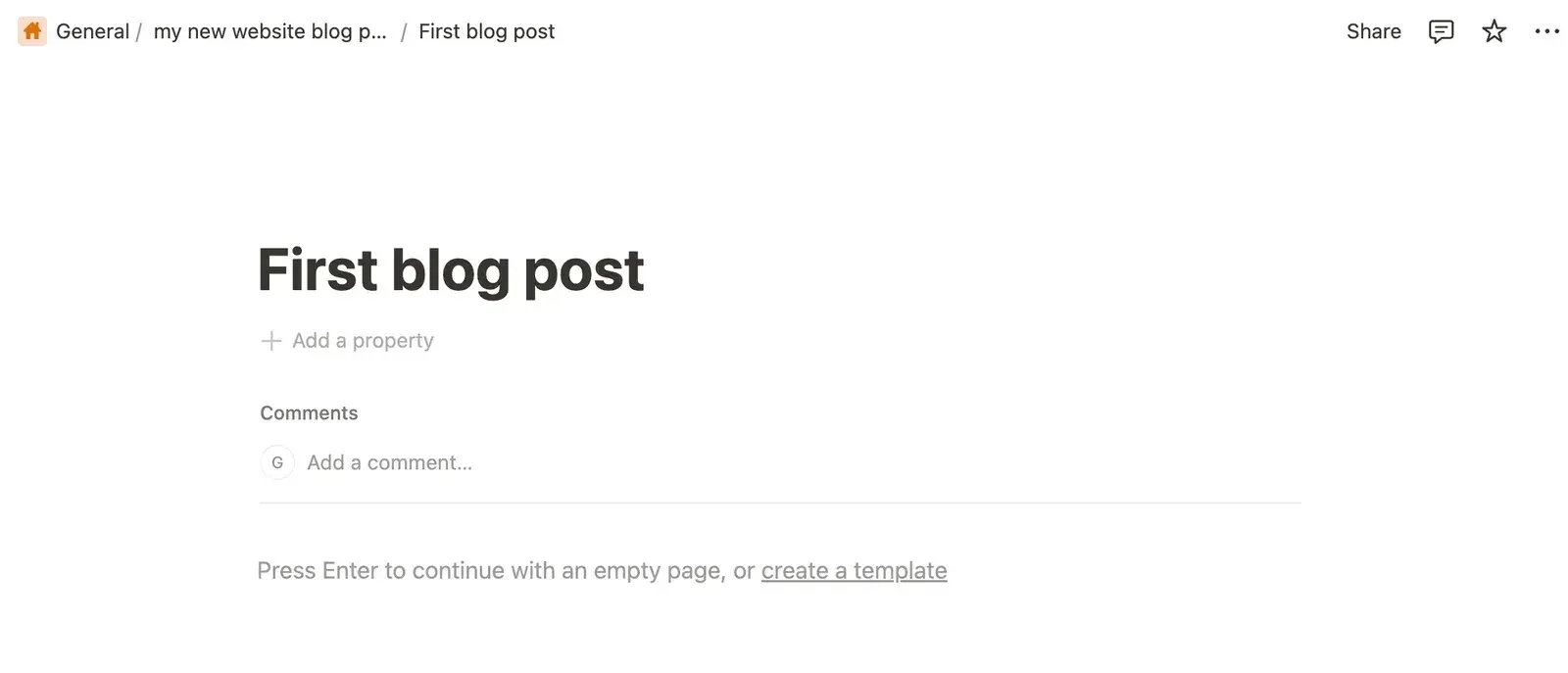
From there, add properties to your page and write its content. figma.to.website gives you access to each property, and to the page’s content, in your design.
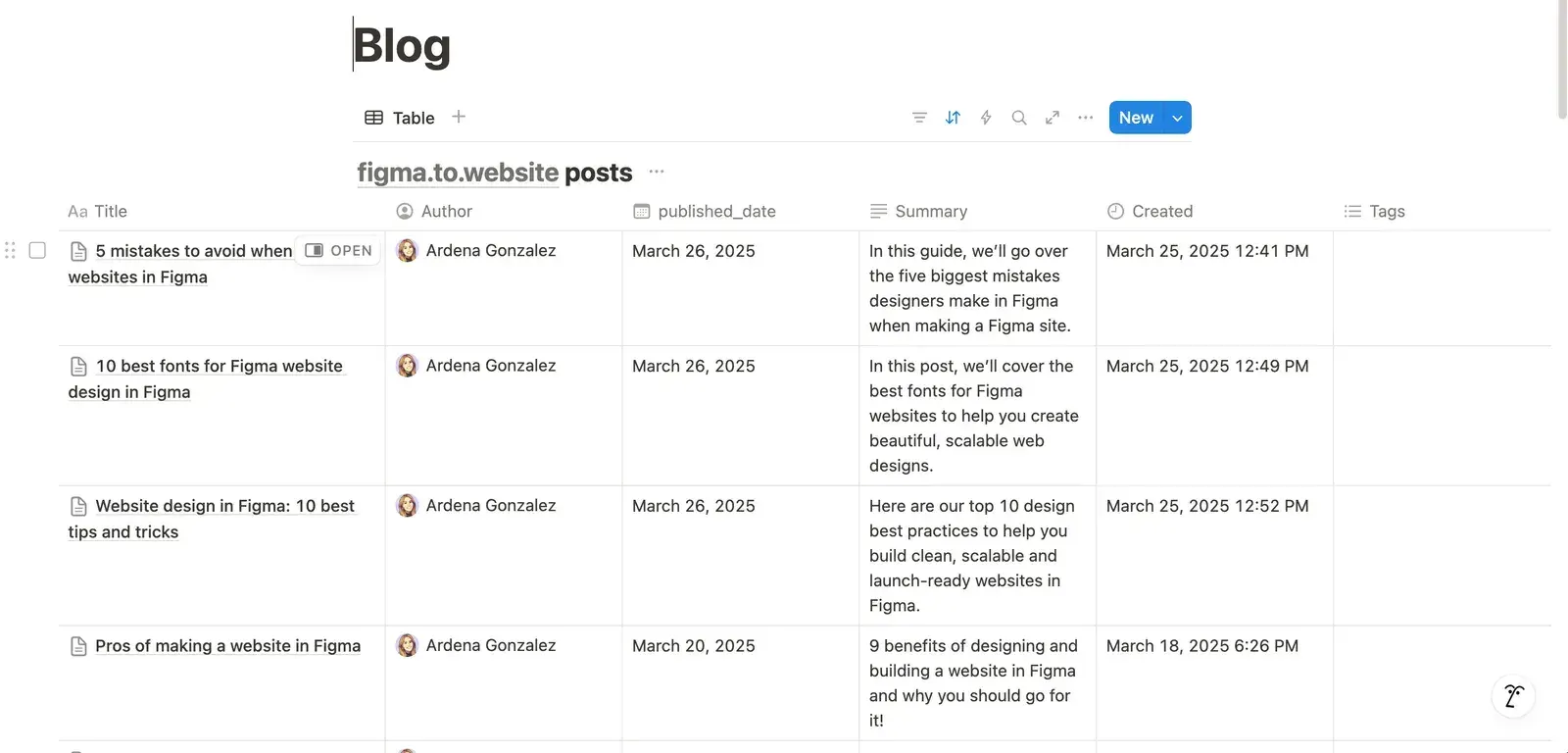
Example: a blog database
Connect figma.to.website to Notion
-
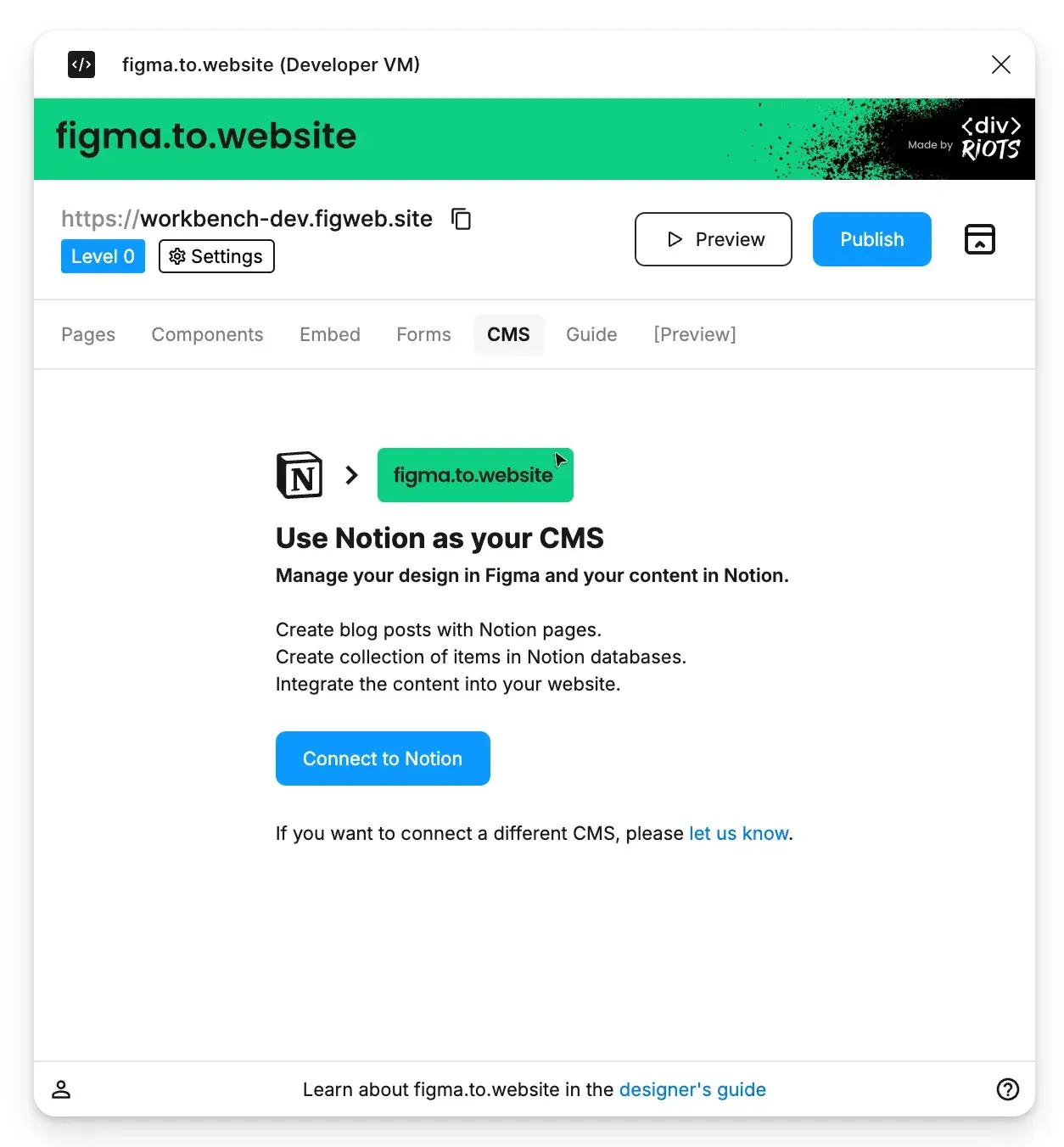
In the plugin, open the CMS tab.
-
Click Connect to Notion and follow the steps. When it’s done, your first collection shows in the CMS tab.
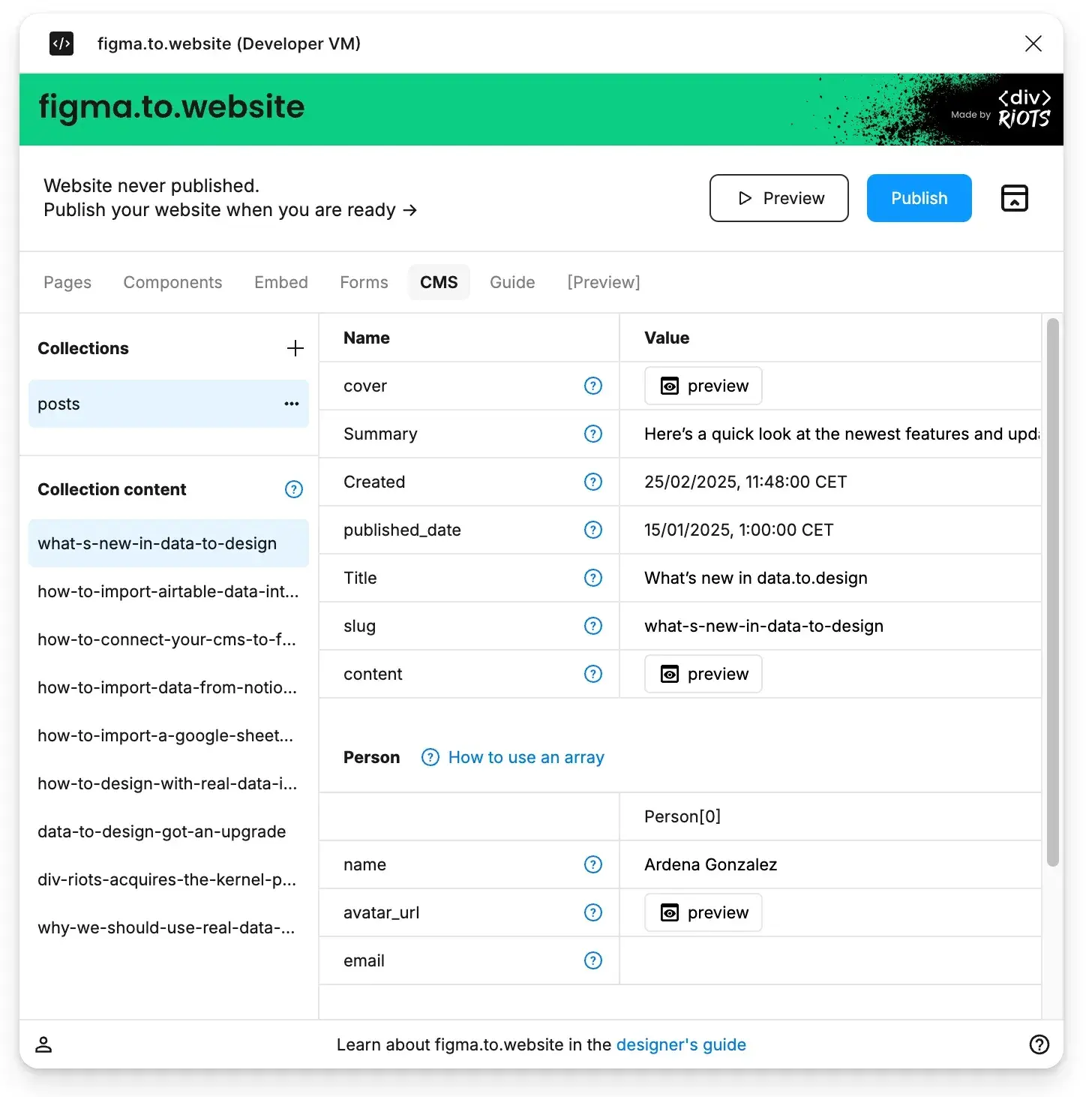
The CMS tab shows:
- Collections: the collections you loaded;
- Collection content: the first 10 items of the selected collection;
- on the right, the data of the selected item.
Use it to explore your content and the structure of its properties.
How do I use the Notion data on my website?
Two main uses:
- Create a web page for each item of a database — blog posts, product pages.
- Repeat layers for each item of a database — a list of the latest posts, a product list.
1. Create a web page for each Notion item
All pages share the same design; their content changes per item. Add the collection’s name in square brackets after the page path in the section name:
/blog/[posts]![A Figma section named /blog/[posts], holding the BlogDetail page design.](/_astro/section-collection-path.DacgIBL2_1gpnKL.webp)
A section named /blog/[posts] creates a page for each item of the collection posts, at:
/blog/title-of-post-1/blog/title-of-post-2/blog/title-of-post-3- …
The end of each URL comes from the item’s slug property in Notion. Without a slug property, it is generated from the page title.
Add a slug property to every item of your database: you control the URLs, and renaming a post doesn’t change its URL — important for SEO.
To use a property other than slug, name it in the section: /blog/[posts:url_path] uses the property url_path.
Fill the design with the item’s properties
Template the text layers with the item’s properties, where property_name is a property of the collection:
{{ property_name }}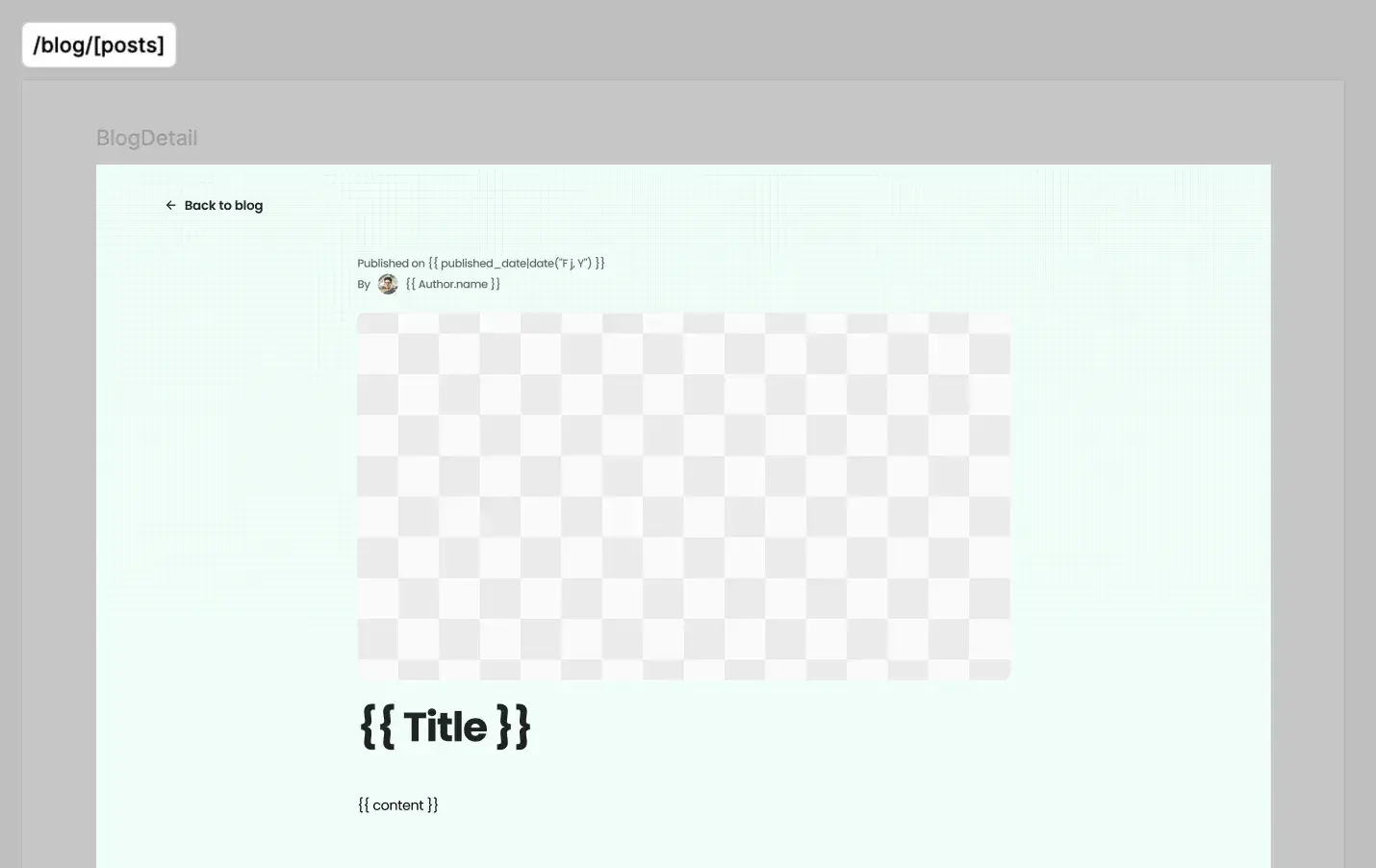
Templates work in layer names too, for example for images:
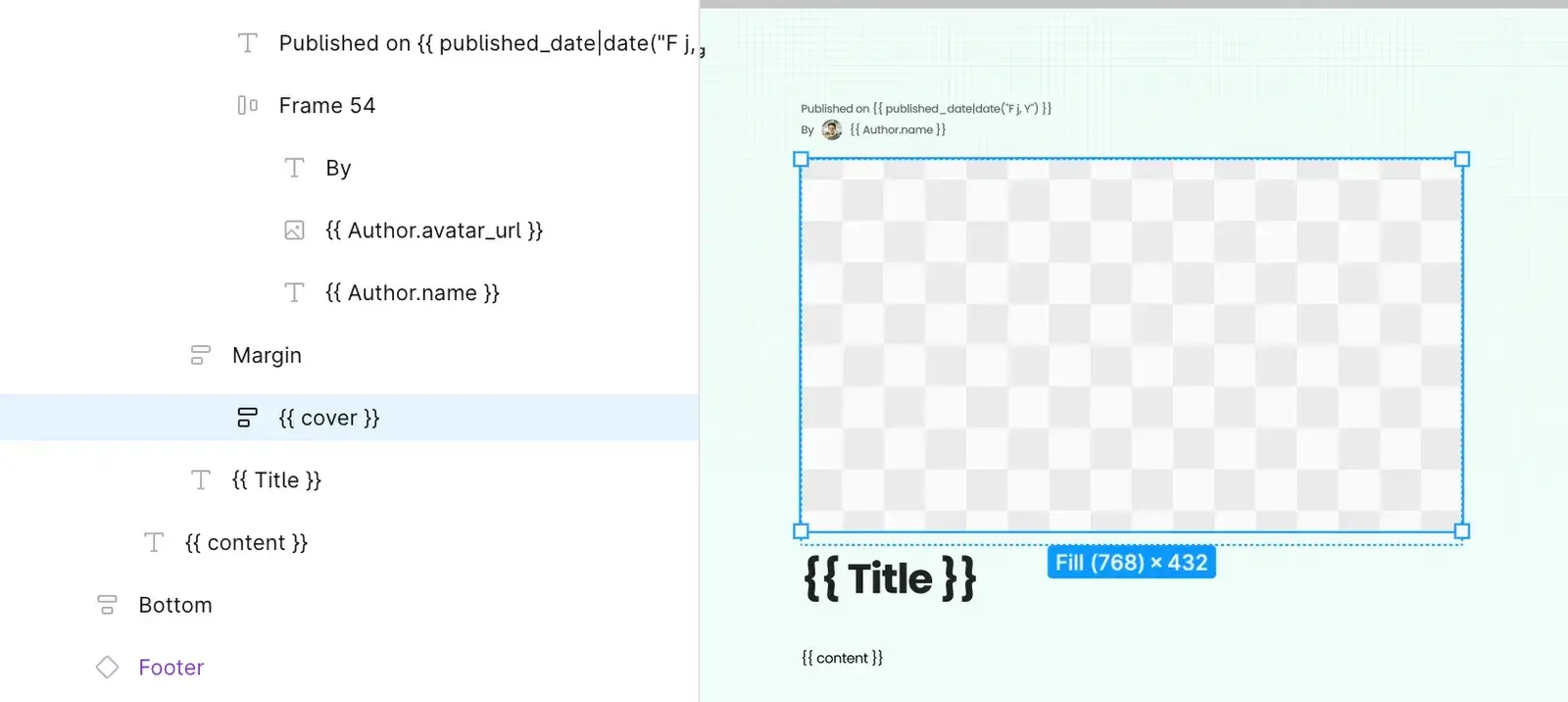
For images, the layer must be a frame or a rectangle with an image fill: figma.to.website replaces that fill with the image from the property.
2. Repeat a layer for each Notion item
figma.to.website can repeat elements of a page based on the Notion database. Here is a blog list designed with a single card:
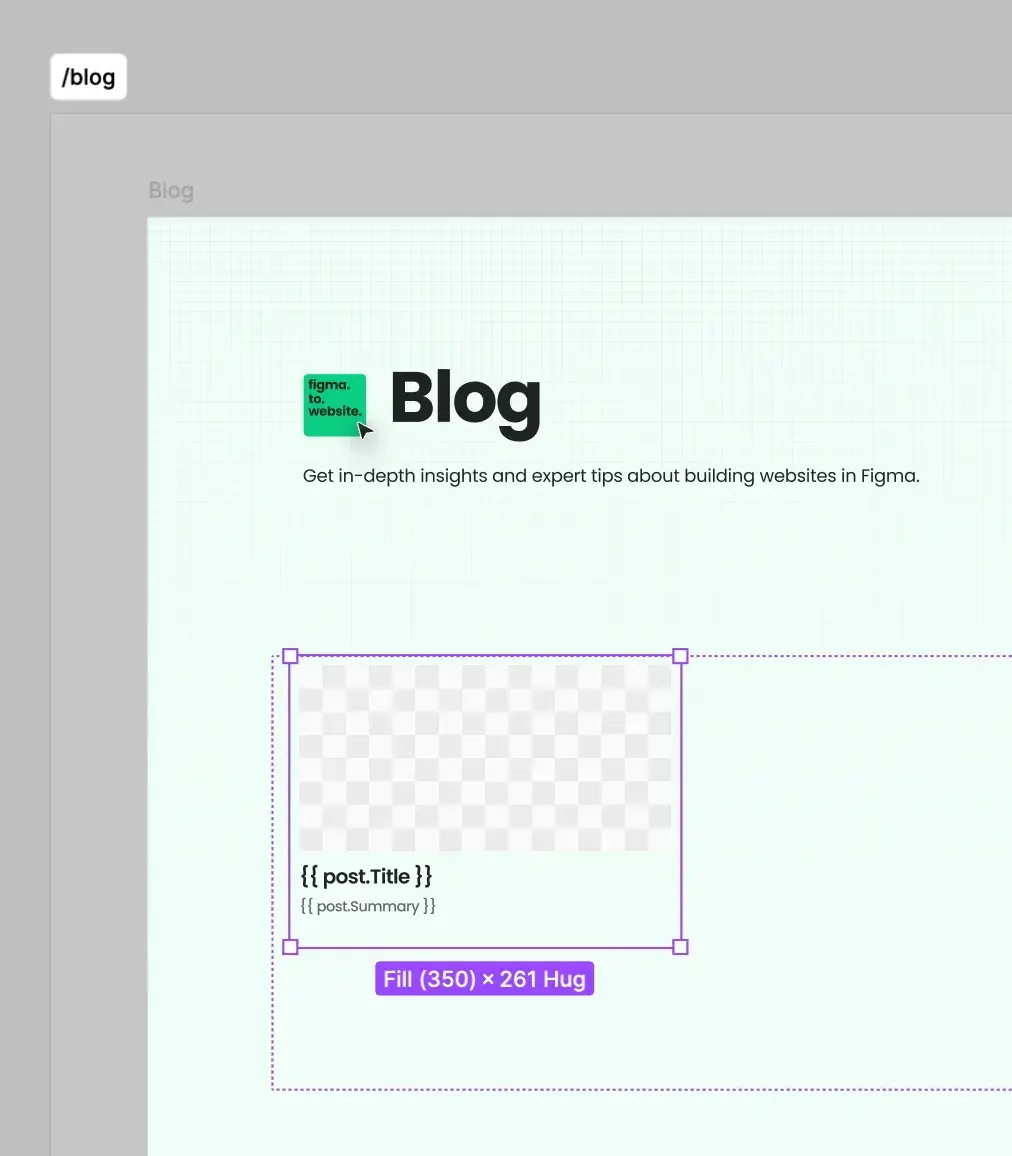
To repeat the card, name its parent layer:
{% for post in posts %}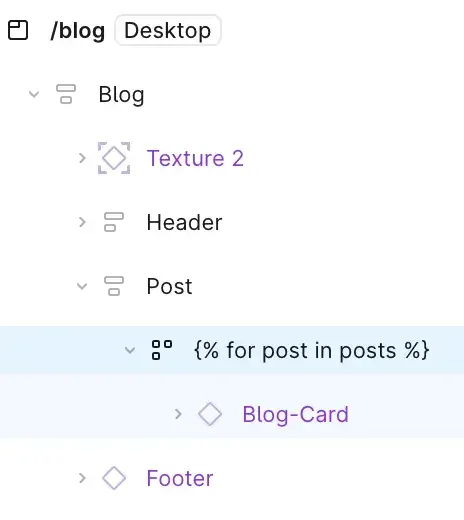
This repeats the first child layer (here, the Blog-Card component) for each item of the collection posts, with a variable post holding the current item.
Sort the items
Sort by a property with the built-in sort_by function:
{% for post in posts|sort_by('published_date') %}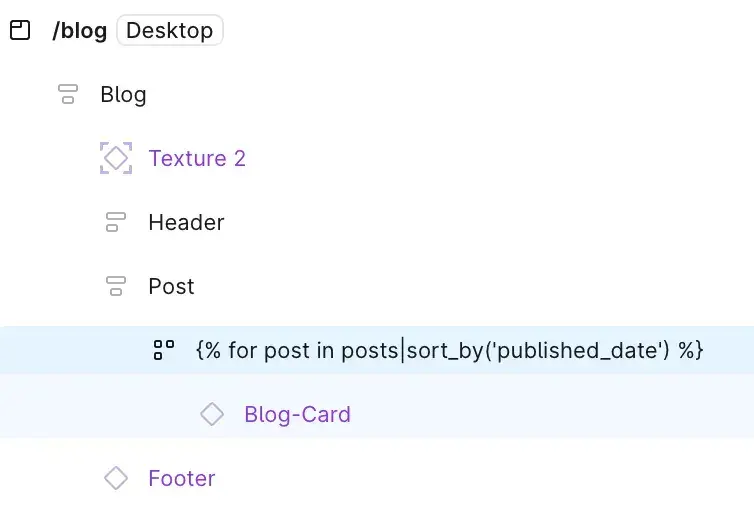
Replace published_date with any property of the collection. sort_by('property_name') sorts in descending order by default; sort_by('property_name', 'asc') sorts in ascending order.
Fill the repeated layer
Then template the child layers with the item variable:
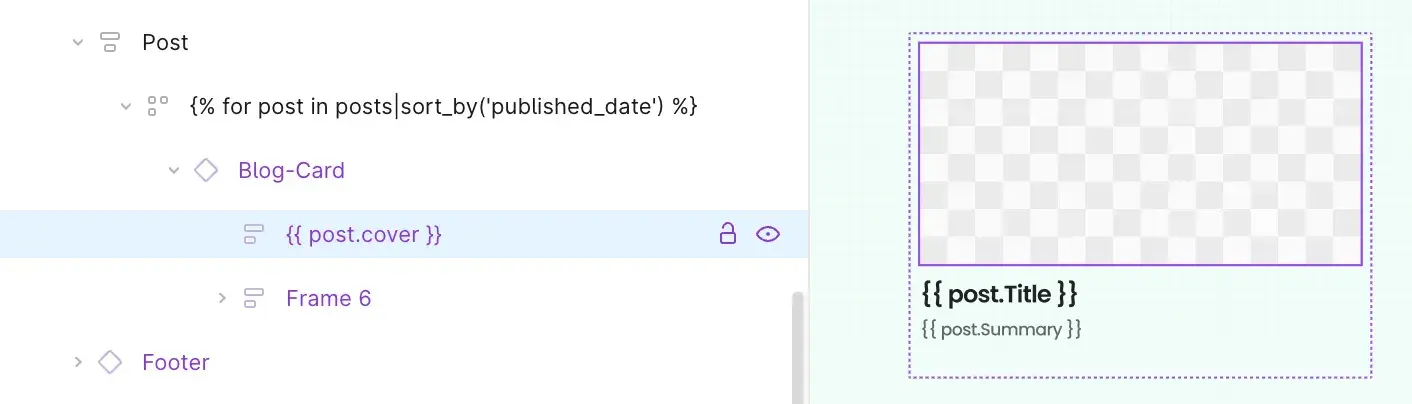
As above, an image layer must be a frame or a rectangle with an image fill.
Check the result before publishing
Click Preview to see the pages with your real Notion content before you publish:
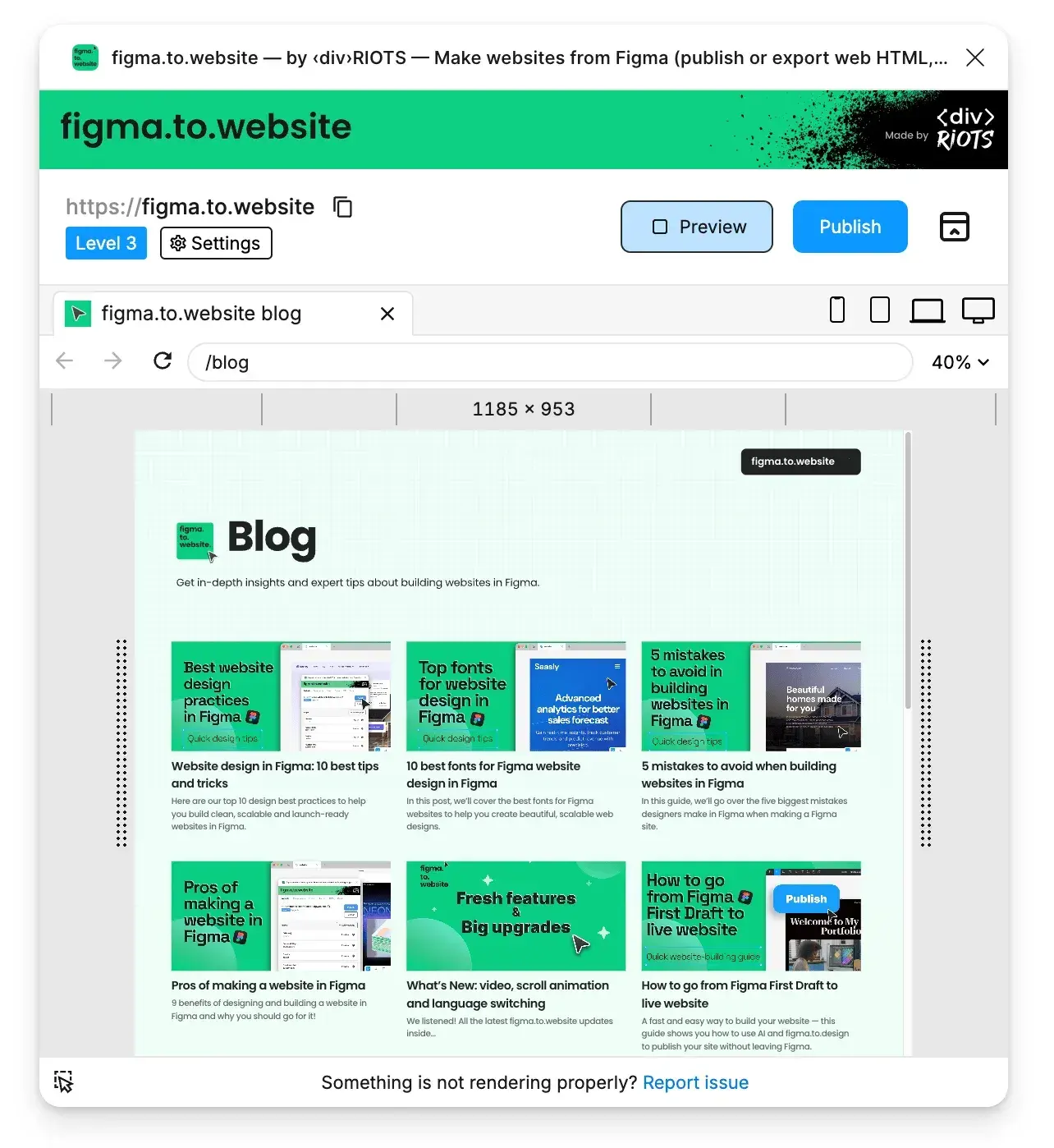
Content is read from Notion when you publish: republish after editing your database to update the site.