How to build a working form in Figma
Name Figma layers form, input, label and button to publish a working form with figma.to.website; submissions land in your dashboard.
Last updated
figma.to.website detects the forms you design in Figma when their layers are named as described below. Style the form entirely as you like.
Prefer a ready-made form? Embed one built with Typeform, Tally, Mailchimp, Brevo or another form builder, with the Embed component.
Input fields
Create a frame and name it as an HTML <input>:
<input id="input_id" name="input_name" type="text">id: identifies the input (used by its label, see below).name: the field’s name, under which its value is sent.type: the type of field, one of the HTML input types:text,color,checkbox,date,datetime-local,email,month,number,password,radio,range,tel,time,urlorweek. File uploads (type="file") aren’t supported: submissions store text values only.
Other attributes work too, such as required, disabled, pattern, min or max: see the HTML <input> reference for all of them.
For a multi-line field, use <textarea name="message">.
Labels
Labels describe each field, for accessibility and a better experience. They’re optional but highly recommended. Name a text layer as an HTML <label>:
<label for="input_id">for: theidof the input the label describes.
See the HTML <label> reference.
Submit button
The submit button validates the form and sends its data. Name a frame as an HTML <button>:
<button type="submit">See the HTML <button> reference.
Form frame
Group all the inputs, labels and the submit button in one top frame named as an HTML <form>, with an id:
<form id="contact">id: required, and unique per form of your site. It identifies the form: without it, the form’s fields aren’t registered, and its submissions aren’t saved. The dashboard lists submissions per formid.
Example
A contact form with name, email and message fields:
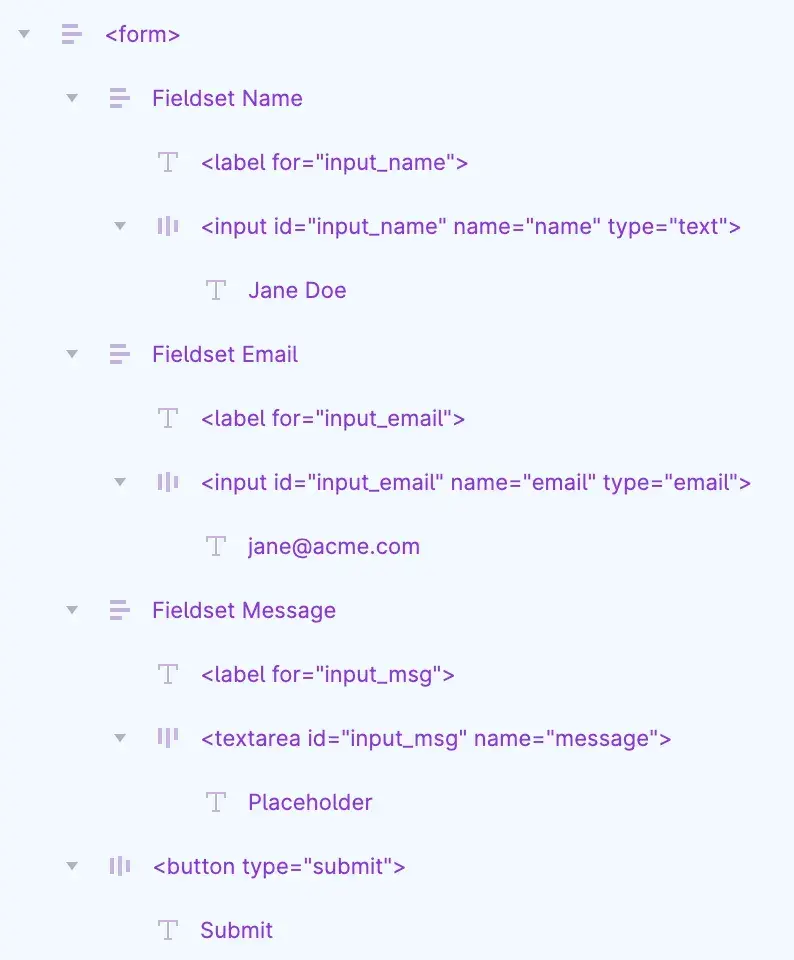
Each label and its input are framed together for convenience only. In your own form, name the top frame with an id, such as <form id="contact">.
Where do submissions go?
When a visitor clicks the type="submit" button, the data entered in the fields is sent to figma.to.website as a submission. See every submission in your website’s dashboard (Go to dashboard in the plugin menu) or in the plugin’s Forms tab.
Submissions are always collected, even past your plan’s monthly limit: upgrade the site to the next level to see all of them.
See it live: the Forms demo in the Designer’s Guide, a site built with figma.to.website.