
Introducing xd.to.design
-

- Name
- Ardena
- @ardena_gonzalez
We’re launching a new Figma plugin today: xd.to.design. It imports your Adobe XD (.xd) files into Figma as fully editable designs.
If you have years of product work sitting in .xd files, you no longer need to rebuild those screens by hand or settle for flat exports. Open the plugin, pick your file, and keep working on your designs in Figma.
Why we built xd.to.design
Adobe XD is in maintenance mode. Adobe’s XD support page states that Adobe is no longer investing in ongoing development or shipping new features, and that it will keep fixing bugs and handling security and privacy updates for existing customers. Adobe also says it will announce an end-of-support date with a significant notice period.
That leaves a lot of design teams with an archive of .xd files and no long-term home for them.
However, Figma doesn’t open XD files natively, accepting Sketch, Figma, FigJam, Figma Slides, PNG, JPG and PowerPoint files, among others. XD is not on the list and xd.to.design fills this gap.
ℹ️ What is an .xd file?
An .xd file is the native document format of Adobe XD, Adobe’s UI/UX design and prototyping app.
How does xd.to.design work?
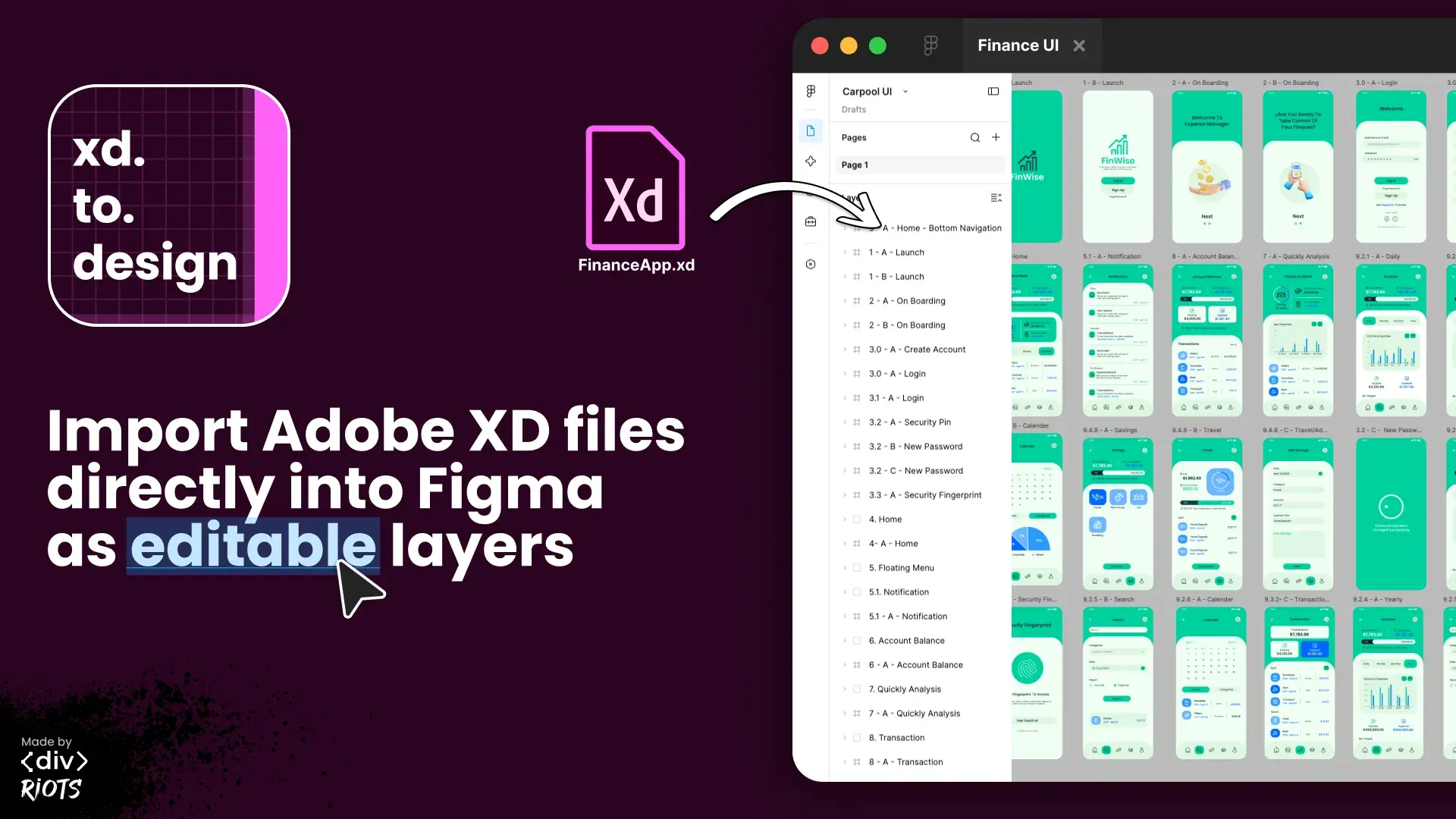
xd.to.design converts your Adobe XD files into editable Figma designs. Instead of a screenshot or a flattened image, you get layers you can select, rename, restyle and reuse in Figma.
It’s also 100% private. An .xd file is structured data, so the whole conversion runs inside the plugin, on your machine: your file is never uploaded to our servers.
- Open a Figma design file.
- Run “xd.to.design” from the plugin menu.
- Select the
.xdfile you want to import. - Choose which artboards to bring in. With ‹div›RIOTS ONE you can import all of them, or a range like
2-5. You can also bring along the artwork left on the pasteboard, outside every artboard. - If the file uses fonts that aren’t available in Figma, pick a replacement for each one.
- Let the plugin convert it, then start editing your XD design in Figma.
Try xd.to.design
Your XD files don’t have to stay stuck in an app that has stopped getting new features. Run xd.to.design in Figma, import your first .xd file, and tell us what you think! You can start using xd.to.design for free with 5 imports as editable layers (first 3 artboards). For unlimited imports and full features, check out our ‹div›RIOTS ONE subscription.
xd.to.design joins our collection of import plugins, which bring files from other tools into Figma as editable designs.
If you’re moving from other Adobe tools to Figma as well, try psd.to.design for Photoshop files and illustrator.to.design for Illustrator files.
Working with documents, PDFs or slide decks? office.to.design and pdf.to.design cover those.
Related guides: