
 (Last update: )
From PDF to Figma; a step-by-step guide
-

- Name
- Ardena
- @ardena_gonzalez
You’ve got a brand guidelines PDF, a client mockup, or an old presentation exported as a PDF, and you need it as editable layers in Figma. Figma cannot import PDF files natively, so opening one straight into a Figma file just isn’t possible without an extra step.
pdf.to.design is a Figma plugin that closes that gap. Drop your PDF into the plugin and it converts every page into either static images or fully editable Figma layers, right inside the file you’re already working in — no external converter, no round trip through another app.
ℹ️ A PDF is a fixed-layout document format — it’s built to look the same everywhere it’s opened, not to be edited. That’s exactly why Figma treats it as a file to view rather than a file to import: there’s no layer structure, font mapping, or vector data exposed the way there is in a native design file.
pdf.to.design reconstructs that structure during import, so the flat PDF becomes something you can actually work with in Figma. Let’s get into how…
From PDF to Figma — Quick Guide
- Run pdf.to.design inside a Figma file.
- Drag and drop your PDF into the plugin (or browse to select it).
- If the file is password-protected, enter the password when prompted.
- Choose static images or editable layers, pick which pages to import, and set your layout (vertical, horizontal, or grid).
- Hit Import.
- Edit the layers directly in Figma.
How to import a PDF into Figma (and edit it!)
In just a few steps you can bring your PDF to Figma as fully editable layers. Here’s how…
Step 1. Run pdf.to.design
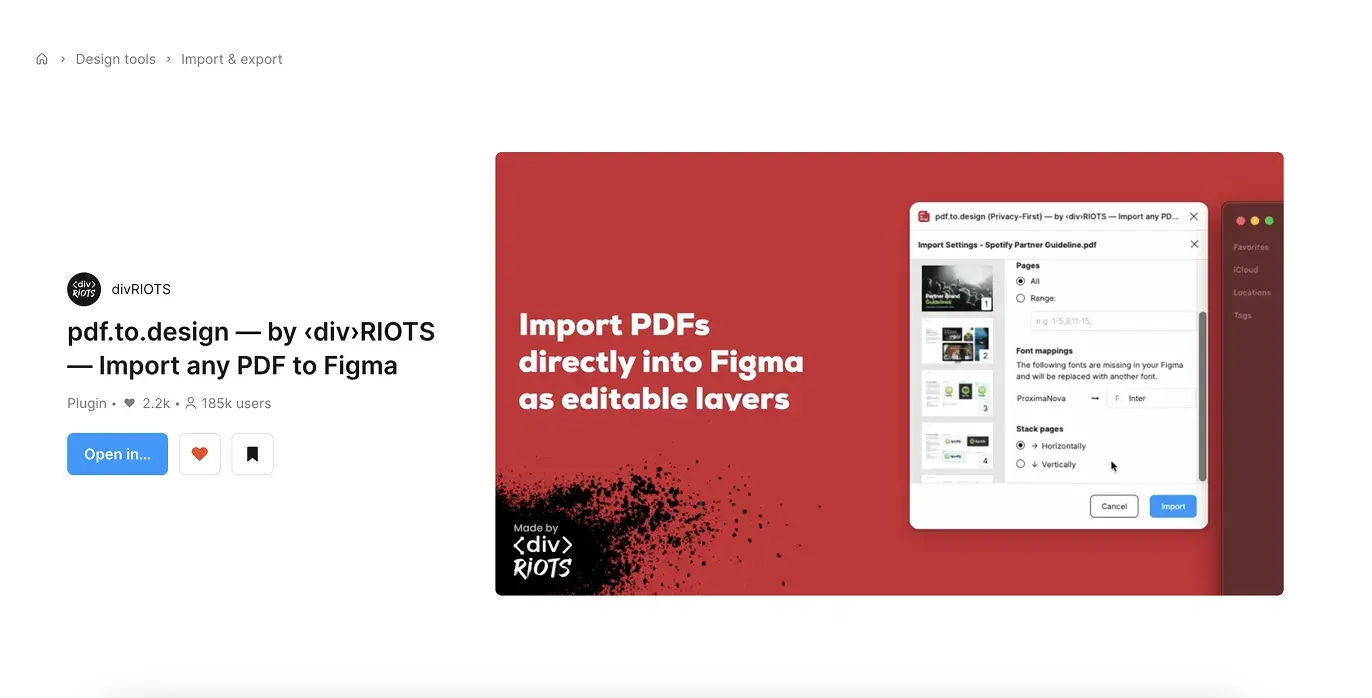
Open a Figma file and launch pdf.to.design from the plugins menu.
Step 2. Bring your PDF into Figma
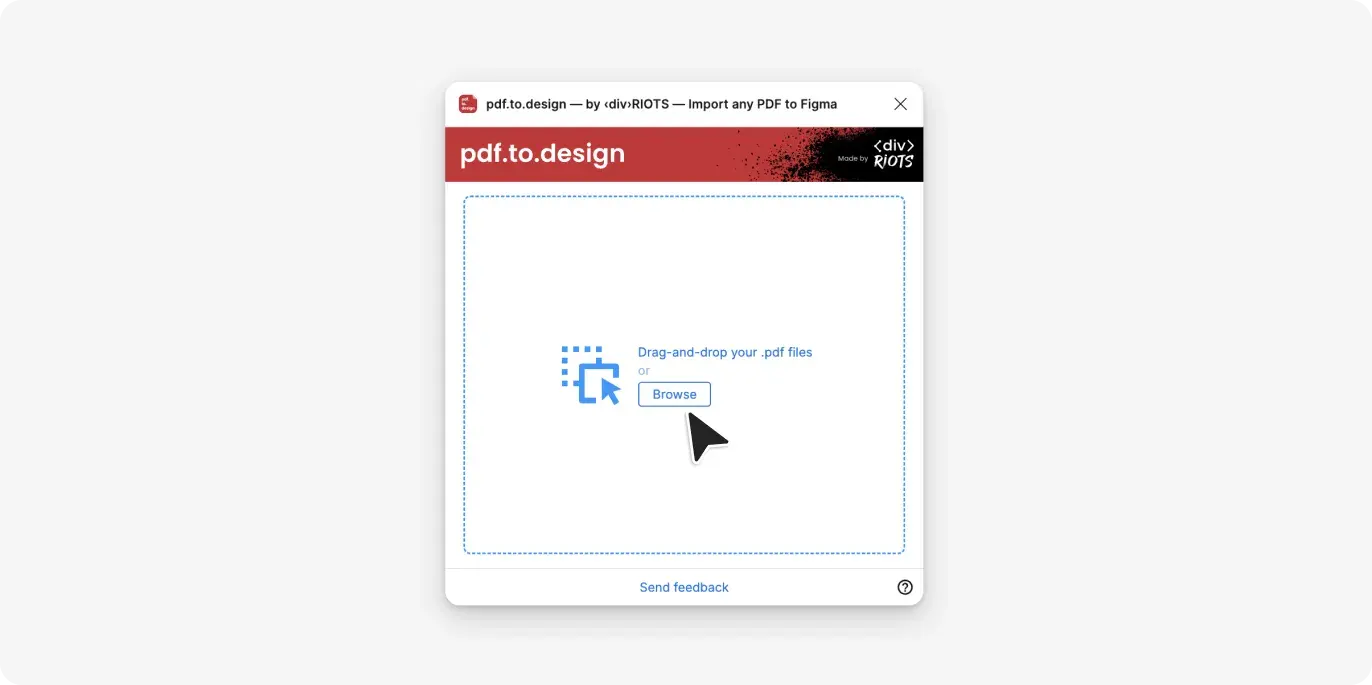
Drag and drop your PDF file into the plugin window, or click to browse your files and select it manually.
Step 3. Unlock password-protected files (if needed)
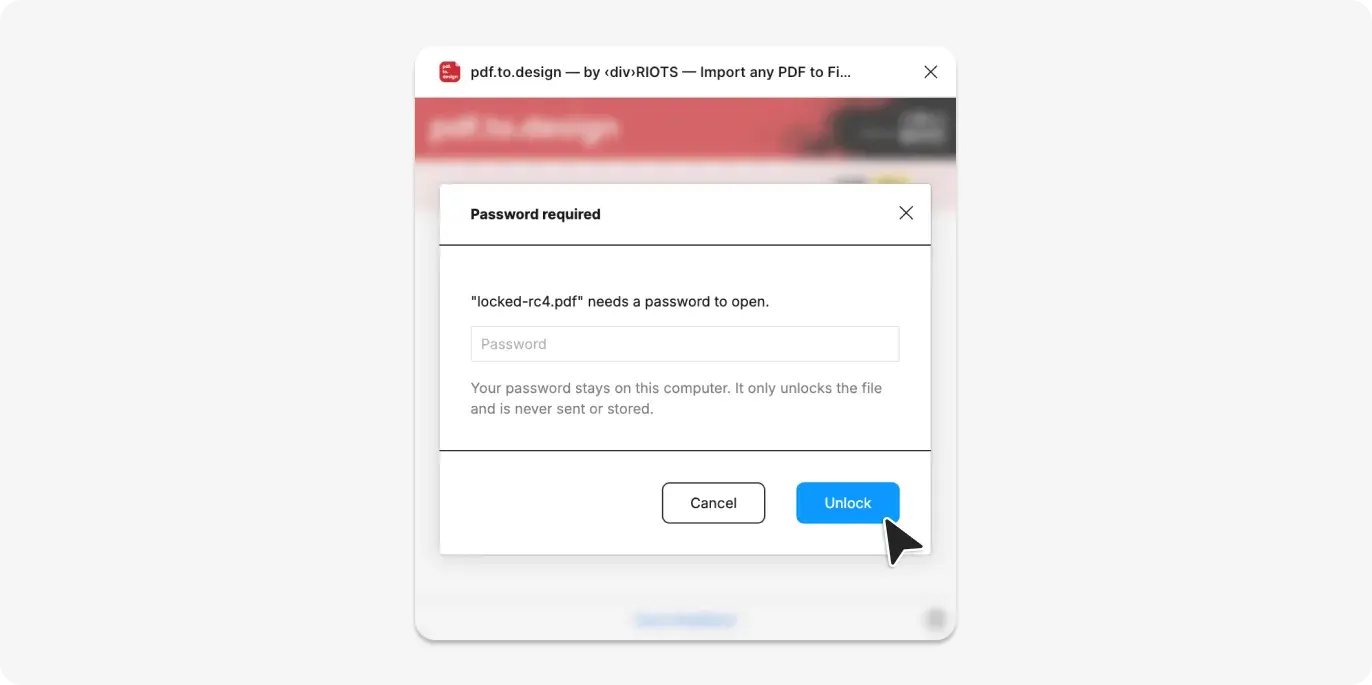
If your PDF has password protection, the plugin prompts you for the password before it reads the file. Enter it, and the plugin unlocks the document as part of the import flow — you don’t need to strip the password with a separate tool first.
Step 4. Choose your import method and layout
Select static images or editable layers. If you only need a subset of the document, deselect the pages you don’t want, and map any missing fonts to a font available in your workspace. Then choose how the pages are arranged: stacked vertically, stacked horizontally, or arranged in a grid.
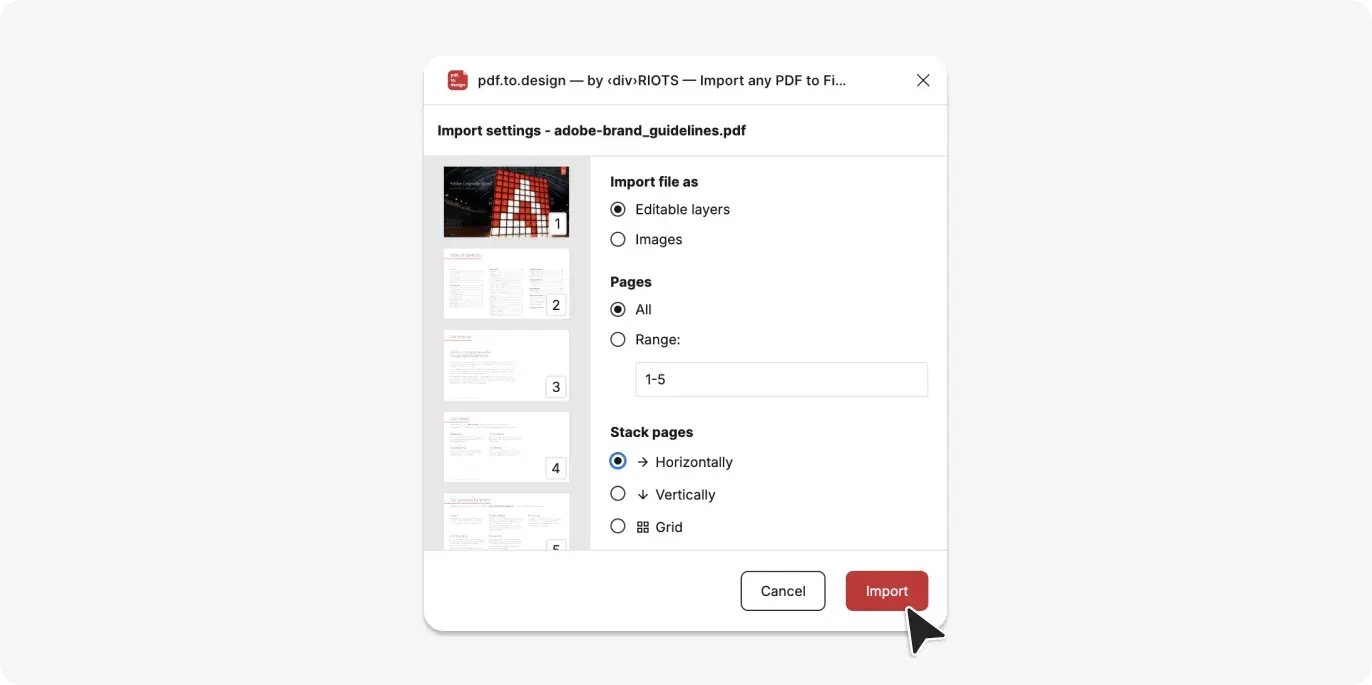
💡 The layout choice matters more than it looks. A long vertical stack works well for reading a document top to bottom, a horizontal row suits a presentation you’ll scroll through side to side, and a grid is the fastest way to see every page of a multi-page document at once without scrolling in either direction.
Step 5. Start editing your PDF!**
If you imported your PDF as editable layers, you can start editing any layer as you normally would in Figma!
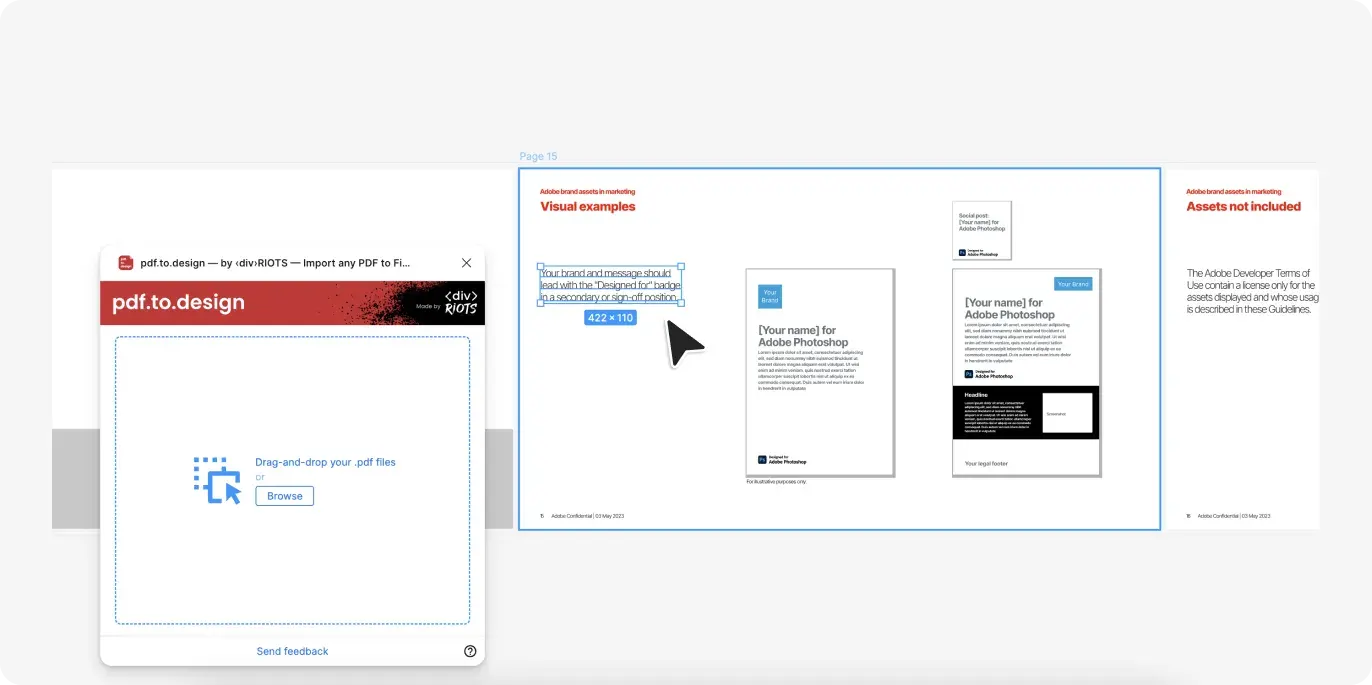
🚀 BONUS: When you’re done, you can always convert your edited designs back into a PDF file with our companion plugin export.design.
Why import your PDFs into Figma with pdf.to.design?
Visual accuracy
All your PDF elements are converted into editable Figma vectors, while respecting visual accuracy. Each shape, icon or path element remains the same from PDF to Figma. No need to waste time fiddling and fixing SVG import issues. pdf.to.design converts all elements seamlessly one by one to assure 100% compatibility.
Seamlessly migrate your work into Figma
By using pdf.to.design to import files, you can focus more on your design work and less on file formats and processes. Migrate anything from presentations to brand sheets, and even between tools! Go from PowerPoint to Figma, or even Canva to Figma, in just a few clicks. Multi-page PDFs are imported and automatically organized within a section, where each page is a separate frame. Migration is so seamless, you’ll have all your old PDFs in Figma in no time.
All design elements are 100% editable
The best thing about pdf.to.design is that all elements in your imports are 100% editable. You can move layers around and edit them as you normally would, allowing you to tweak and update PDFs directly in Figma.
What gets converted?
Layers and vectors
Shapes, icons, and paths in your PDF convert into editable Figma vectors, keeping the same geometry they had in the source file.
Typography
Text imports as editable text layers. If a font used in the PDF isn’t available in your Figma workspace, the plugin flags it during import so you can map it to a font you have.
Images
Images are imported as native Figma images, rather than frames with an image fill.
Page layout
Multi-page PDFs are organized into a section, with each page as its own frame. You choose whether those frames stack vertically, horizontally, or sit in a grid.
Password protection
Encrypted PDFs are supported through the password step described above — the plugin needs the correct password to read and convert the file.
Layer structure and organization
Each imported page becomes its own frame inside a shared section, which keeps a multi-page document readable in the layers panel instead of dumping every element into one flat list. That structure holds regardless of which layout you pick — grid, vertical, or horizontal only changes where the frames sit on the canvas, not how they’re organized underneath.
Try it out!
If you need a way to transform your old PDF documents into editable Figma designs, look no further. pdf.to.design is the fastest way to import your PDFs directly into Figma in one go, seamlessly converting all elements into editable Figma vectors.
FAQ
Q: Can I import a password-protected PDF into Figma?
Yes. pdf.to.design prompts you for the password before it reads the file, so you can import a protected PDF without decrypting it in a separate tool first.
Q: How are images imported from a PDF into Figma?
Images now import as native Figma image objects rather than frames with an image fill applied, so you can crop, resize, and swap them the same way you would any image placed directly in Figma.
Q: Can I control how multi-page PDFs are laid out after import?
Yes. You can arrange imported pages vertically, horizontally, or in a grid, in addition to the section-and-frame structure each page gets automatically.