
How to convert presentations into Figma Slides
- Name
- Ardena
- @ardena_gonzalez

If your presentation lives in PowerPoint, Keynote, Google Slides, Canva, Gamma, or an AI slide tool like Claude, you can bring it into Figma Slides as fully editable layers — no manual rebuilding, no copy-pasting your way through 40 slides.
Find your source tool below and follow the steps to convert any presentation into Figma Slides. Every method uses one of two ‹div›RIOTS plugins — office.to.design or html.to.design.
Find your presentation tool
Select the presentation tool of your deck to jump to its specific guide below.
| Presentation tool | File type needed | Plugin to use |
|---|---|---|
 PowerPoint |
.pptx, .pot, .potx, .ppt, .pptm, .pps, .ppsx |
office.to.design |
 Keynote |
.key |
office.to.design |
 OpenOffice |
.odp, .odt |
office.to.design |
 Google Slides |
N/A | html.to.design |
 Bolt.new |
N/A | html.to.design |
 Canva |
N/A | html.to.design |
 Claude |
N/A | html.to.design |
 Gamma |
N/A | html.to.design |
 Genspark |
N/A | html.to.design |
 Manus.im |
N/A | html.to.design |
 Pitch |
N/A | html.to.design |
ℹ️ Don’t see your tool in this list? Check if it can export to PDF — if so, pdf.to.design has you covered!
Why convert a presentation into Figma Slides?
A few reasons this comes up constantly:
- Real multiplayer editing. Traditional presentation tools weren’t built for several people to design in the same file at once. Figma Slides was.
- One home for content and design. If your brand assets and components already live in Figma, your presentation can pull from the same source instead of sitting in a separate silo.
- Old decks become templates. An imported deck can be reused as a starting point instead of building the next one from a blank canvas.
PowerPoint
What you need: any of the following files → .pptx, .pot, .potx, .ppt, .pptm, .pps, .ppsx. No conversion required.
- Open the Figma Slides file where you want the presentation to land.
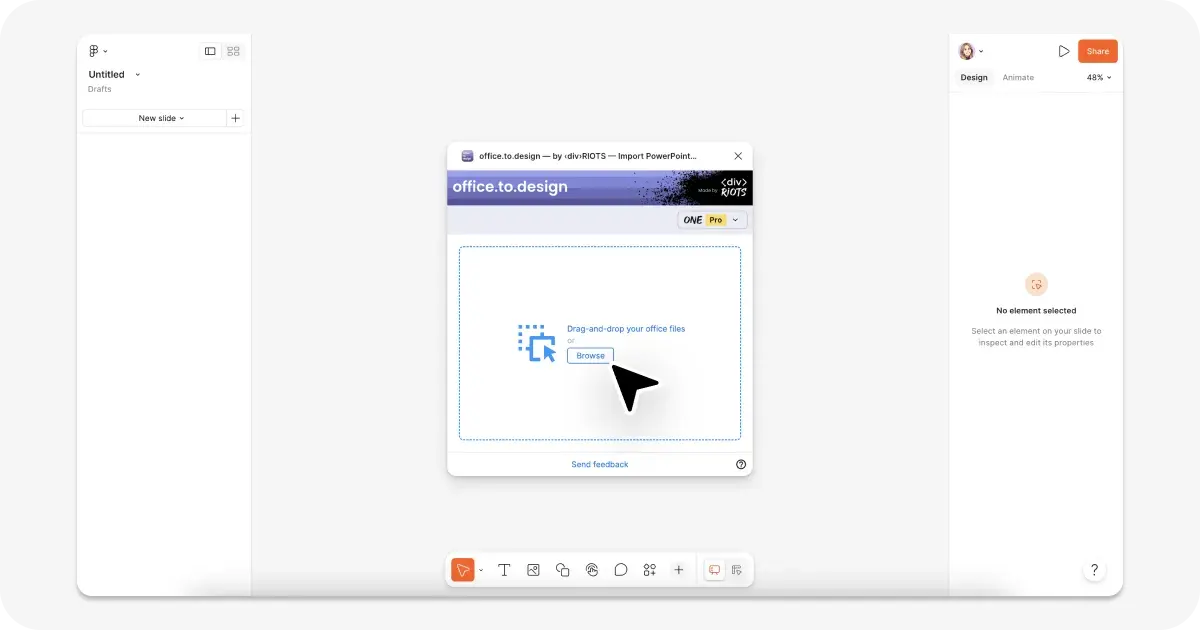
- Run office.to.design from the Figma plugin panel.
- Upload or drag-and-drop your
.pptxfile. - Adjust settings if needed — font mappings, page range (Pro), frame stacking.
- Edit your slide deck right in Figma Slides!
Keynote
What you need: your .key file. No conversion required.
- Open the Figma Slides file where you want the presentation to land.
- Run office.to.design from the Figma plugin panel.
- Upload or drag-and-drop your
.keyfile. - Adjust settings if needed — font mappings, page range (Pro), frame stacking.
- Edit your slide deck right in Figma Slides!
OpenOffice / StarOffice Impress
What you need: your .odp or .odt file. No conversion required.
- Open the Figma Slides file where you want the presentation to land.
- Run office.to.design from the Figma plugin panel.
- Upload or drag-and-drop your
.odpfile. - Adjust settings if needed — font mappings, page range (Pro), frame stacking.
- Edit your slide deck right in Figma Slides!
Google Slides
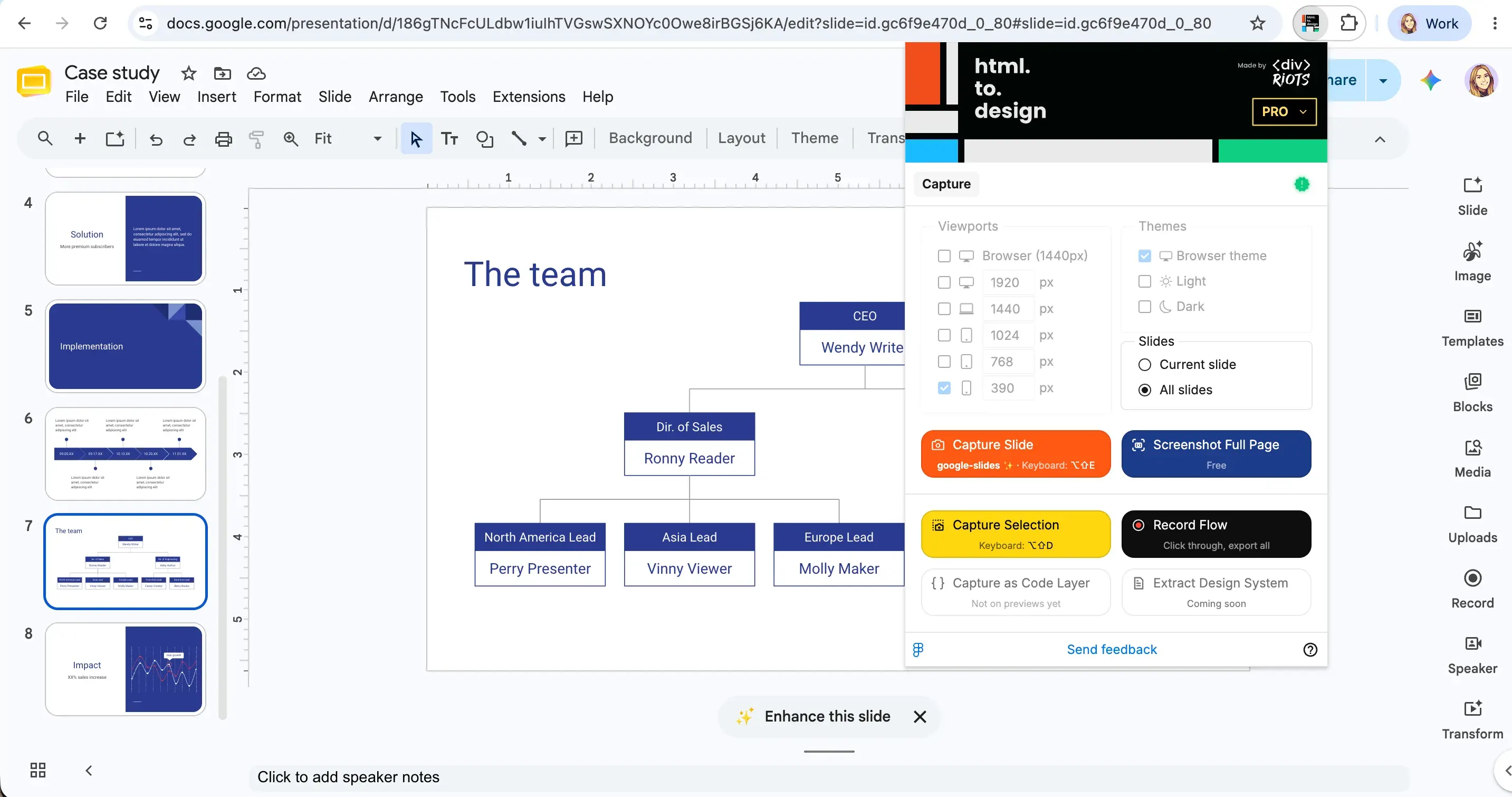
- While previewing your Google Slides presentation, run the html.to.design browser extension.
- Select whether to capture the current slide or all slides, then click “Capture slide”.
- Choose how to complete the import into Figma - we recommend “Send to Figma”.
- In your Figma Slides file, run the html.to.design Figma plugin.
- Go to the “Extension” tab and import your Google Slides deck.
- Your deck lands in Figma Slides, ready to edit.
Canva
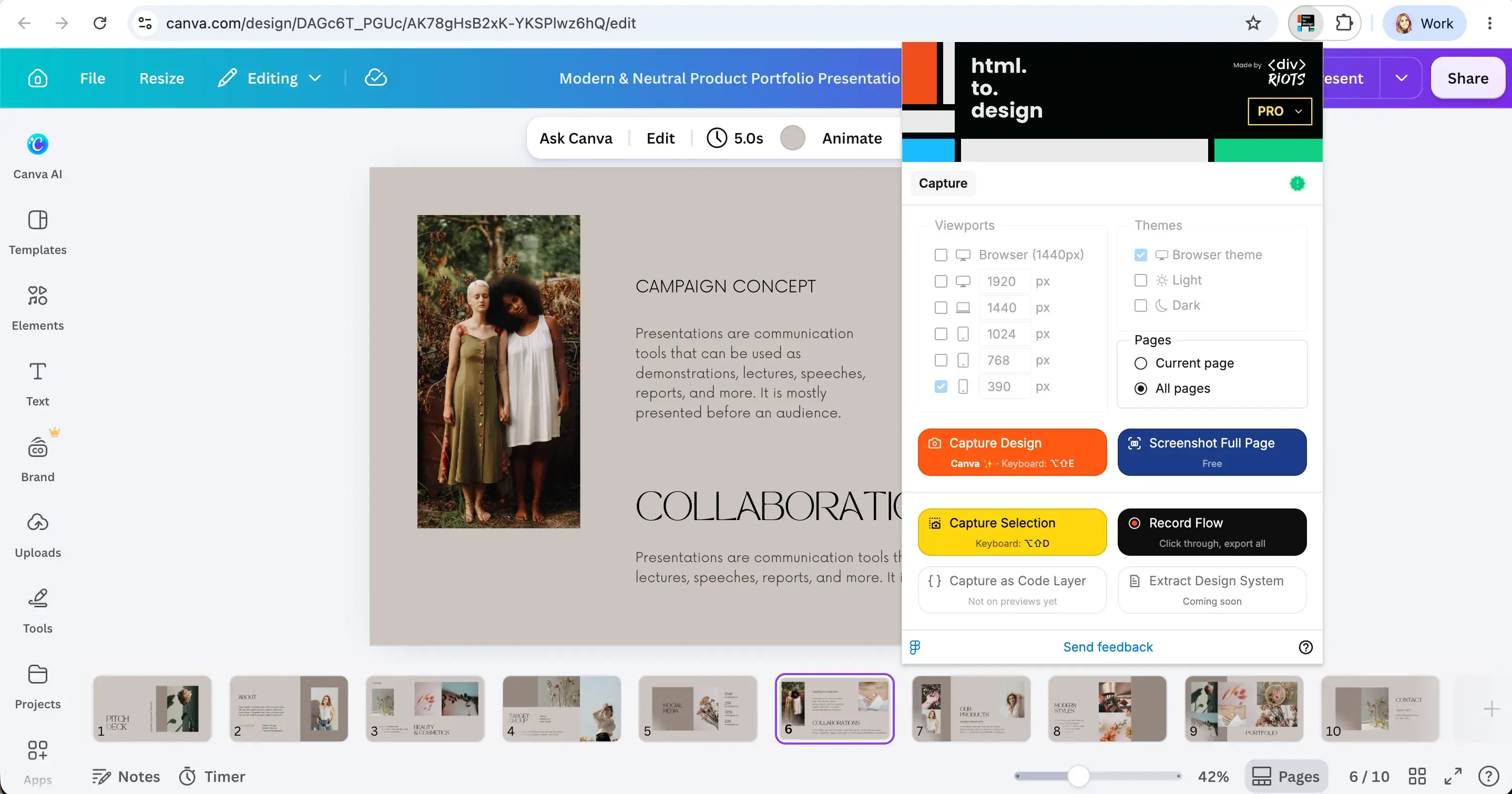
- While previewing your Canva slide deck, run the html.to.design browser extension.
- Select whether to capture the current page or all pages, then click “Capture design”.
- Choose how to complete the import into Figma - we recommend “Send to Figma”.
- In your Figma Slides file, run the html.to.design Figma plugin.
- Go to the “Extension” tab and import your Canva presentation.
- Your deck lands in Figma Slides, ready to edit.
Bolt.new
- While previewing your Bolt.new slide deck, run the html.to.design browser extension.
- Select whether to capture the current slide or all slides, then click “Capture slide”.
- Choose how to complete the import into Figma - we recommend “Send to Figma”.
- In your Figma Slides file, run the html.to.design Figma plugin.
- Go to the “Extension” tab and import your Bolt presentation.
- Your deck lands in Figma Slides, ready to edit.
Claude
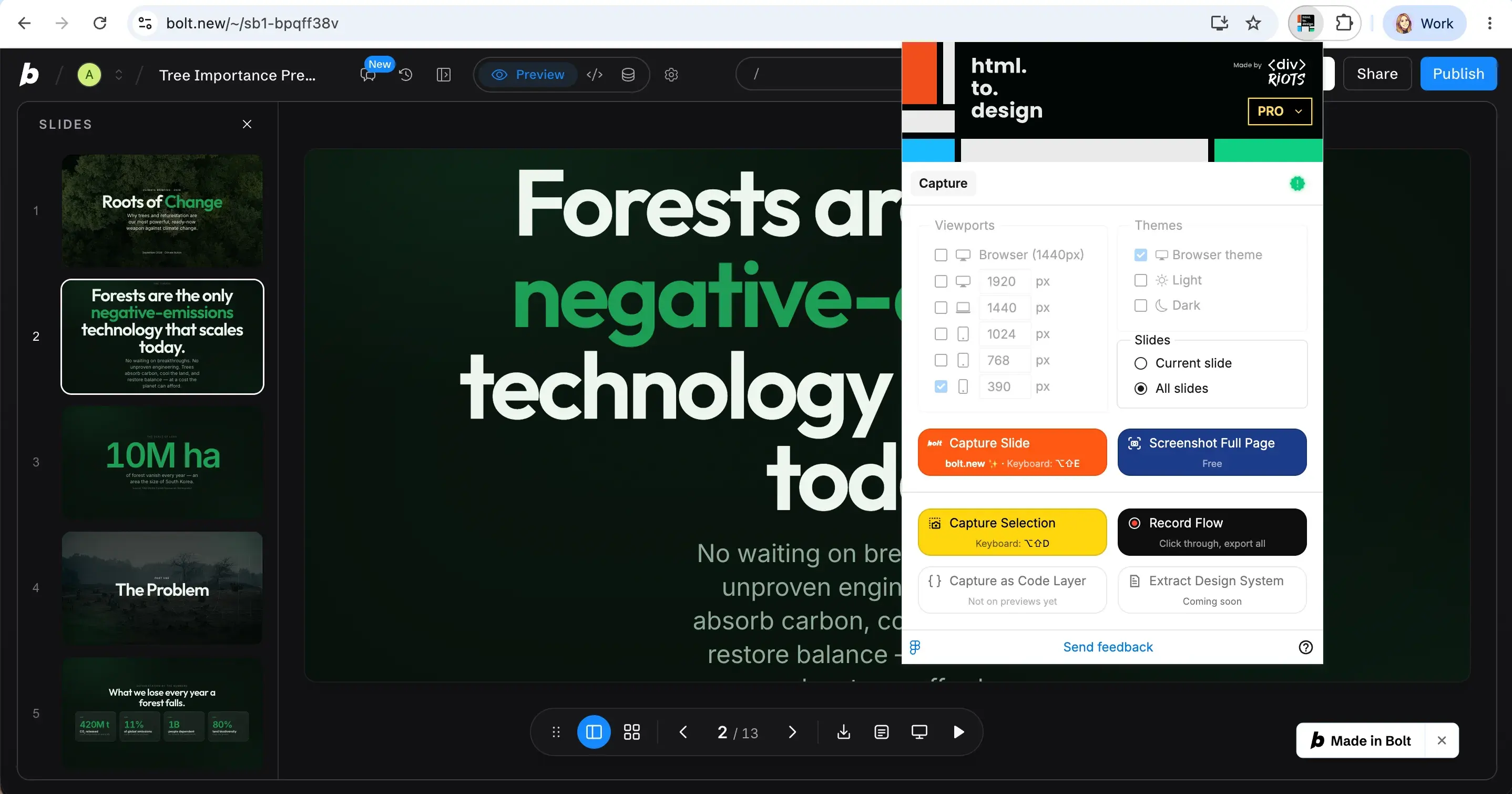
- While previewing your Claude slide deck, run the html.to.design browser extension.
- Select whether to capture the current slide or all slides, then click “Capture slide”.
- Choose how to complete the import into Figma - we recommend “Send to Figma”.
- In your Figma Slides file, run the html.to.design Figma plugin.
- Go to the “Extension” tab and import your Claude presentation.
- Your deck lands in Figma Slides, ready to edit.
Gamma
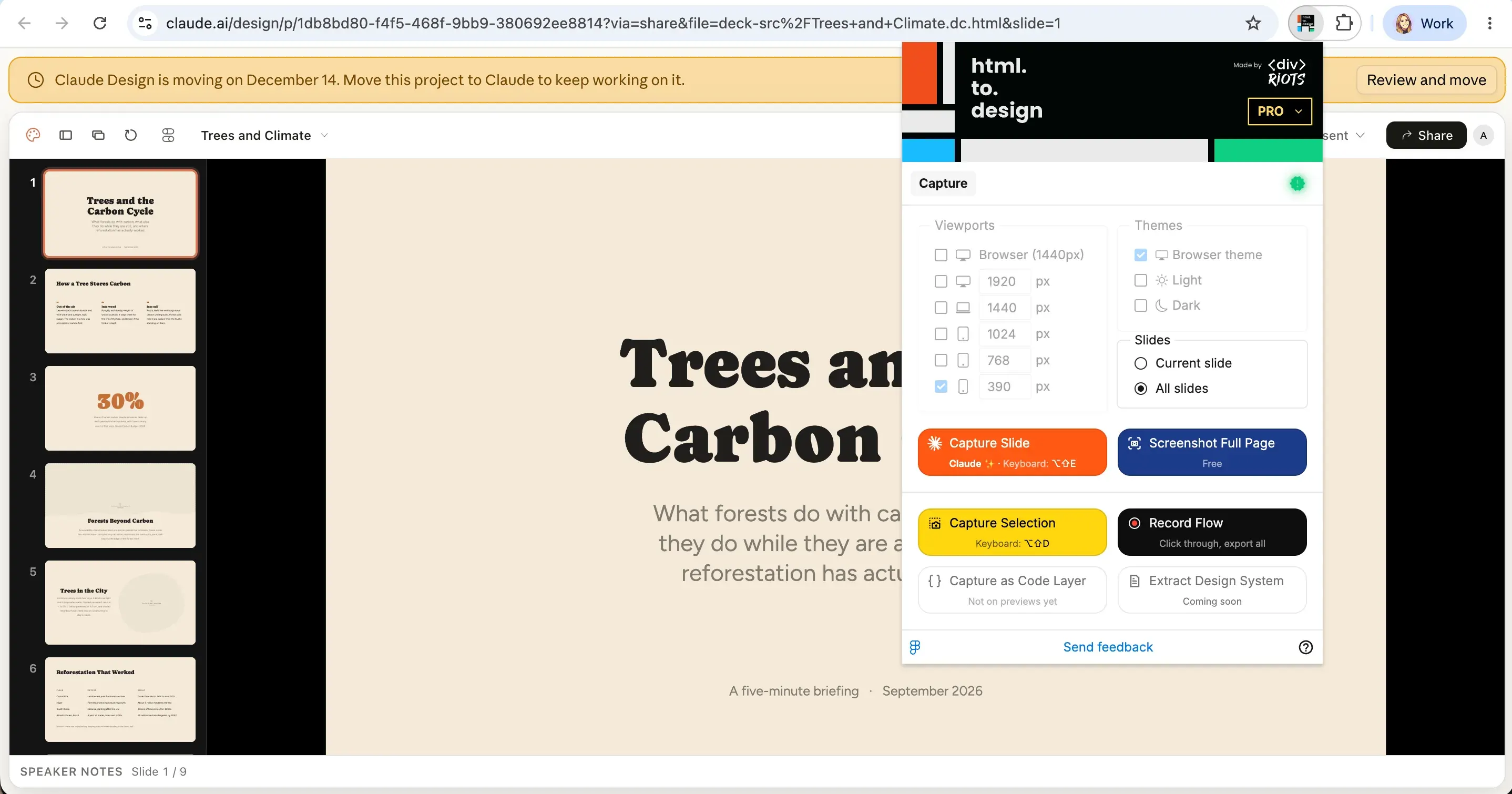
- While previewing your Gamma slide deck, run the html.to.design browser extension.
- Click “Capture preview”.
- Choose how to complete the import into Figma - we recommend “Send to Figma”.
- In your Figma Slides file, run the html.to.design Figma plugin.
- Go to the “Extension” tab and import your Gamma presentation.
- Your deck lands in Figma Slides, ready to edit.
Genspark
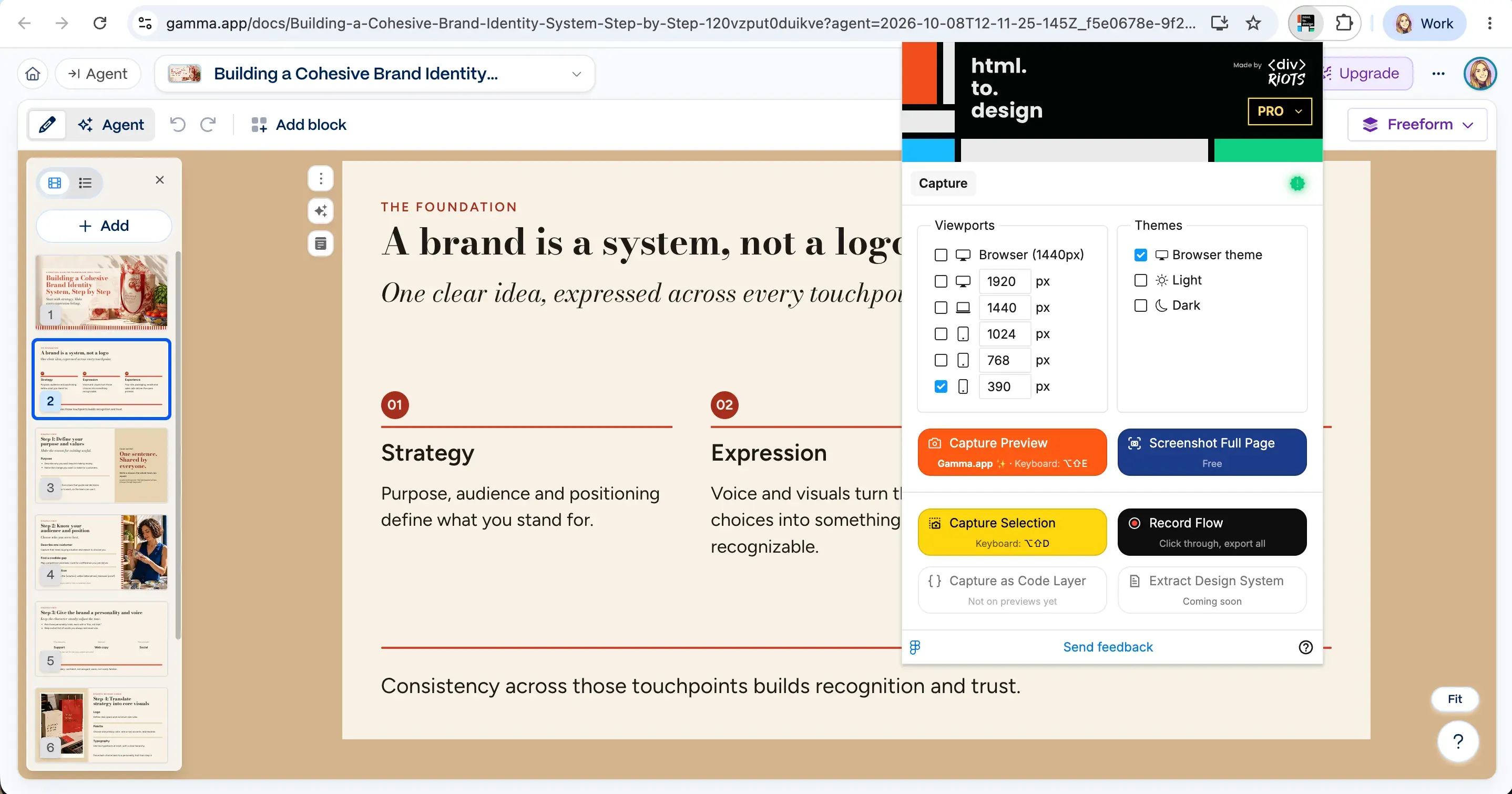
- While previewing your Genspark slide deck, run the html.to.design browser extension.
- Click “Capture preview”.
- Choose how to complete the import into Figma - we recommend “Send to Figma”.
- In your Figma Slides file, run the html.to.design Figma plugin.
- Go to the “Extension” tab and import your Genspark presentation.
- Your deck lands in Figma Slides, ready to edit.
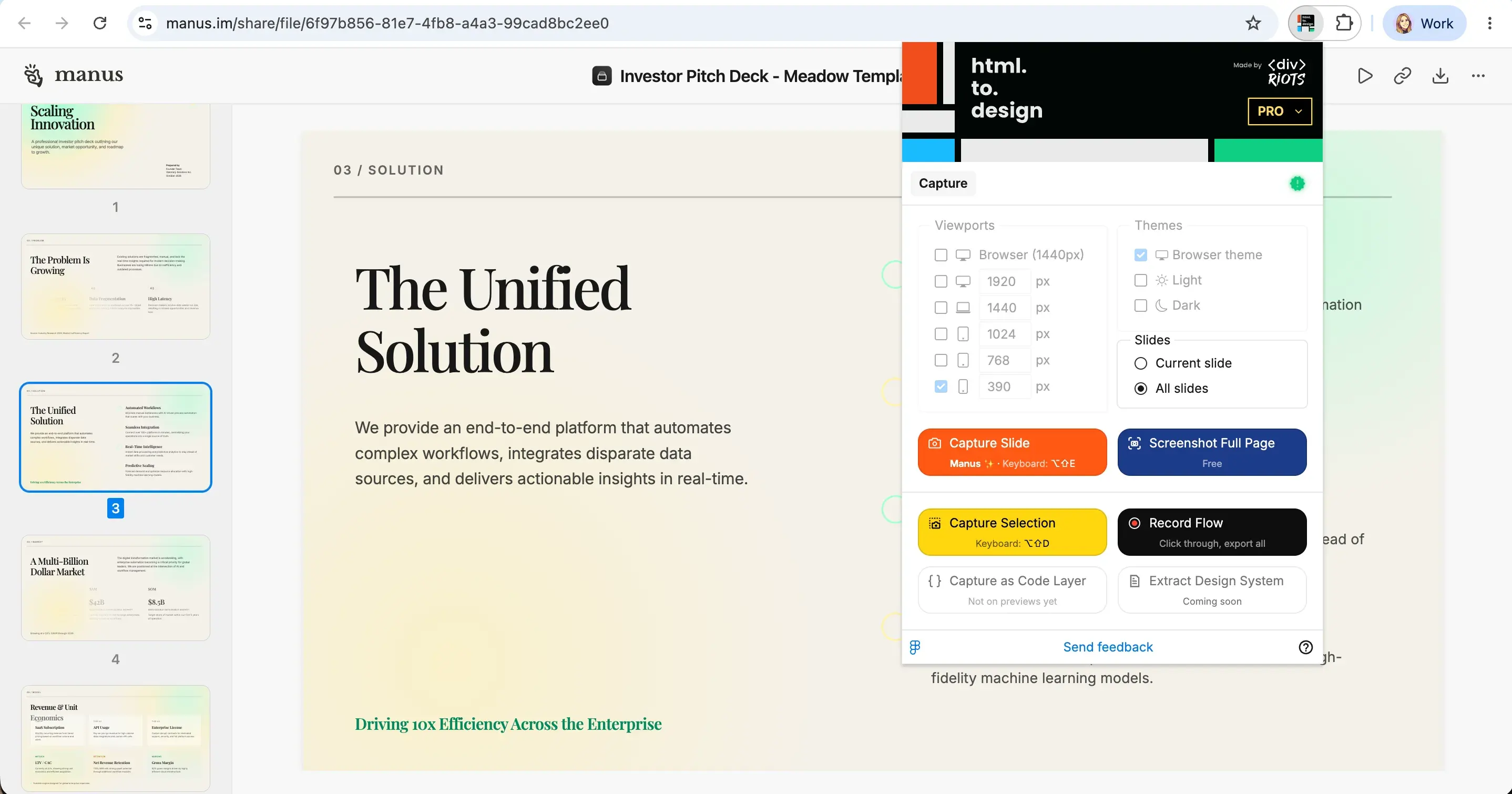
Manus.im
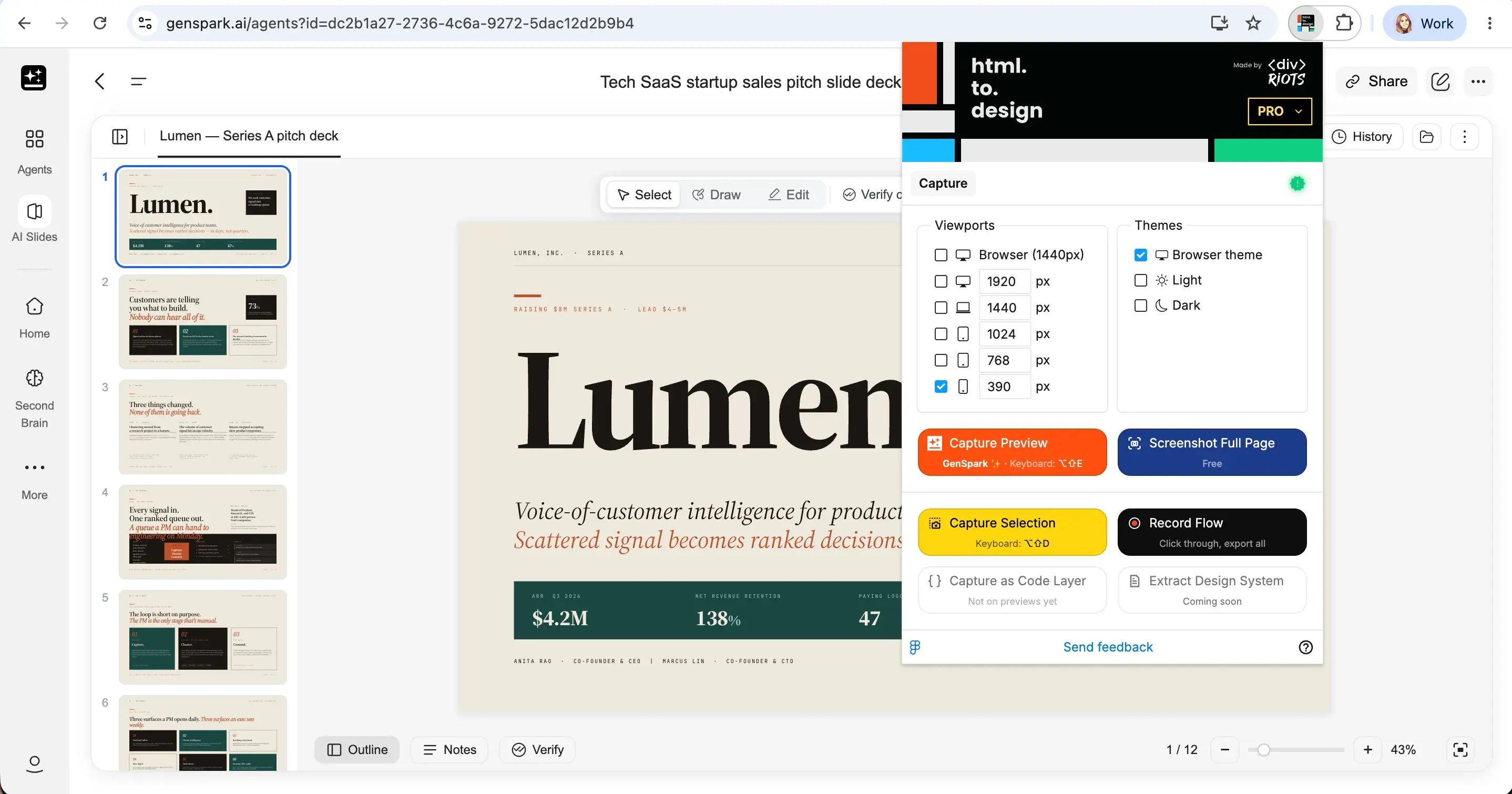
- While previewing your Manus slide deck, run the html.to.design browser extension.
- Select whether to capture the current slide or all slides, then click “Capture slide”.
- Choose how to complete the import into Figma - we recommend “Send to Figma”.
- In your Figma Slides file, run the html.to.design Figma plugin.
- Go to the “Extension” tab and import your Manus presentation.
- Your deck lands in Figma Slides, ready to edit.
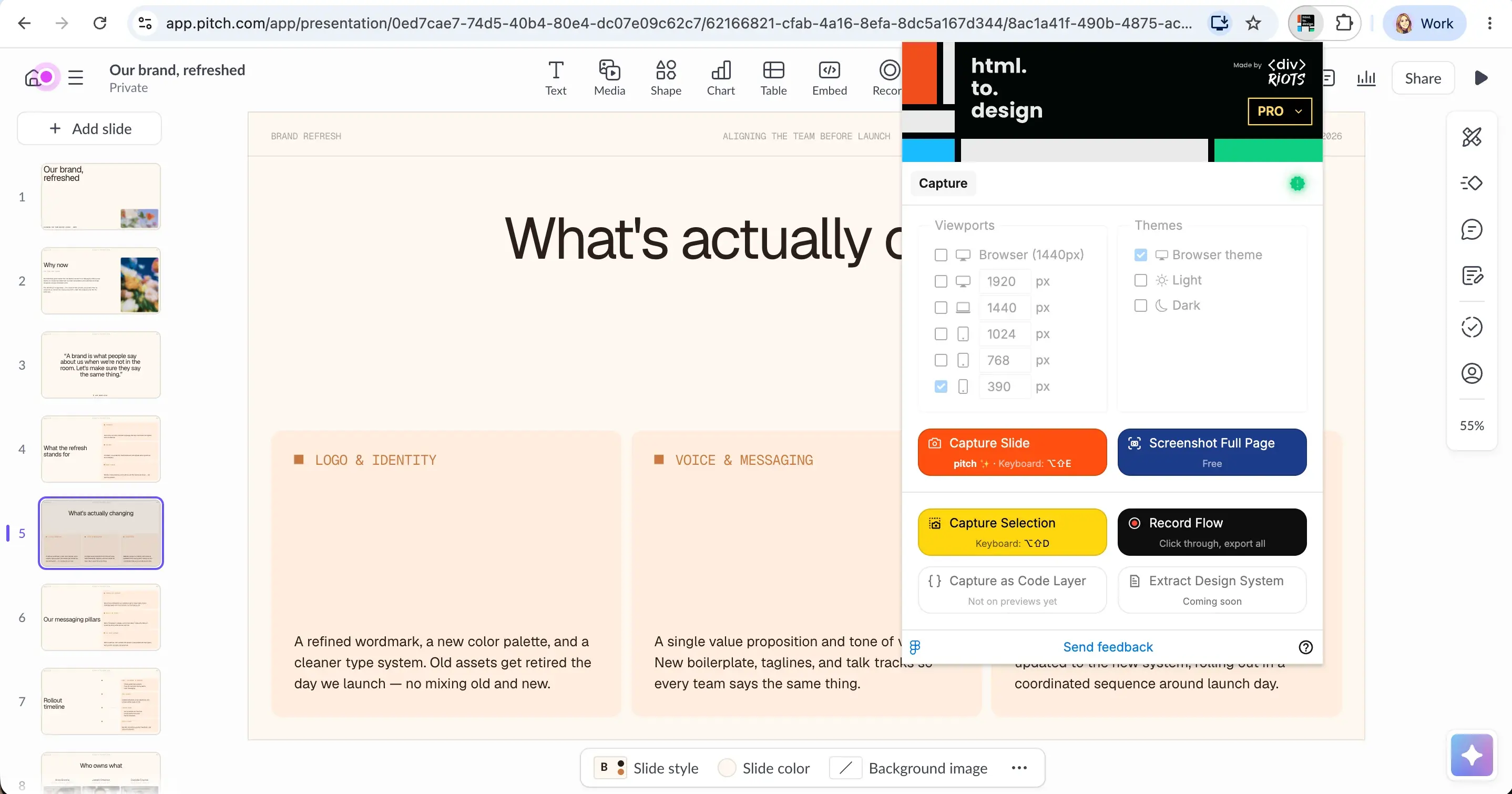
Pitch
- While previewing your Pitch slide deck, run the html.to.design browser extension.
- Click “Capture slide”.
- Choose how to complete the import into Figma - we recommend “Send to Figma”.
- In your Figma Slides file, run the html.to.design Figma plugin.
- Go to the “Extension” tab and import your Pitch presentation.
- Your deck lands in Figma Slides, ready to edit.
Bring any slide deck into Figma
Getting a presentation into Figma Slides as editable layers comes down to matching the file type to the right path: office.to.design for native PowerPoint, Keynote, and OpenOffice files, html.to.design for Google Slides and most AI tools. Run the plugin directly inside your Figma Slides file, and the result is ready to present without a separate move-and-reformat step.
If you’re also dealing with Word documents, PDFs, or files from Adobe tools, check out our guide on importing office documents into Figma, or see the full plugin lineup at ‹div›RIOTS. For access to every import plugin under one plan, take a look at ‹div›RIOTS ONE.
FAQ
Q. Will my fonts carry over when I import a presentation into Figma?
Yes — both plugins include font-mapping during import, so you can substitute equivalents for any fonts you don’t have. If you want your exact font to map correctly, it needs to be downloaded and existing in Figma before importing.
Q. Does this preserve animations or slide transitions?
No — imports capture each slide as static, editable content. Motion doesn’t carry over, since Figma Slides handles animation differently.
Q. Can I reuse an imported deck as a template?
Yes — this is one of the most common reasons teams do this migration. Import the deck, keep the content, restyle it with your current design system.
Q. Do I need a separate subscription for each plugin?
No — office.to.design and html.to.design are both included in ‹div›RIOTS ONE, which covers dozens of file types under one subscription.