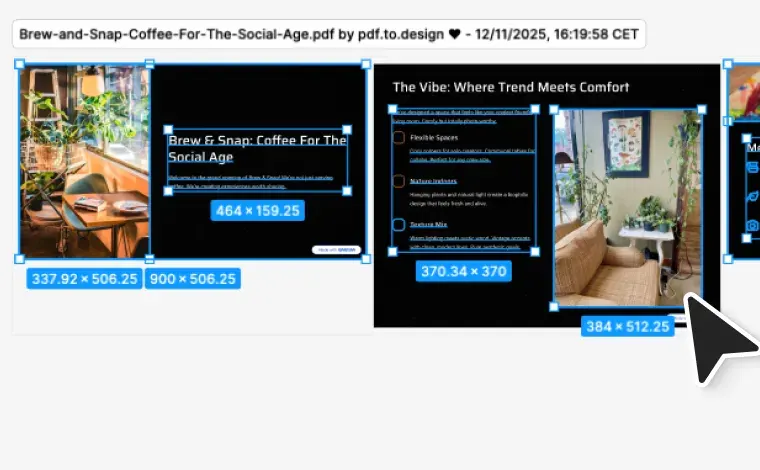
Plug PDF conversion into your own app, script or pipeline. POST /convert, poll the job, then download Figma-ready output — no browser tab, no plugin, nobody clicking Import.
output.format — pick one
Clipboard data you paste onto the Figma canvas as native, editable layers.
2 credits per PDF, whichever output format you pick.
curl https://api.divriots.com/v1/convert \
-H "Authorization: Bearer $API_KEY" \
-H "Content-Type: application/json" \
-d '{
"input": { "format": "pdf",
"url": "https://…/report.pdf",
"range": "1-3" },
"output": { "format": "figma-clipboard" }
}'
Response2 credits
202Accepted · job queued
200GET /convert/jobs/{jobId}"done"
resultUrl → paste into Figma
reportSECTION
Page 1FRAME
Page 2FRAME
Page 3FRAME
How it works
1 · Upload
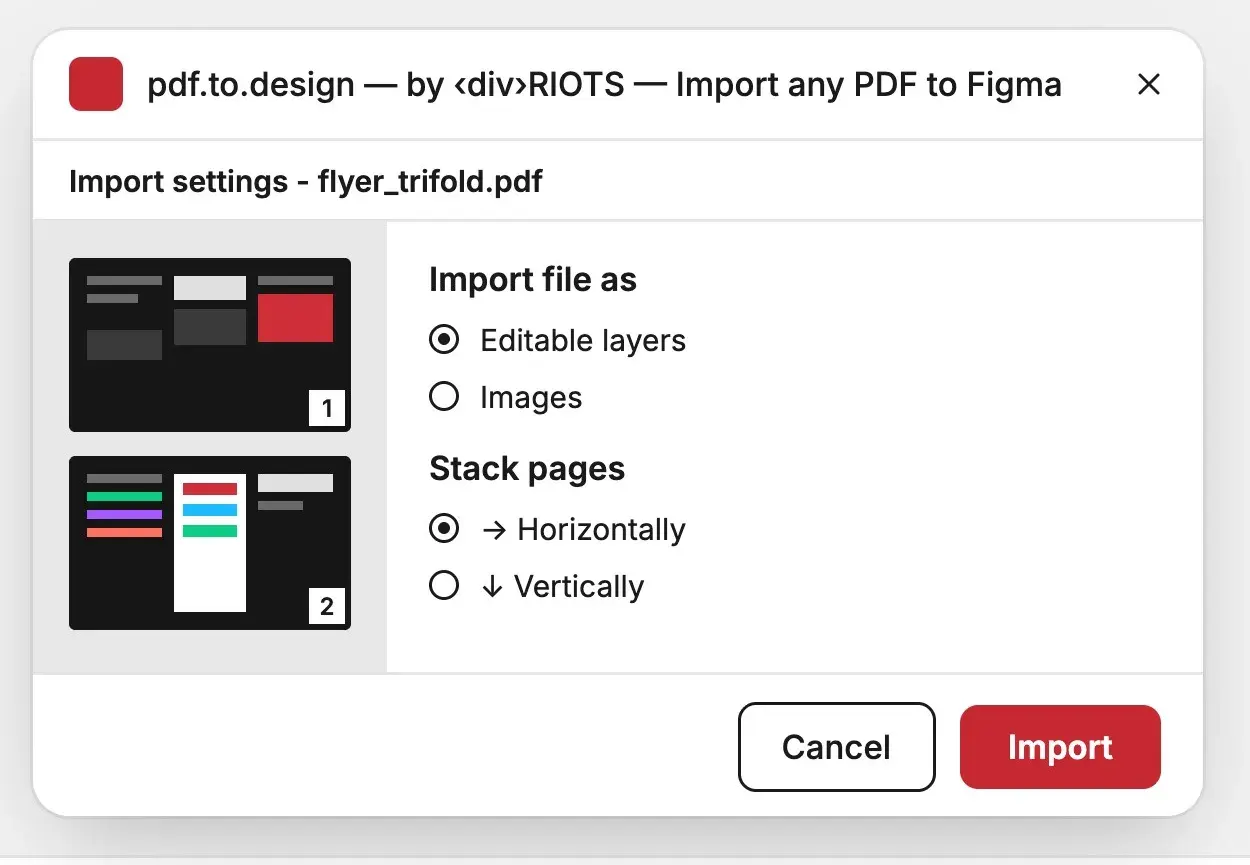
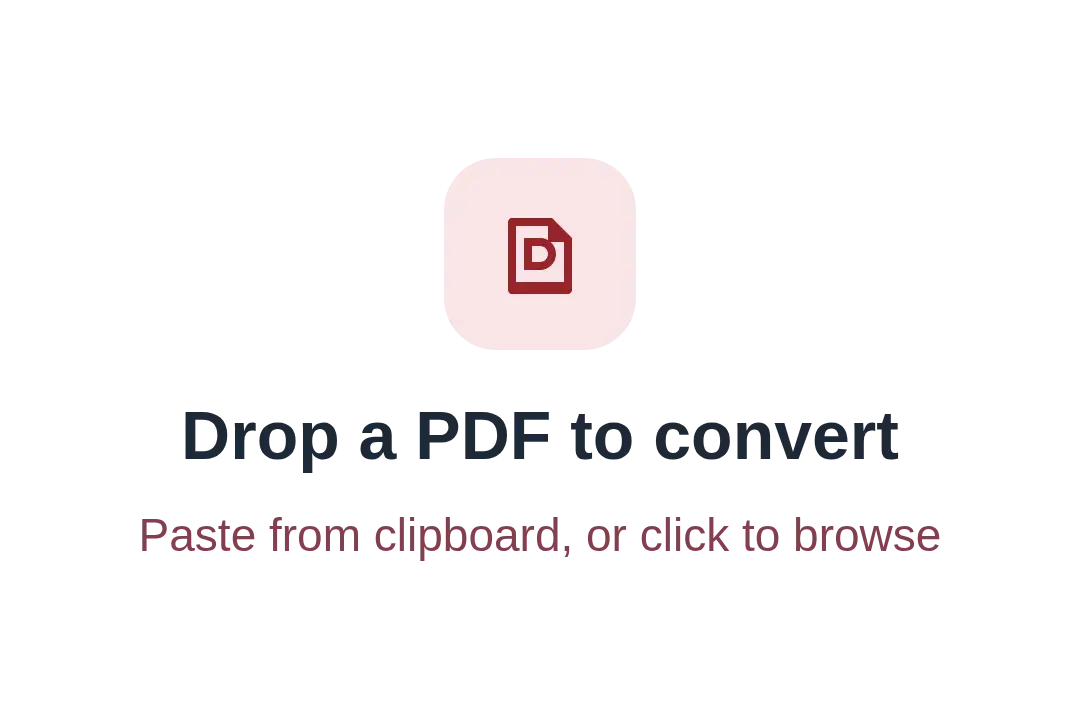
Drop a PDF — a deck, brochure, report, or an export from Canva, InDesign, Illustrator or Office. Multi-page is fine.
2 · Convert
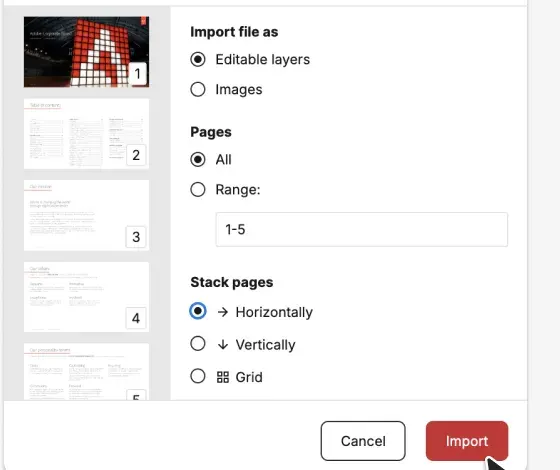
Pick all pages or a range, then the engine reads the document — text, fonts, vectors and images — page by page. No prompt to write. Password-protected? Enter the password when asked.
3 · Edit in Figma
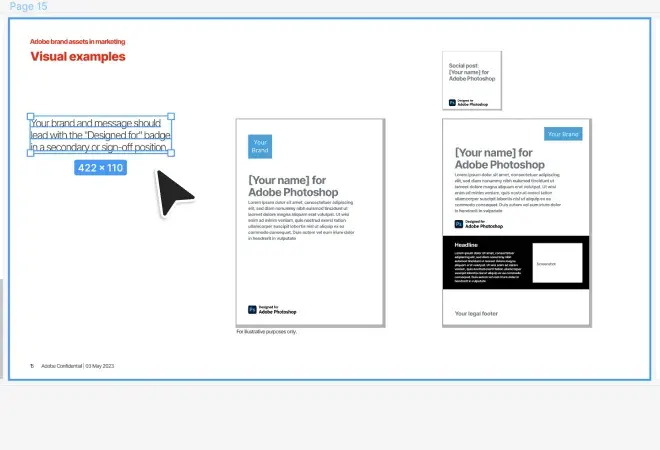
With the plugin, pages land straight on your canvas, ready to edit. From the web app, copy the result and paste it into Figma — either way, fully editable layers, every page you picked.
pdf.to.design vs the alternatives
Most PDF importers flatten each page into a single picture.
pdf.to.design is purpose-built to rebuild a document as a Figma design,
with editable layers instead of a static image. Here's how they compare.
How pdf.to.design compares with basic PDF importers when turning a
PDF into a Figma design.
What you get back
Basic PDF importers
pdf.to.design
Text
Flattened into the page image
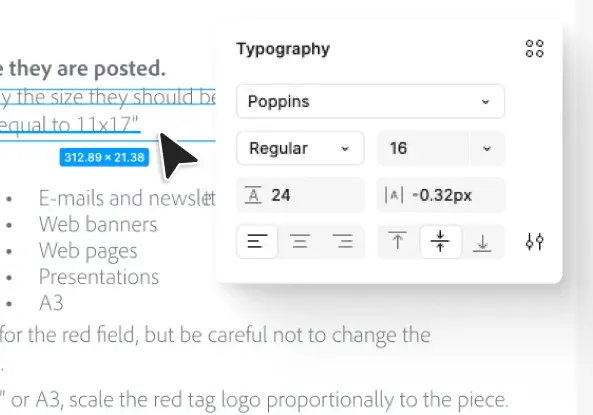
Real, editable Figma text
Fonts
Lost
Detected & mapped to yours
Vectors & shapes
Rasterized
Kept as editable vectors
Images
Baked into one flat image
Imported as native Figma images
Pages
One flat image per page
A frame per page — plugin: stack H, V or grid; web app: stacked vertically