
The best way to import Figma designs into Claude
- Name
- Pierrick
- @S3kelman1

You’ve finished a frame in Figma, opened Claude to turn it into code, and the upload picker won’t take your .fig file. Claude doesn’t accept Figma files as regular uploads: its supported upload types cover documents such as PDF, DOCX and HTML, plus JPEG, PNG, GIF and WebP images (Claude’s upload guide, as of October 2026). A .fig file is a Figma design file saved locally, which isn’t on that list.
export.design closes the gap. It exports your Figma frames as HTML, the markup format browsers render and a format Claude already reads. One export works in Claude and Claude Code, carries the frame’s real text, vectors, images and flex layout, and needs no connector or MCP server. This guide walks through the HTML route step by step, then compares it with screenshots and Figma’s MCP server so you know when each one fits.
export.design comes as a Figma plugin and a web app. Both follow the steps below and export the same formats, with one change of order in the web app: you choose its output before you paste your frames in. The web app runs in your browser, with no plugin to install, no admin approval and no Figma file access to grant: you only sign in to your ‹div›RIOTS account.
Quick guide: how to import Figma into Claude
- In Figma, select the frames you want in Claude.
- Open export.design and load your selection.
- Choose Web page output with Inline CSS styling.
- Export and download the HTML: one folder per frame, with the images in a shared
_assets/imagesfolder. - Upload the HTML and image files to Claude.
- Tell Claude what to build.
How to import Figma into Claude with export.design
Get your frames out of Figma as HTML, then hand that HTML to Claude. Here’s each step.
Step 1: Select your frames in Figma
Open your Figma file and select the frames you want in Claude. One selection can hold several frames, and export.design converts each one separately, so you can bring a whole flow across in one go. If you’re using the web app, copy the selection (Ctrl+C or Cmd+C): this is the only point where the web app needs Figma open.
Step 2: Open export.design and load your frames
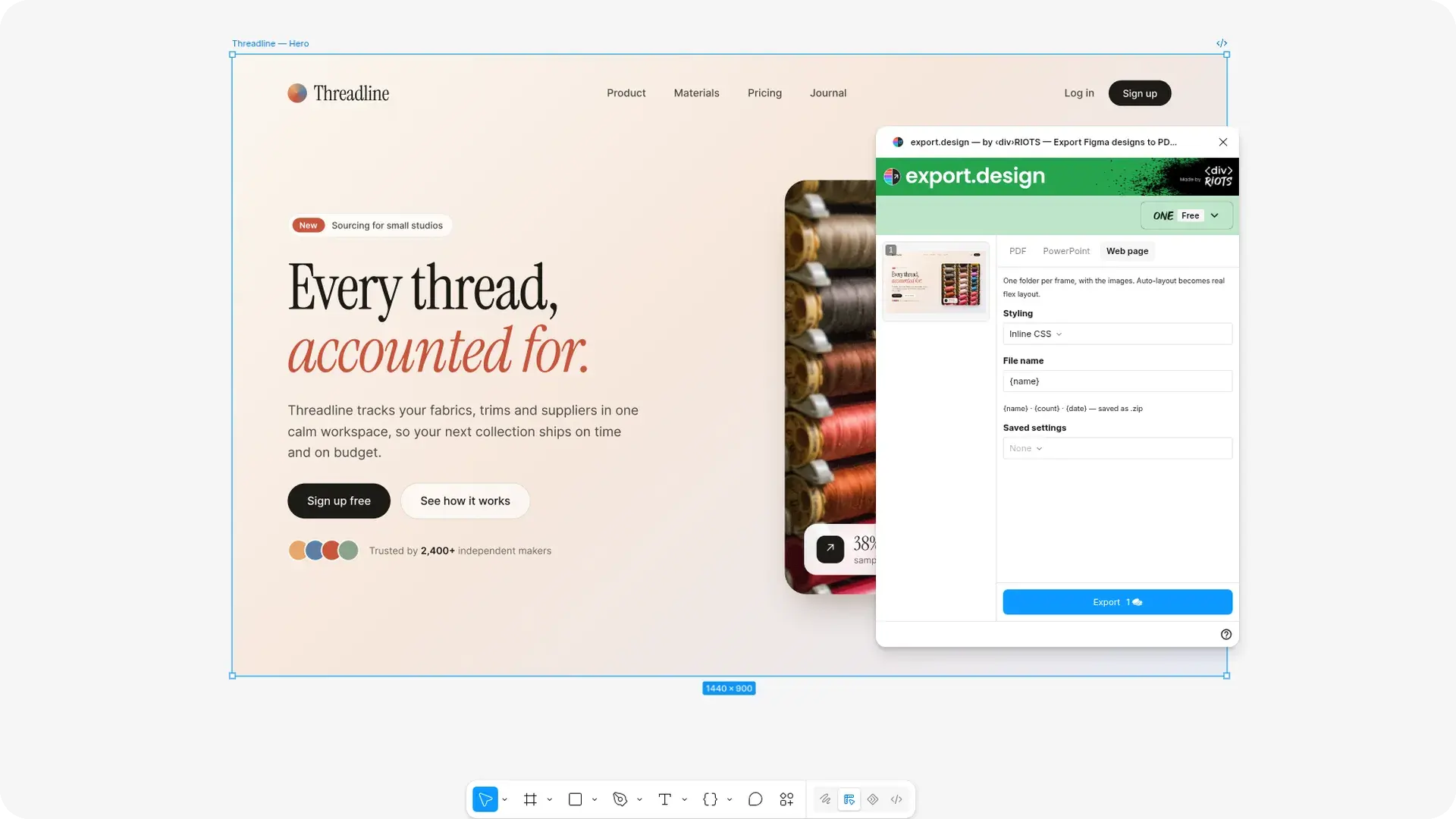
Open export.design and bring in your selection: launch it from the Figma plugins menu, or paste your copied frames into the drop zone of the export.design web app. In the web app, pasting starts the conversion right away, so choose the output from step 3 before you paste. Every frame costs 1 credit whichever option you use.
Step 3: Choose Web page and Inline CSS
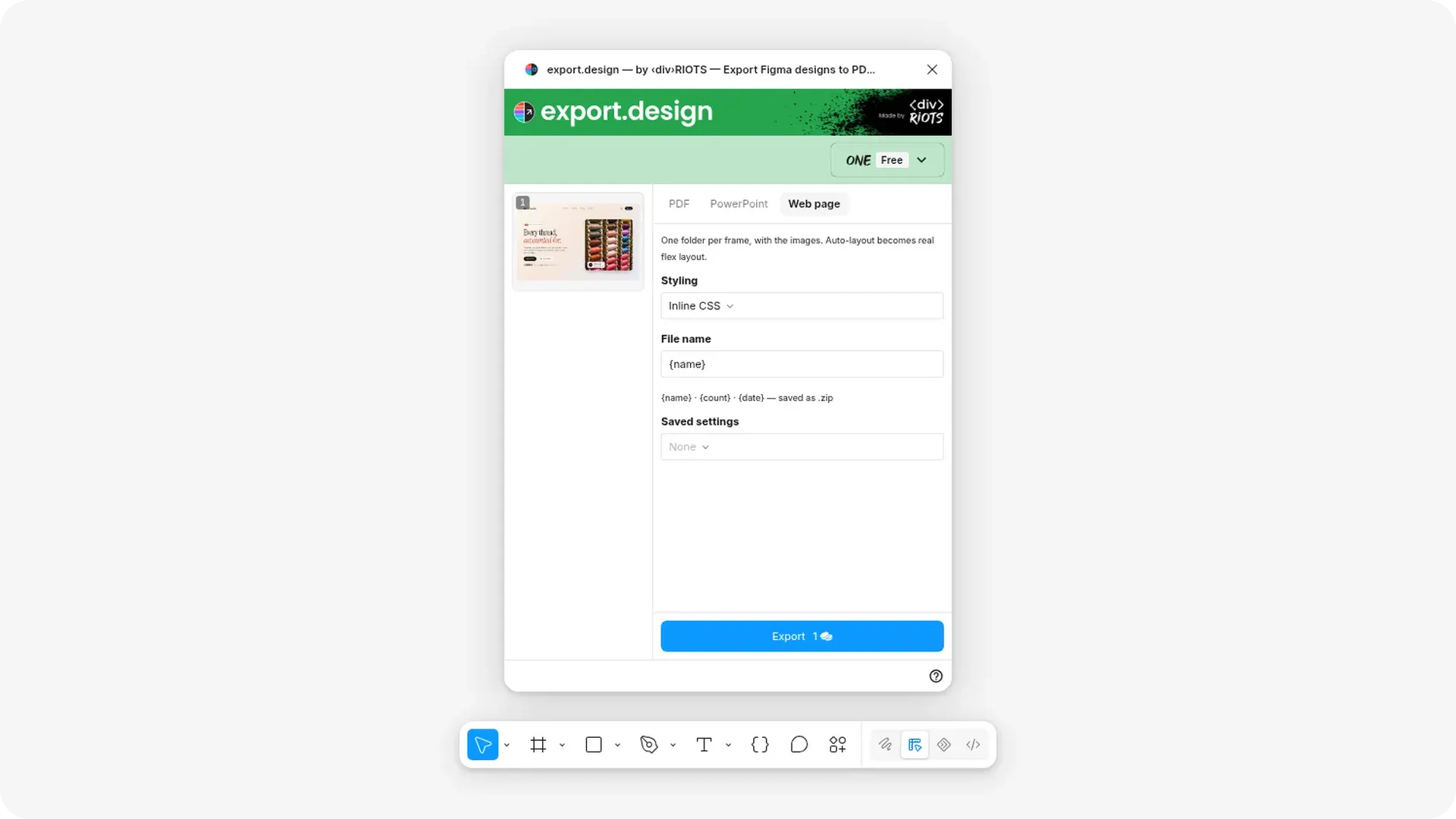
Pick Web page as the output and keep the styling on Inline CSS. Inline CSS produces self-contained markup, which is what you want for a file you hand to Claude. Switch to Tailwind only when the HTML is going into a project that already uses Tailwind CSS: the Tailwind output uses utility classes and loads Tailwind from a CDN script to render them.
Step 4: Export and download the HTML
Export your frames and download the result. Each frame comes out as its own folder holding the frame’s HTML, and the images sit in a shared _assets/images folder next to them. Auto layout comes out as real flex layout, so the padding and gaps you set in Figma carry over as CSS.
Step 5: Upload the HTML and images to Claude
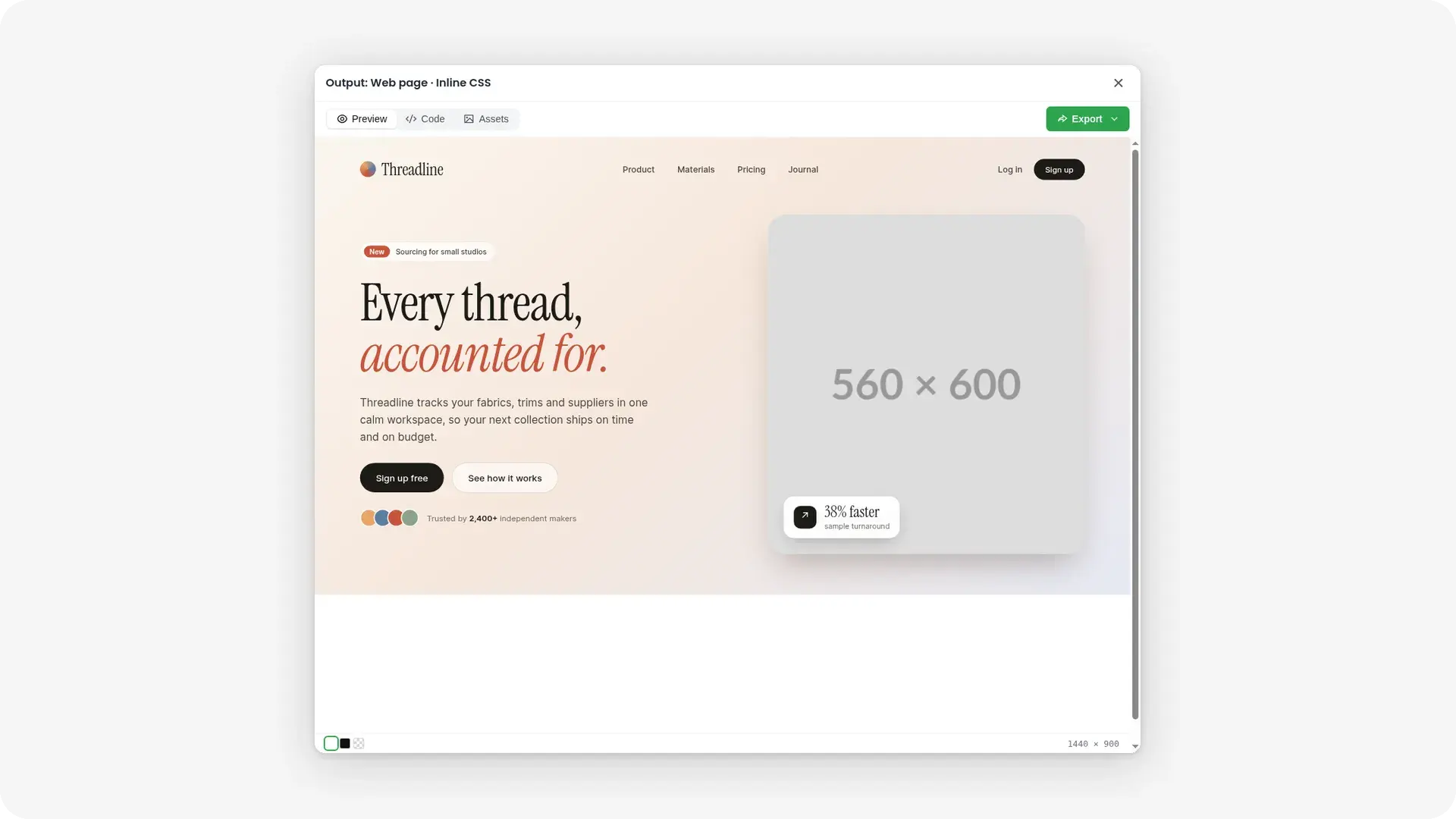
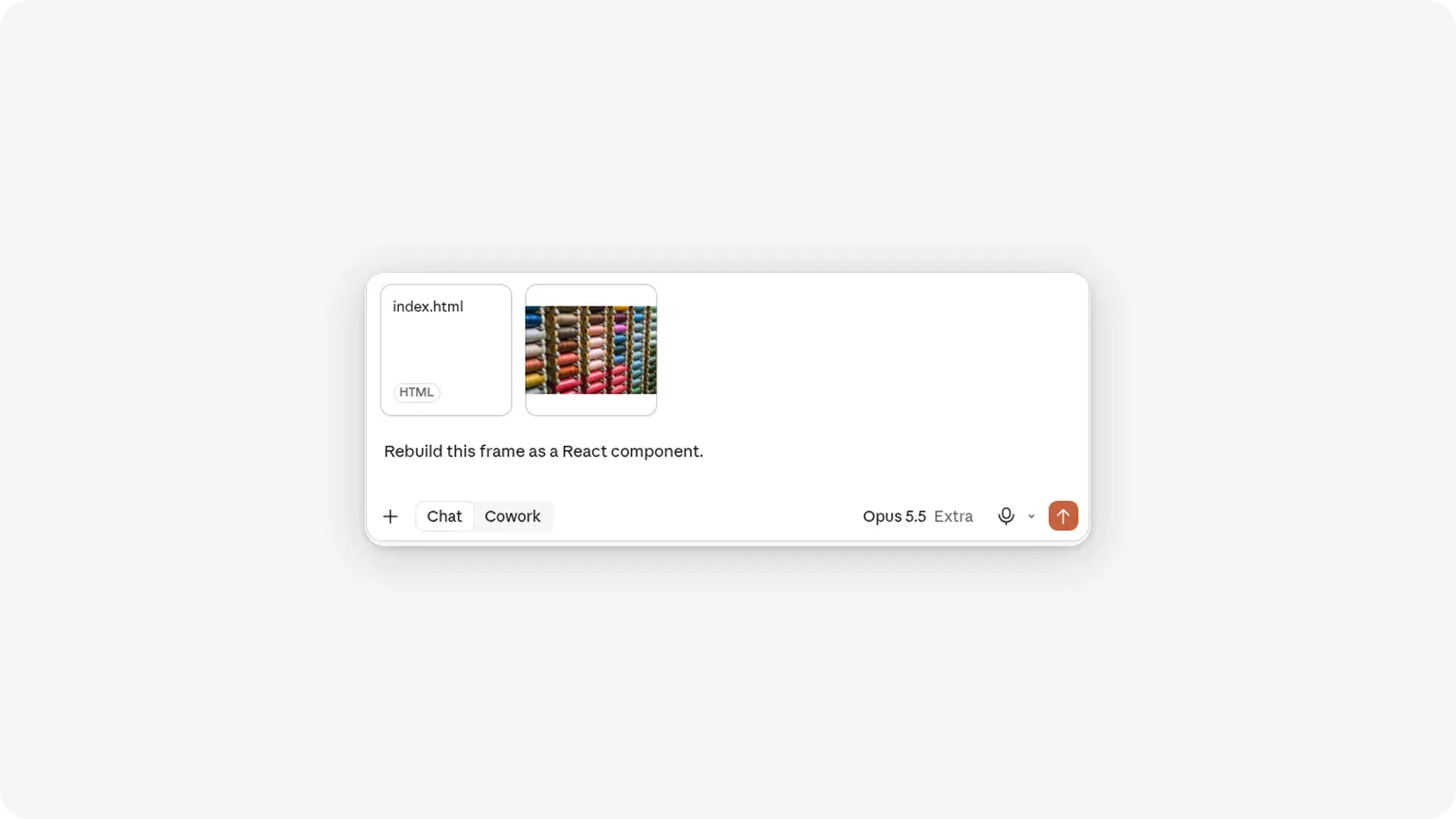
Upload the frame’s HTML file and its image files to a Claude chat: the metadata.json in the frame’s folder lists which files in _assets/images it uses. HTML is a supported upload type, with up to 20 files per chat and 500 MB per file (Claude’s upload limits, as of October 2026). Claude extracts text only from non-PDF documents, so it won’t see the images through the HTML file: upload them alongside it. In our test, Claude used the uploaded photo, and it shows in the rebuilt design.
Step 6: Tell Claude what to build
In a regular chat, ask for code: “Rebuild this frame as a React component.”
Or ask Claude to work on a redesign. Here are three prompts to start from:
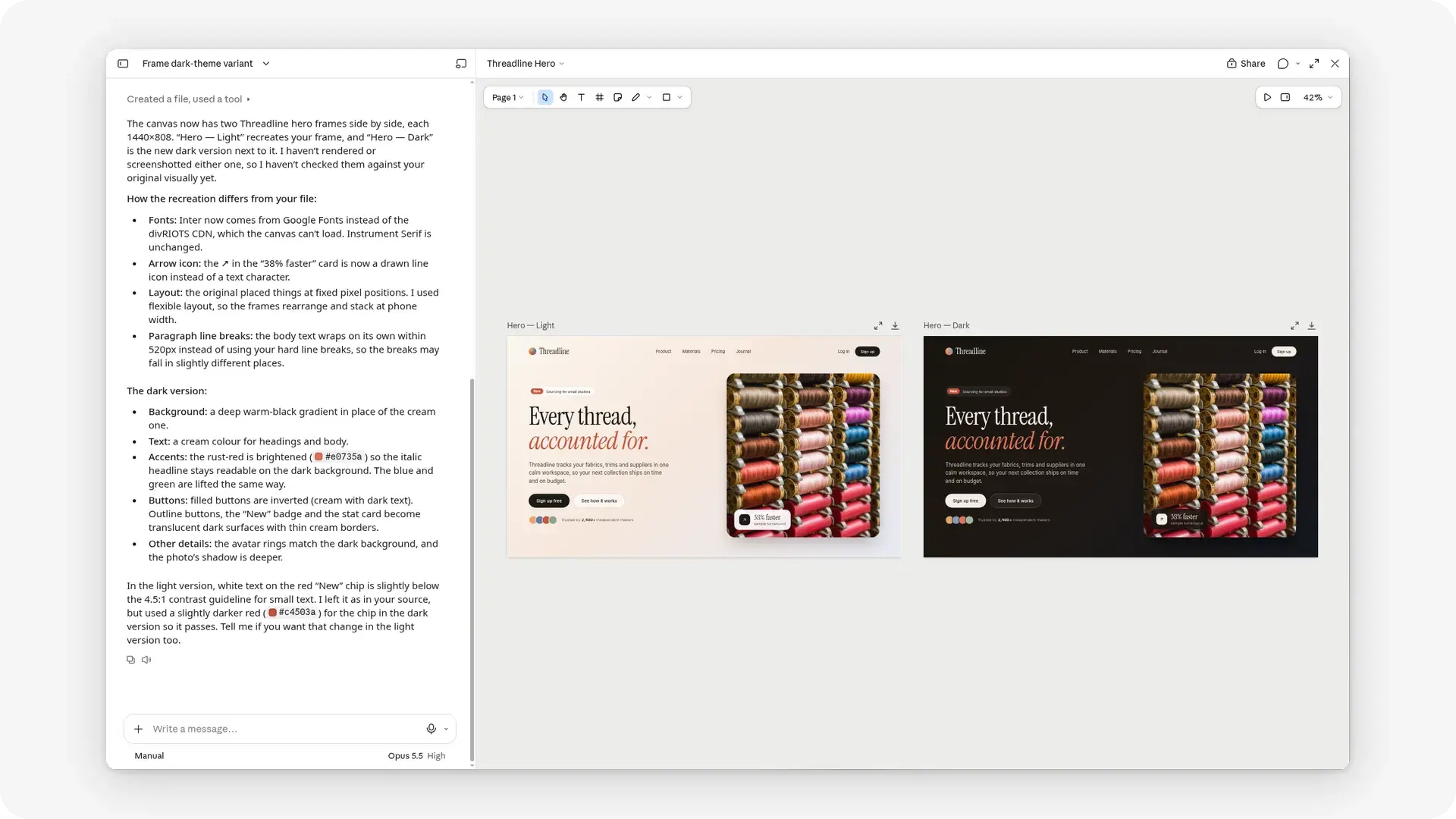
- “Recreate this frame, then make a dark-theme variant.”
- “Make a responsive version that works at 375 px and 1440 px wide.”
- “Turn this frame into a clickable prototype: the sign-up button opens a confirmation screen.”
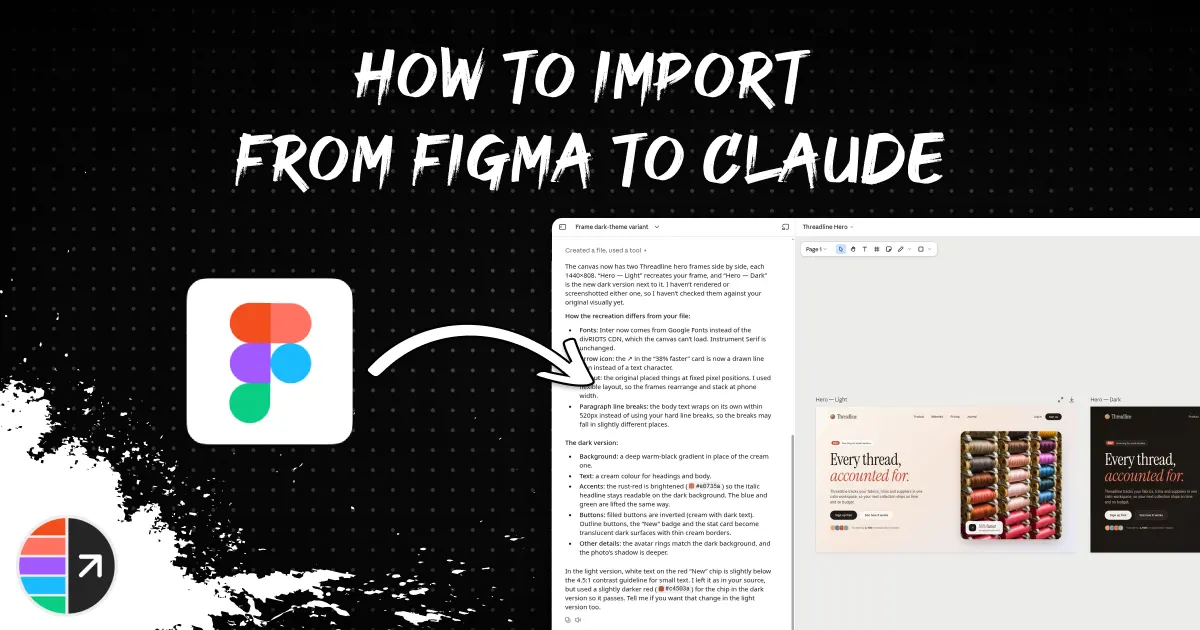
On our test frame, Claude rebuilt the hero with the real photo, then placed a dark variant next to it. It also listed what it changed: it loaded Inter from Google Fonts because it couldn’t reach the original font file, redrew an arrow icon, and replaced fixed positions with flexible layout.
What to expect: what Claude gets from your Figma frame
Claude gets the parts of your frame that HTML and CSS express natively, and nothing that only exists in Figma. Here’s what the web page export carries over (export.design docs):
- Text: real text in the DOM, not a flattened image.
- Fonts: declared with @font-face rules. Google Fonts load from the web (Inter from the ‹div›RIOTS CDN); other fonts get a close fallback.
- Shapes and vectors: inline SVG.
- Images: extracted as asset files, which you upload alongside the HTML.
- Gradients: CSS gradients, conic gradients included.
- Shadows, filters and blend modes: live CSS.
- Auto layout: real flex layout, with padding and gaps from your frame.
Three things stay behind because they have no direct HTML equivalent: variables, prototype interactions and component variant logic. If your design depends on them, name them in your prompt, or use Figma’s MCP server, which reads variables and components from the file.
Ways to import Figma into Claude, compared
export.design’s HTML is the route to pick when you want one method for Claude and Claude Code, without having to set up a connection between Claude and Figma. Figma’s MCP server is the better pick in Claude Code when you need variables and components.
export.design HTML. Works in Claude and Claude Code: HTML is a supported chat upload, Claude rebuilt our test frame from it, and in Claude Code the files sit in your project. Setup is a plugin install, or nothing at all with the web app. Layout values come from the file, with auto layout as flex. It costs 1 credit per frame and leaves out variables, prototype interactions and variant logic.
Screenshot. No setup and no cost beyond your Claude usage. Claude accepts JPEG, PNG, GIF and WebP images. Layout comes from pixels, without design tokens or components, and the results can vary due to Claude’s interpretation and recreation of the image.
Figma MCP server. Reads layout data, variables, components and Code Connect mappings straight from the file, through the Figma connector in Claude chat or the plugin in Claude Code. It needs a Figma sign-in, and your plan and seat cap usage: View and Collab seats and the Starter plan get up to 20 tool calls a month, Full and Dev seats on Professional and Organization plans get up to 200 a day, and Enterprise gets up to 600 a day (Figma’s MCP server FAQ, as of October 2026).
Benefits of importing from Figma to Claude with export.design
No connector, no MCP server. export.design gets your frames out of Figma as files, so there’s no connection between Claude and Figma to set up, sign in to or keep authorized.
Plugin or web app, same formats. Use the plugin when you’re already in Figma, or the web app when your organization restricts plugins. You get the same output formats either way.
Deterministic output. export.design runs on our own conversion engine, not an LLM: the same frame gives the same HTML every time, and conversion is near-instant. We built it after years of converting HTML into Figma with html.to.design; export.design runs that conversion in reverse (launch post).
Flat-rate, predictable pricing. Every frame costs 1 credit whatever its complexity, with no token billing. The free ‹div›RIOTS ONE plan includes 10 credits a month (20 in your first month), no credit card required. That’s 10 frames into Claude every month at no cost.
Structure instead of a picture. Claude works from the frame’s actual text, values and layout instead of guessing them from pixels, so you spend your prompts on what to build, not on correcting spacing.
Use cases
- Turn a frame into components. Put the exported folders in your project and ask Claude Code to turn the frame into components that match your codebase.
- Explore variants in Claude. Upload the HTML and ask for a dark theme, a mobile layout or three alternative heroes, starting from your real frame instead of a blank canvas.
- Prototype a flow. Export two or three screens, rename each
index.htmlafter its screen, upload them together, and ask Claude to wire them into a clickable prototype. - Convert frames in bulk. The ‹div›RIOTS API
/convertendpoint takesfig,figma-clipboardorfigma-restinput and returnshtml-inlinestylesorhtml-tailwindcssoutput as a ZIP, at 1 credit per frame. - Round-trip back to Figma. When a design is done in Claude, capture it with the html.to.design Chrome extension, or drop its HTML into the html.to.design Figma plugin, to get editable Figma layers again. Read our step by step guide on every way to import from Claude to Figma.
Start importing from Figma to Claude!
Claude can’t open a .fig file, but it reads HTML everywhere you use it. Export your frames with export.design, and Claude gets real text, vectors, images and flex layout, minus variables, prototype interactions and variant logic. Install the export.design plugin from Figma Community, or copy a frame and paste it into the export.design web app. For everything else that moves between files and Figma, browse the ‹div›RIOTS plugins at divriots.com.