
Missing fonts
Last updated
story.to.design supports mapping your stories’ fonts into Figma.
More specifically, it instructs Figma to use the same fonts you are using in your Storybook, Backlight or Histoire components. Those fonts have to be available in Figma, as Figma plugins cannot install new fonts or dynamically get them.
How to know if any fonts are missing
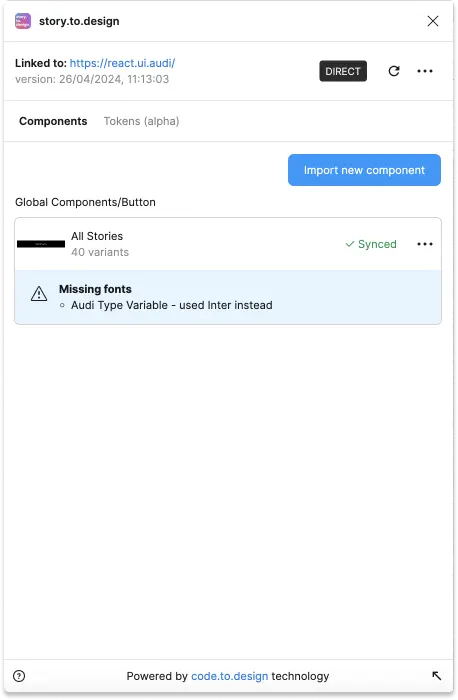
When a font your story uses is not available in Figma, story.to.design displays a Missing fonts alert on the imported component, naming each missing font and the font it used instead:
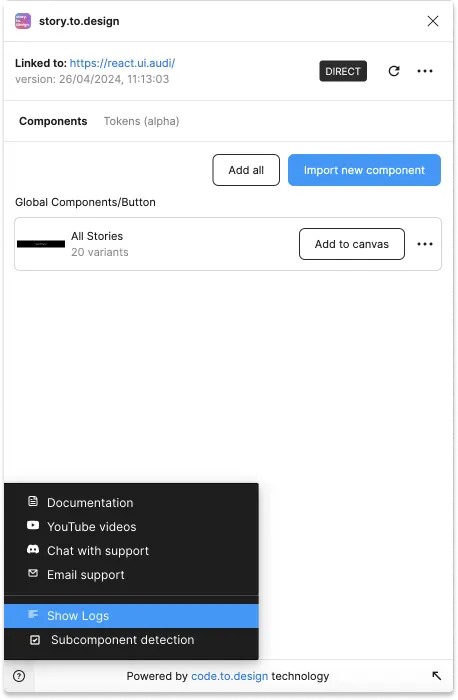
For other issues the plugin encountered during an import, check the Logs. To access them, click on the question mark icon at the bottom left of the plugin screen:
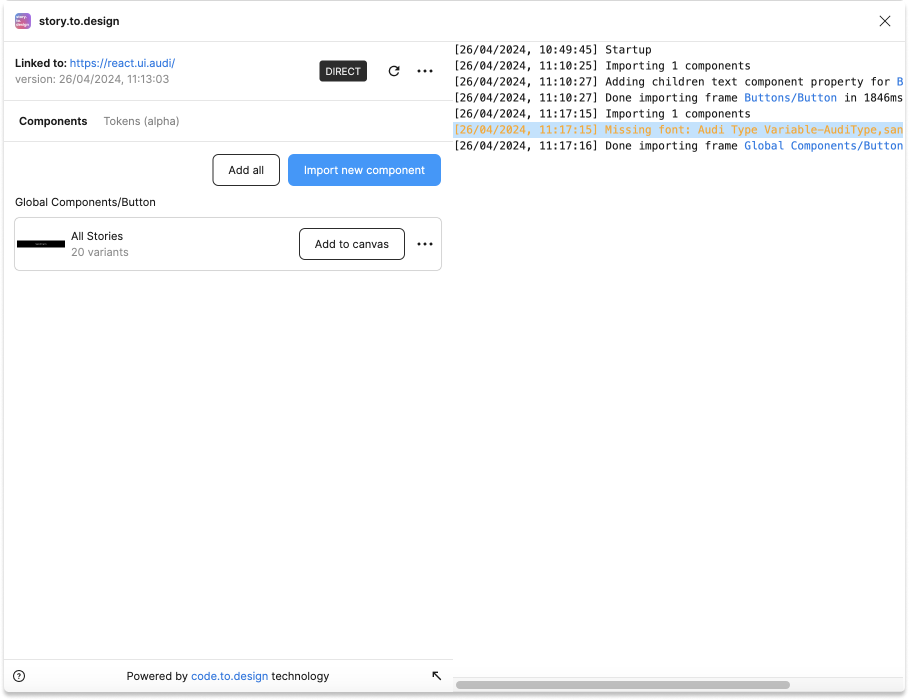
A side panel will open with the details about those issues:
If the plugin displays the Missing fonts alert but you do have the correct font installed, you might want to check:
- The internal name of the font which is rendered in your Storybook.
- If Figma recognizes this font.
One important thing to understand is that only the user importing components using story.to.design actually needs to have the font installed. Others, even if using those components, do not need it because Figma uses a clever system where the text’s vector paths are saved, allowing them to see the text properly rendered, even without installing the font beforehand.
What font are my stories using?
The font name story.to.design instructs Figma to use is the internal name of the font rendered within Storybook, Backlight or Histoire.
This is because Figma is not aware of font-family mappings used on the page and uses font names which appear inside font files.
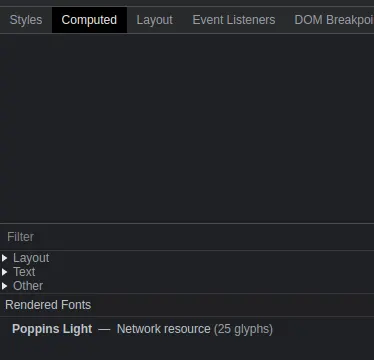
These names can be found in DevTools such as Chrome’s.
Here is an example - check out the Rendered Fonts section:
Now that you know the font name you are using, we can check if that font is available in Figma.
Checking the font is available in Figma
Head to any text component in Figma, and look for the Text section:
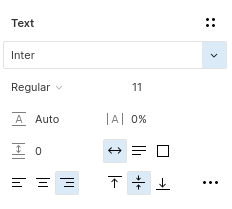
Then check if the font is available in the dropdown list:
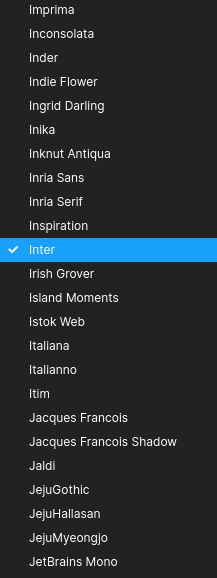
If the font is not listed, then it is not available. The font needs to be installed. One option is to install the font locally, another is to install it to your organization if you have access to it.
If you can’t install it, a third option is to map the font to one that is available in Figma, by adding a fonts entry to the Import defaults configuration (keep your other options as they are):
{
  "defaultImportConfiguration": {
    "initArgs": {}
  },
  "fonts": {
    "familyMappings": {
      "Brand Sans": "Roboto"
    }
  }
}
The key is the font name your story renders (see What font are my stories using?), or the first family of its CSS font-family, written exactly, case included. The value is a font family available in Figma, which the plugin uses in place of any font matching the key, even one Figma has, with one exception: a font your story renders that is available in Figma is always kept. A component you already imported keeps its fonts until you reset it: choose Reset canvas in its menu (this also removes the manual changes made to its variants).