Turn any screenshot
into working HTML
or Figma layers

Real code, not an image embed: layout, typography, colours, spacing and images. Two ways to convert — pick yours.

Web app

Convert in your browser

Nothing to install. Drop a screenshot, then copy the HTML — or paste the result into Figma as layers.

Drop an image to convert

Paste from clipboard, or click to browse

You get
  • HTML + assets
  • Figma layers, copy & paste
Figma plugin

Convert inside Figma

Run it from your file. Screenshots land straight on your canvas as editable layers — no tab switching.
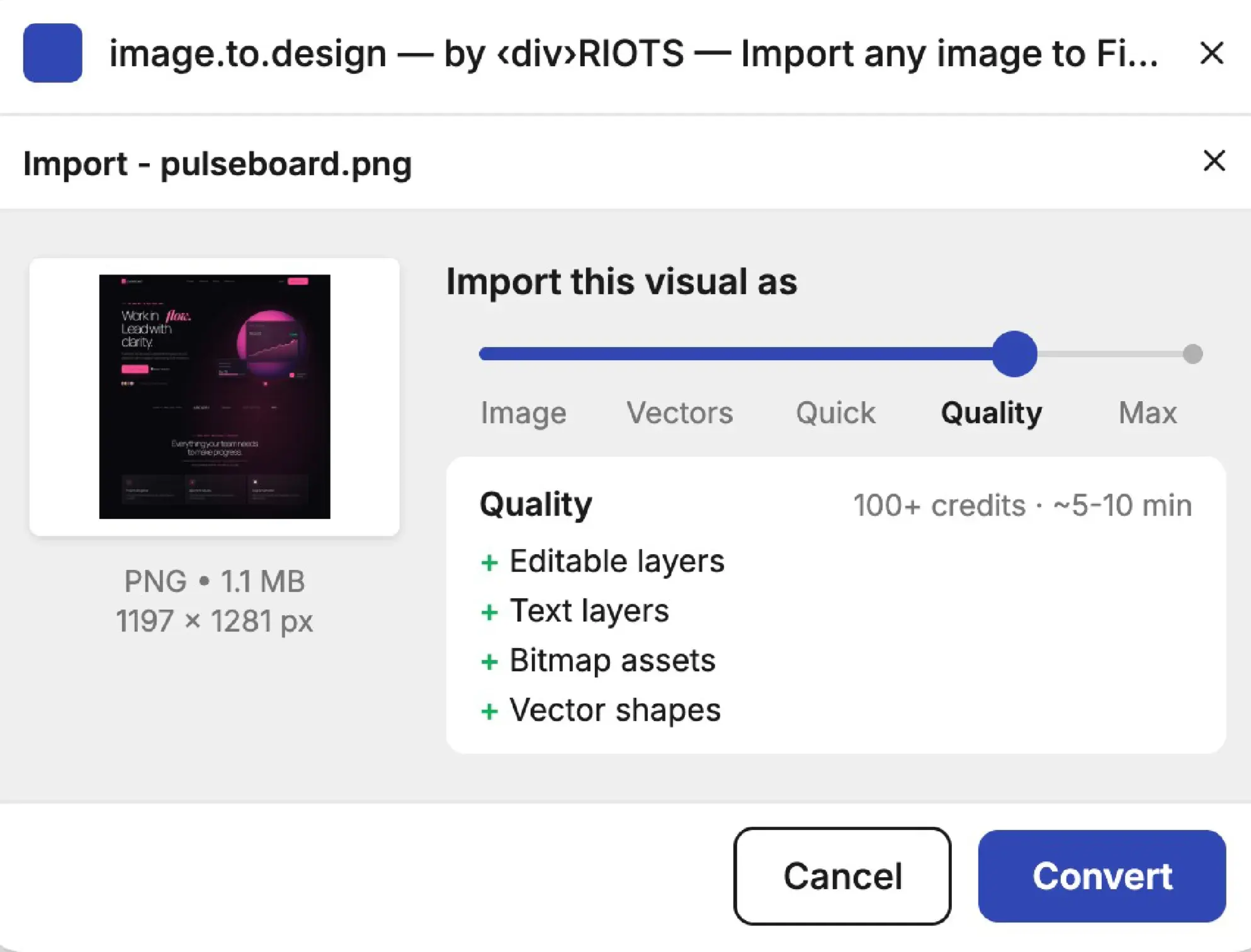
The image.to.design Figma plugin importing a screenshot as editable Quality layers, with a Convert button.
You get
Figma layers Get the plugin
How it works

  1. The drop zone reading “Drop an image to convert”.

    1 · Upload

    Drop a screenshot or photo — any format the plugin takes, from PNG to HEIC and RAW. Paste from clipboard works too.

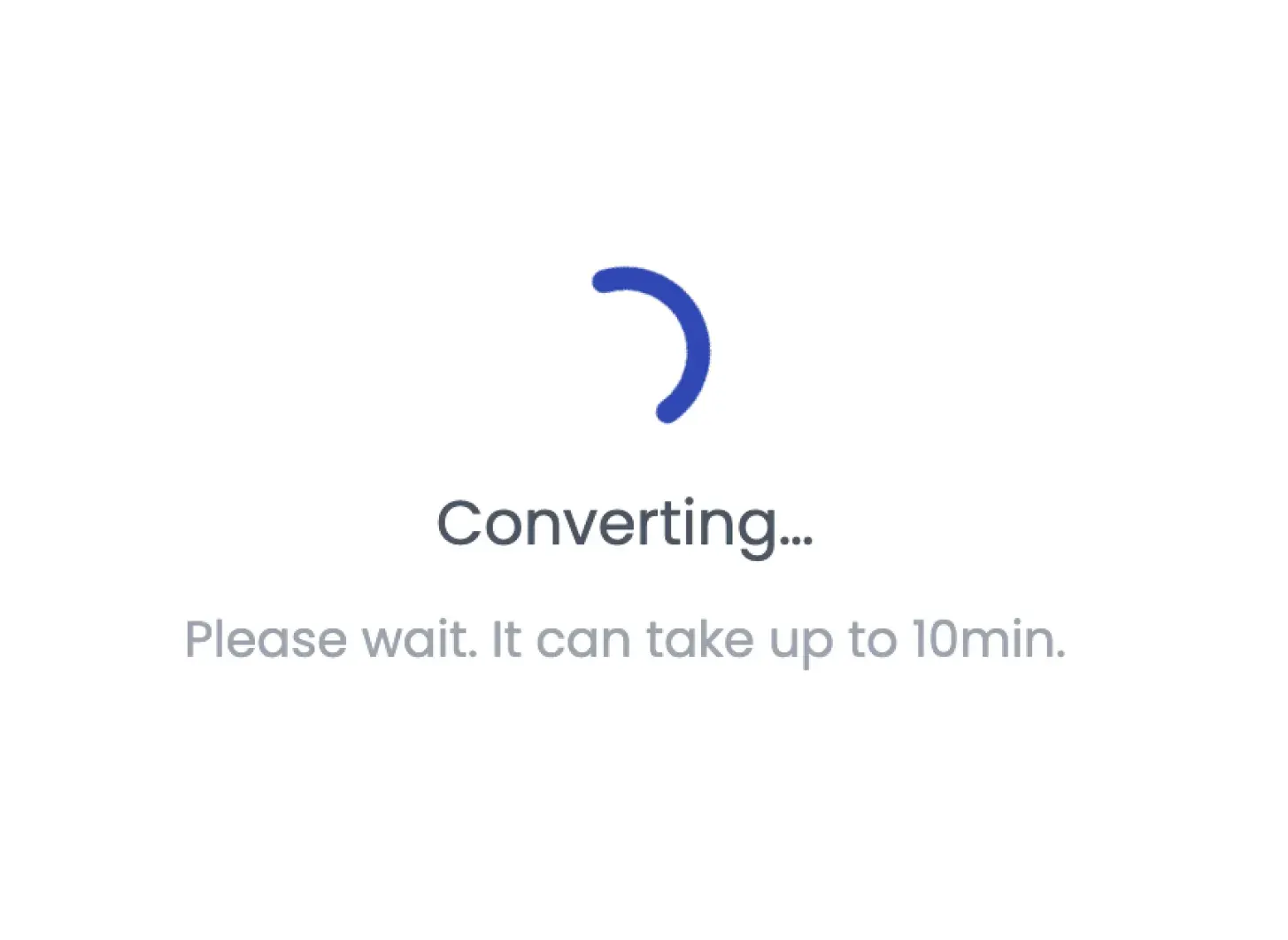
  2. A converting spinner with “Please wait” copy.

    2 · Wait

    The tool analyzes visual structure automatically. No prompt, no settings.

  3. Copy HTML, Download .zip and Copy to Clipboard actions.

    3 · Ship

    Copy the HTML, download it, or copy the result as Figma layers and paste straight into Figma.

image.to.design vs the alternatives

Most image-to-HTML tools just embed your picture in an <img> tag. LLMs like ChatGPT or Gemini get closer, but struggle with layout precision and downscale or cut your image before processing. image.to.design is purpose-built for UI reconstruction. Here's how they compare.

How image.to.design compares with basic image-to-HTML converters and general-purpose AI tools when turning a screenshot into code.
What you get back Basic converters General-purpose AI image.to.design
Layout reconstruction None — the image in an <img> tag Approximate spacing Real flexbox & grid, nested
Text Not extracted Editable Editable
Fonts Not extracted Mostly matched Close match
Colors & gradients Baked into the pixels Close to the source Sampled as CSS values
Images Not separated AI-generated stand-ins Cut out of the source
Icons Not separated AI-generated stand-ins Matched against icon libraries or rebuilt as vectors
Max input height Any — nothing is read ~2,000–4,000px, then silently cropped Up to 100,000px
Output Image wrapped in HTML Raw HTML HTML + assets, or editable Figma layers
Try it on your screenshot

What gets converted

  • Text & typography

    HTML

    Headings, body text, labels — extracted and placed into the right HTML elements with matched font sizes, weights, and colors.

    Figma

    Extracted as real, editable Figma text layers with matched font, size, weight, and color.

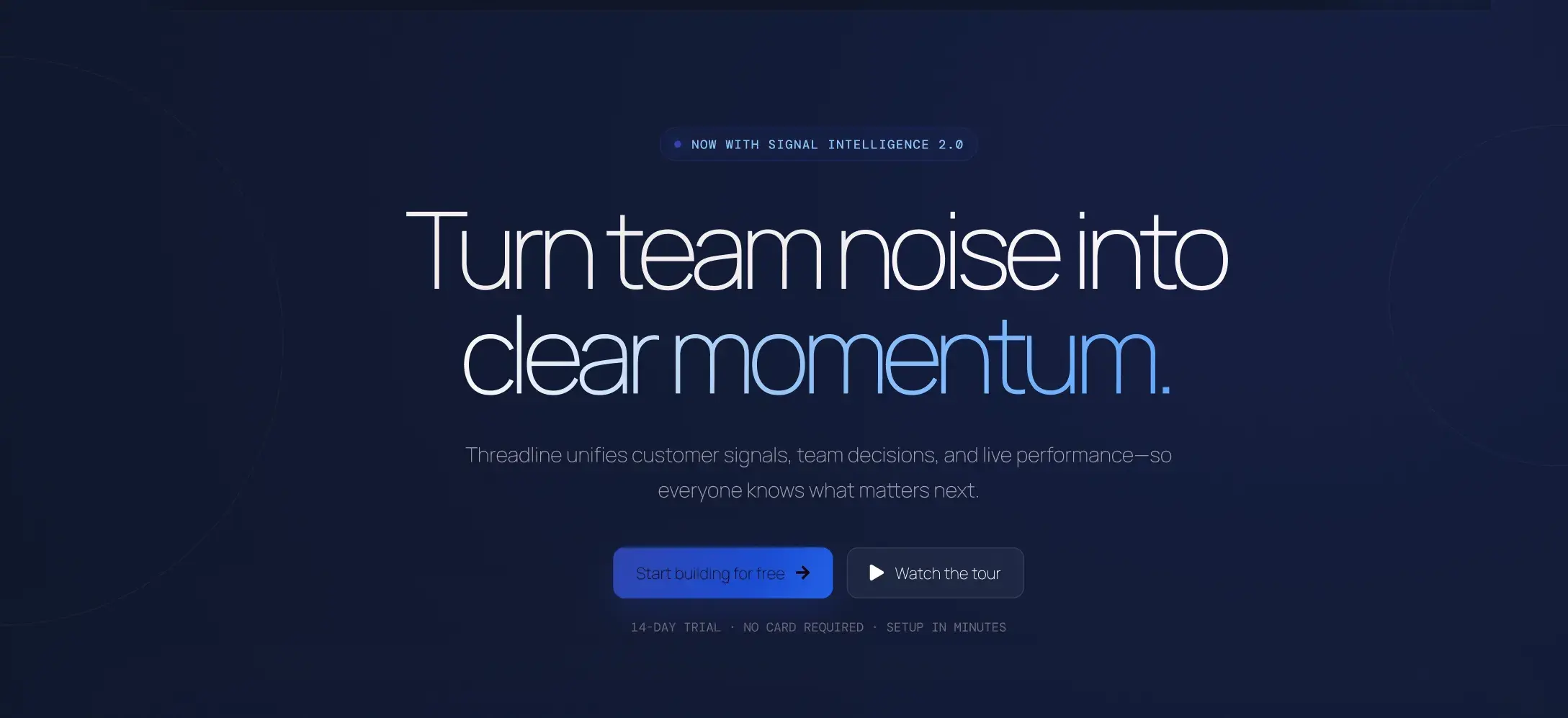
    A hero headline rebuilt as styled text.
  • Layout structure

    HTML

    Rows, columns, cards, and spacing translated into flexbox and CSS positioning.

    Figma

    Rows, columns, cards, and spacing rebuilt as native auto layout frames — smart-named and properly nested.

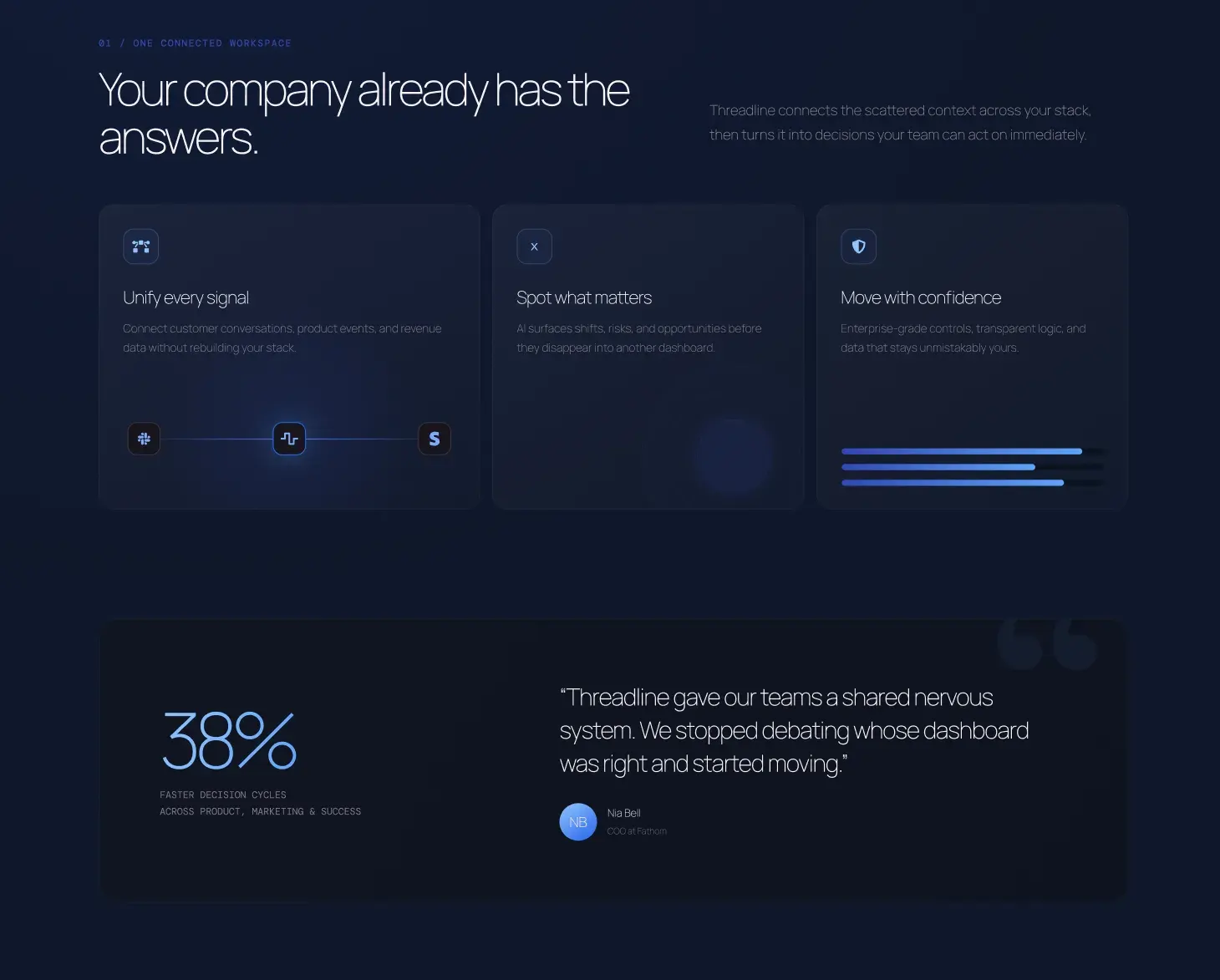
    A multi-column dashboard layout.
  • Colors & backgrounds

    HTML

    Sampled from the screenshot and applied as CSS values. Gradients included.

    Figma

    Sampled from the screenshot and applied as native Figma fills. Gradients included.

    Concentric gradient rings sampled as CSS.
  • Images & icons

    HTML

    Photos and illustrations are cut and extracted where possible.

    Figma

    Photos and illustrations extracted as bitmap assets and placed right where they belong in the layer tree.

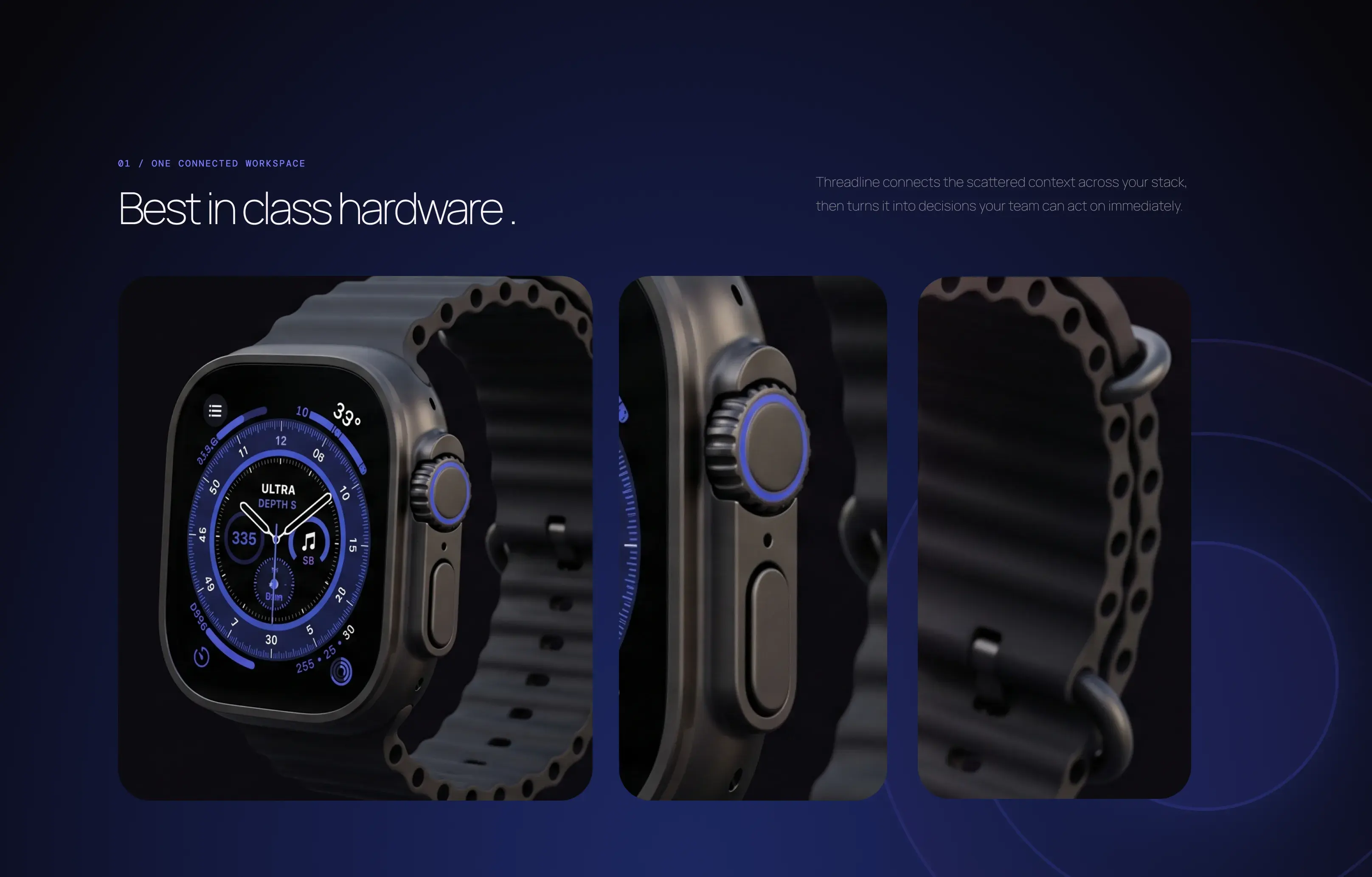
    Product photos of a smartwatch, cut out and extracted.

The tool works from a flat image — it can't infer hover states, animations, or JS interactions. You can add those after.

Pricing

Credit cost varies by image complexity.

  • Starter

    Free trial

    No credit card required.
    First conversion on us.

    Signup
  • Level up Need more?

    Upgrade your subscription any time — every ‹div›RIOTS product, one plan.

    Upgrade

Contact us

If you have feedback, suggestions, or want to report a bug, please email us at [email protected] or join our community on Discord.