
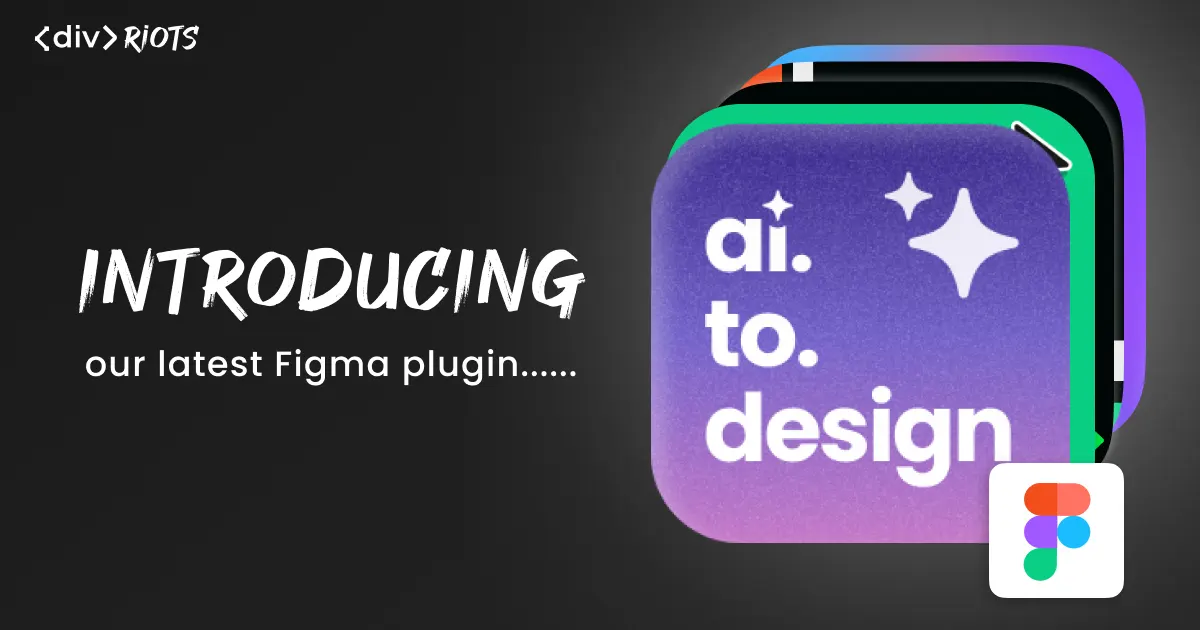
Introducing ai.to.design. Generate Figma designs from prompts!
-

- Name
- Ardena
- @ardena_gonzalez
Our latest Figma plugin is the design assistant you’ve been looking for!
ai.to.design generates Figma designs directly from text prompts. Describe what you need—landing pages, mobile apps, dashboard layouts, components—and the plugin turns your prompt into editable Figma layers in seconds 🪄
What is ai.to.design?
ai.to.design is our new Figma plugin that turns prompts into designs, with multiple AI models to choose from. Describe what you need help with, pick the AI provider of your choice—ChatGPT, Claude, Gemini—and quickly get the AI’s response as editable Figma layers on your canvas.
This is a great way to tackle the manual and mundane design tasks you want to automate. Whether you need a checkout flow mockup for a meeting in 30 minutes or want to explore different navigation concepts without drawing each one, ai.to.design generates these in the time it takes to write a sentence.
How does ai.to.design work?
Generate Figma designs from a prompt, right in your canvas! Here’s how:
Step 1: Run ai.to.design
Open any Figma file and run ai.to.design from the plugins menu or quick actions.
Step 2: Write your prompt
Describe what design work you need help with in the chat interface. Be specific about layout, components, content, and style. For example: “Create a visual library of empty placeholders for current social media sizes (2026 standard).”
Step 3: Select your AI model
Choose which AI provider generates your design. As of writing this, the plugin supports ChatGPT (GPT-5.2), Claude (Sonnet 4.5, Opus 4.5), Gemini (3 Pro, 3 Flash), and other leading models. Each AI has different strengths—Claude excels at detailed component structures, GPT-5 handles complex layouts well, Gemini works quickly for simpler requests.
Step 4: Generate and refine
Click “Generate”. The AI processes your prompt and the plugin converts the output into Figma frames, layers, and components within seconds. The result appears on your canvas as fully editable elements—text layers, shapes, groups, auto-layout frames. Adjust colors, spacing, typography, or content like any Figma design.
Why use ai.to.design?
🤖 Work with multiple AI models right in Figma
Different AI providers have different capabilities. ChatGPT handles conversational refinement well. Claude produces detailed component hierarchies. Gemini processes requests quickly. ai.to.design lets you choose the right model for each task, or experiment with different AIs for the same prompt to compare results, all while never leaving Figma.
🎨 Make designing with AI simple
Designing with AI doesn’t have to be complex. Think of ai.to.design like a design assistant, while keeping the entire workflow inside Figma. You prompt, generate, edit, and iterate without leaving your canvas.
🪄 Automate manual design tasks
Initial mockups and wireframing can take hours, even for experienced designers. ai.to.design helps to automate some of the more mundane or manual-intensive design tasks so you can spend your time refining the design instead of placing every rectangle and text layer.
Start generating designs from prompts
ai.to.design is your new AI-powered design assistant, right in your Figma canvas. Prompt it with what you need, choose your preferred AI model, and watch the results appear!
Try it on your next project. Whether you’re wireframing a new feature, exploring layout concepts, or need quick mockups for a presentation, ai.to.design generates the starting point so you can focus on making it great.