How to generate designs from prompts in Figma
-

- Name
- Ardena
- @ardena_gonzalez
The blank canvas is one of the most consistent friction points in a design workflow. You know what you need to build — a dashboard, a product page, a mobile onboarding flow — but you still spend the first stretch of your session laying down frames, adding auto layout, and placing placeholder elements before any real design decisions happen.
ai.to.design is a Figma plugin by ‹div›RIOTS that converts plain-text prompts into editable Figma design layers. You describe what you want, select an AI model — GPT, Claude, Gemini, Grok, DeepSeek, and more — and the plugin places the generated design directly onto your canvas. This guide walks through the full process: installing the plugin, writing effective prompts, and editing the output in Figma.
From prompt to Figma designs - Quick Guide
Step 1 - Run ai.to.design from the Figma Community
Step 2 - Select your preferred AI model
Step 3 - Type a design prompt describing the layout, style and content you need
Step 4 - Generate ✨ The output lands on your canvas as editable Figma layers
Step-by-step: How to generate designs from prompts with ai.to.design
Step 1: Run ai.to.design
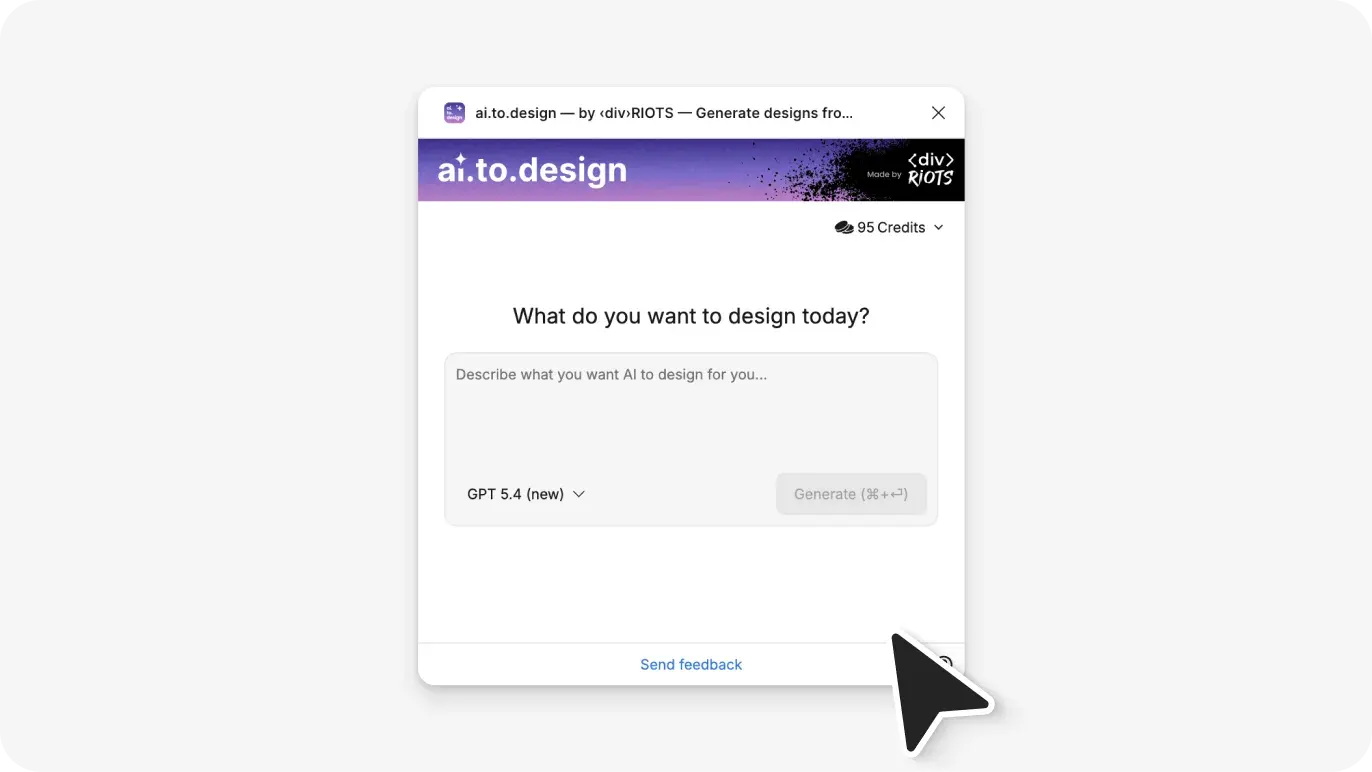
Go to the ai.to.design plugin page on Figma Community and click Open in Figma. Open the Figma file where you want to generate your design. You can also launch the plugin from Main menu > Plugins > ai.to.design.
Step 2: Select your AI model
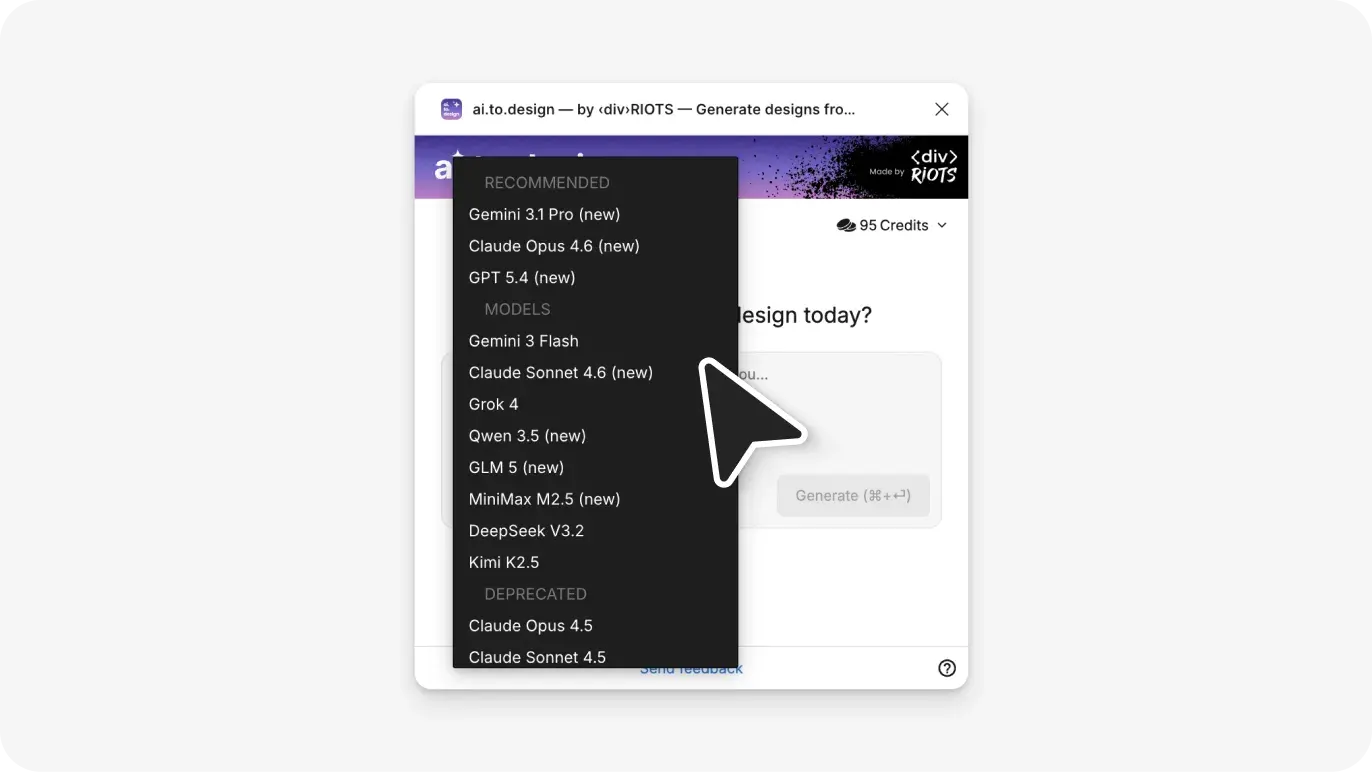
ai.to.design supports nine different AI models. You are not tied to a single provider — choose whichever model you prefer:
- GPT by OpenAI
- Gemini by Google
- Claude by Anthropic
- Grok by xAI
- DeepSeek
- GLM by zAi
- Kimi AI by MoonshotAI
- MiniMax
- Qwen
Select your model in the plugin panel. Each model can be swapped out at any time, so you are never locked into one provider’s output quality or speed.
Step 3: Write your design prompt
Type a description of the design you want to generate in the prompt field. The more specific your prompt, the more accurately the output reflects what you have in mind. Include the layout type, the platform (mobile or desktop), and any key UI elements.
Example prompts:
- “A mobile login screen with email and password input fields, a primary CTA button, and a social login option”
- “A desktop SaaS dashboard with a left sidebar navigation, a data table in the main content area, and a top header with a user avatar”
- “A product card component for an e-commerce site with product image, name, price, and an add-to-cart button”
- “A three-step onboarding flow for a mobile fitness app with a progress indicator at the top”
The prompt field accepts plain English. No special syntax or structured formatting is required.
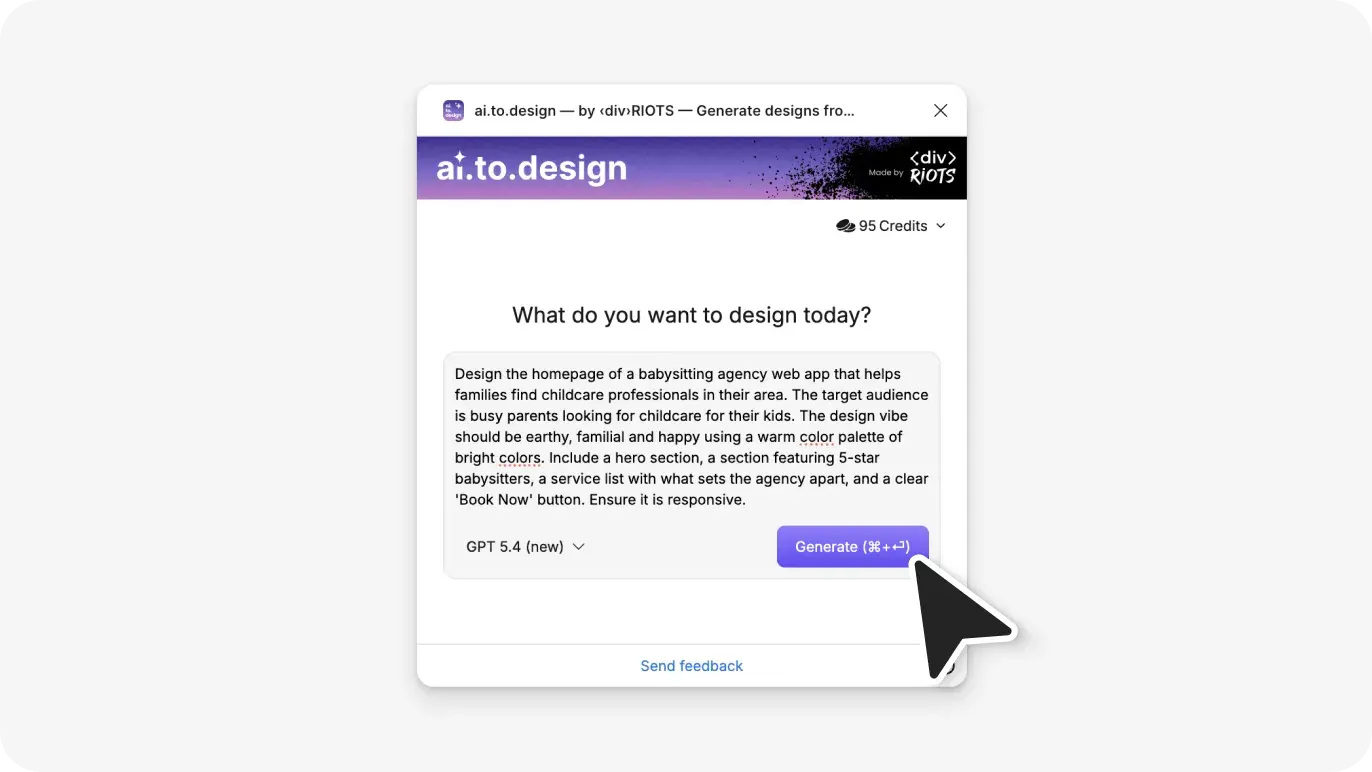
Step 4: Generate and review the output
Hit ‘Generate’. ai.to.design places the result directly onto your Figma canvas as design layers. The output is not a flattened image — it lands as individual, selectable Figma objects that you can immediately interact with using Figma’s standard editing tools.
Review the generated layout on your canvas. From this point, all standard Figma operations apply: select and move elements, rename layers, adjust fill colors, swap fonts, apply components from your design system, or restructure the auto layout hierarchy.
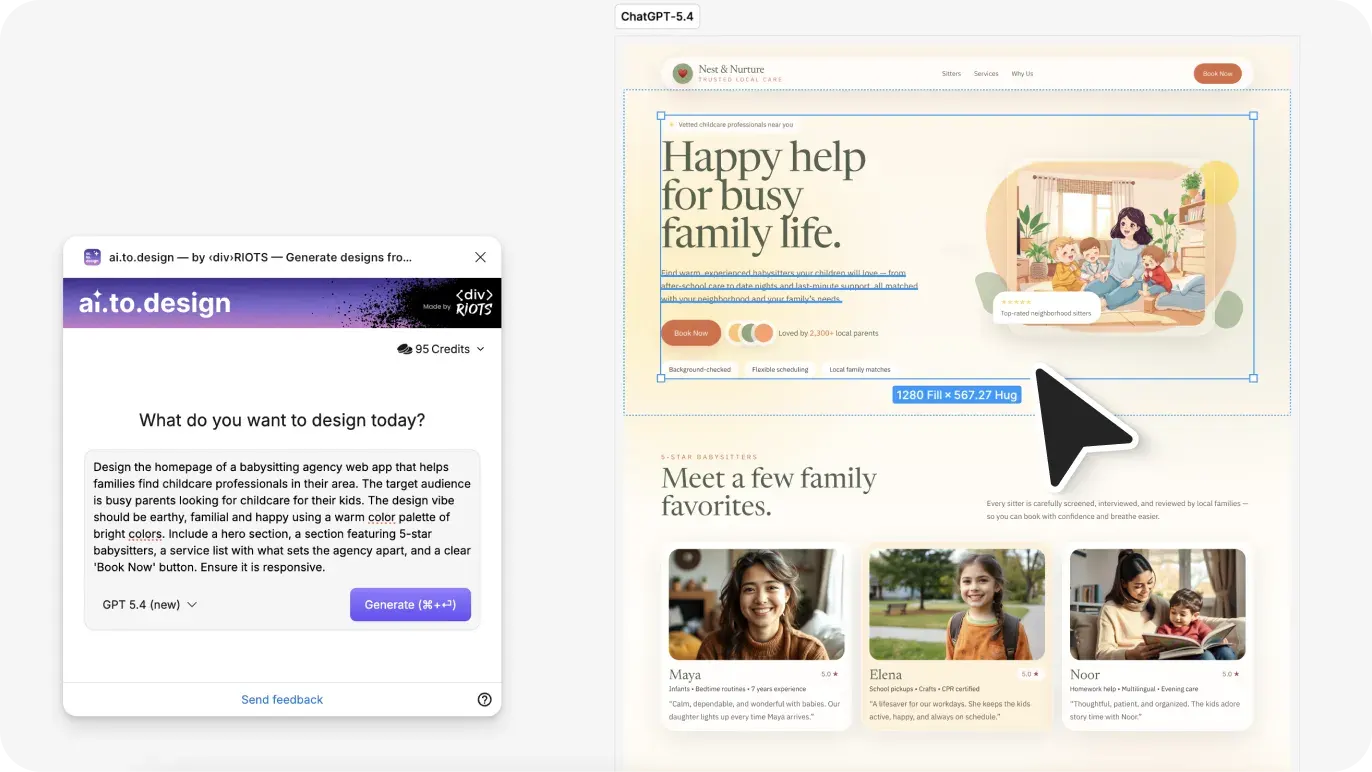
What ai.to.design generates and what to expect
Editable Figma layers
Every element in the output is a native Figma object. Text layers, shapes, frames, and layout containers are all individually selectable and editable. You can rename layers, change colors, apply styles, and modify the structure after generation — the same as any other design you would build manually in Figma.
Multi-model flexibility
A notable design decision in ai.to.design is that it is not tied to one AI provider. You can choose which model powers the generation. This means you can compare outputs across GPT, Claude, and Gemini for the same prompt, switch to a different model if one is down, or use whichever provider you are already most comfortable with.
Output quality and iteration
AI-generated designs are structured starting points, not finished production assets. The plugin produces a quality layout with realistic content and logical component structure, but the output may still need further refinement: applying your design system’s tokens, adjusting spacing to your grid, replacing placeholder text, and aligning visual style to your product’s brand. The value is in skipping the structural setup phase, not in eliminating the design process.
A common question when evaluating prompt-to-design tools is whether the output requires significant rework. The answer depends on how specific your prompt is and how close the generated layout maps to your design system. For exploratory work — wireframes, concept mockups, first-draft layouts — the output is immediately useful. For production-ready screens, you can expect a little more refinement.
Why use ai.to.design?
Skip blank canvas blues. You can skip the frame setup, auto layout configuration, and placeholder work that typically precedes real design decisions. Generation puts a structured layout on the canvas in seconds rather than hours.
Output stays in Figma. There is no copy-paste from an external tool, no re-import step, and no format conversion. The generated layers appear directly in the file you are already working in.
Covers the major AI models. With GPT (OpenAI), Claude (Anthropic), Gemini (Google), Grok (xAI), DeepSeek, and others all supported, the plugin adapts to whichever AI tooling your team uses or prefers.
Accelerates ideation rounds. Generating five layout variations from five different prompts is faster than building each one from scratch. When you need to present multiple directions to a stakeholder, prompt-based generation reduces that exploration time significantly.
Use cases for prompt-to-design in Figma
Wireframing at the start of a sprint. Describe the key screens in your sprint scope and generate structural wireframes to kick off design discussions. You get a working layout to react to rather than starting the conversation with a blank file.
Component direction exploration. Use prompts to generate different layout approaches for a specific component — a card, a form, an empty state, a notification banner — and select the direction you want to build out into your design system.
Early-stage client proposals. Generate screen mockups from a project brief description to give clients a concrete visual reference during scope discussions. Producing first-look screens from a prompt takes less time than building them manually for a meeting that may change direction.
Cross-platform layout comparison. Generate mobile and desktop versions of the same interface from separate prompts and place them side by side on the canvas to compare structural decisions before committing to a layout approach.
Scaffolding for new project files. When starting a new product from scratch, generate the core screens — dashboard, settings, profile, onboarding — to establish a structural skeleton for the team to build from, rather than each designer starting independently from an empty frame.
Start generating Figma designs from prompts
ai.to.design takes the prompt you would normally type into a standalone AI tool and produces Figma layers from it instead. The result is design-ready output already on your canvas, rather than a description you have to rebuild by hand.
Install ai.to.design from the Figma Community and generate your first design in Figma today.
FAQ
Q: Which AI models does ai.to.design support?
ai.to.design supports OpenAI GPT, Google Gemini, Anthropic Claude, xAI Grok, DeepSeek, zAi GLM, MoonshotAI Kimi AI and MiniMax. You connect each model using your own API credentials directly in the plugin.
Q: Are the generated designs editable after they appear on the Figma canvas?
Yes. The output is placed on your canvas as native Figma layers — not a flattened image or an embedded object. Every text layer, shape, and frame is fully selectable and editable using Figma’s standard design tools.
Q: Can the design be iterated on using ai.to.design?
Not yet, but it’s in the works and coming soon!