
From Canva to Figma
-

- Name
- Pierrick
- @S3kelman1
Canva doesn’t offer a built-in “Export to Figma” button, and Figma’s own import options don’t include a native Canva connector either. If you need a Canva design in Figma as editable layers instead of a flat image, you’re working around that gap — and here is the fastest, most reliable way to do it.
From Canva to Figma — Quick Guide
- Log into Canva and open the design to import
- Capture the page directly with the html.to.design Chrome extension - no publish needed
- Finish importing your Canva design with the html.to.design Figma plugin
- Your Canva design is now converted into Figma layers that are ready for editing!
The fastest way to import Canva designs into Figma
Capture Canva with the html.to.design Chrome extension
This works on any Canva page you can open in your browser — private draft or shared design, free tier or Pro. It captures whatever is rendered in your own tab, so it never needs the design to be public.
1. Install the html.to.design Chrome extension and the companion html.to.design Figma plugin (the extension needs the plugin for most import options).
2. Open your Canva design. Navigate to the design’s editor page in Chrome, Edge, Brave, Arc, or another Chromium-based browser. Log in if it’s a private draft.
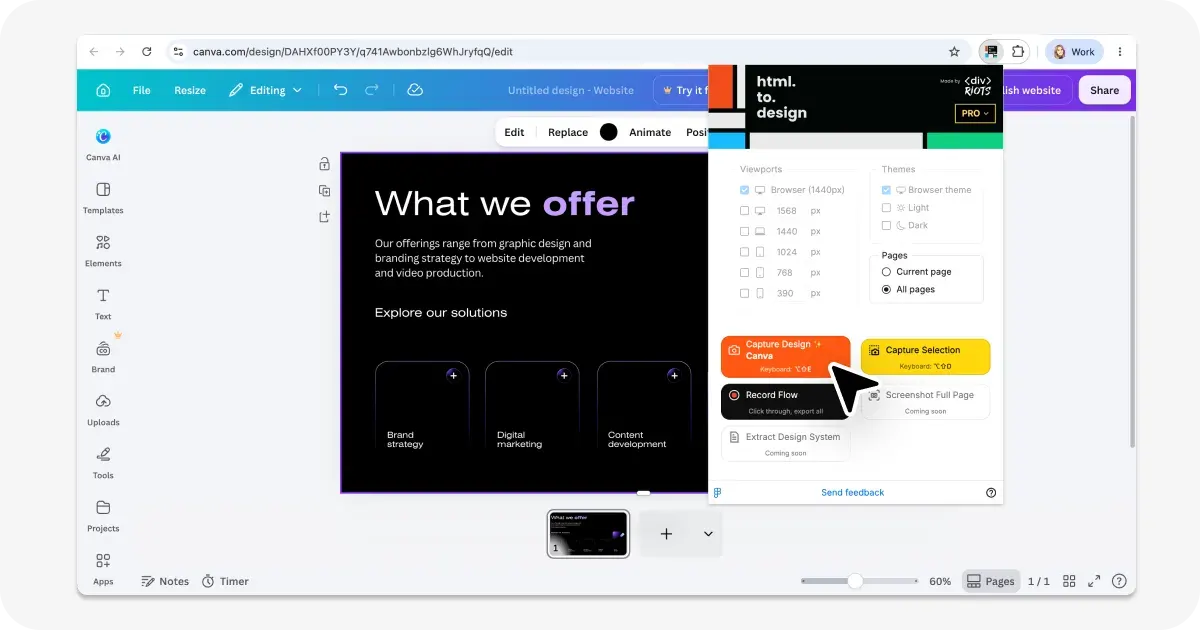
3. Click the html.to.design extension icon in your browser toolbar and hit Capture. The extension uses Chrome’s debugging features to read the page — you’ll see a short “started debugging this browser” notice, which is expected.
4. Send the result to Figma. You can send the capture directly to the Figma plugin, save it locally as an .h2d file to drag into the plugin, or use “Copy to clipboard” and paste (⌘+V) straight onto your Figma canvas without opening the plugin at all.
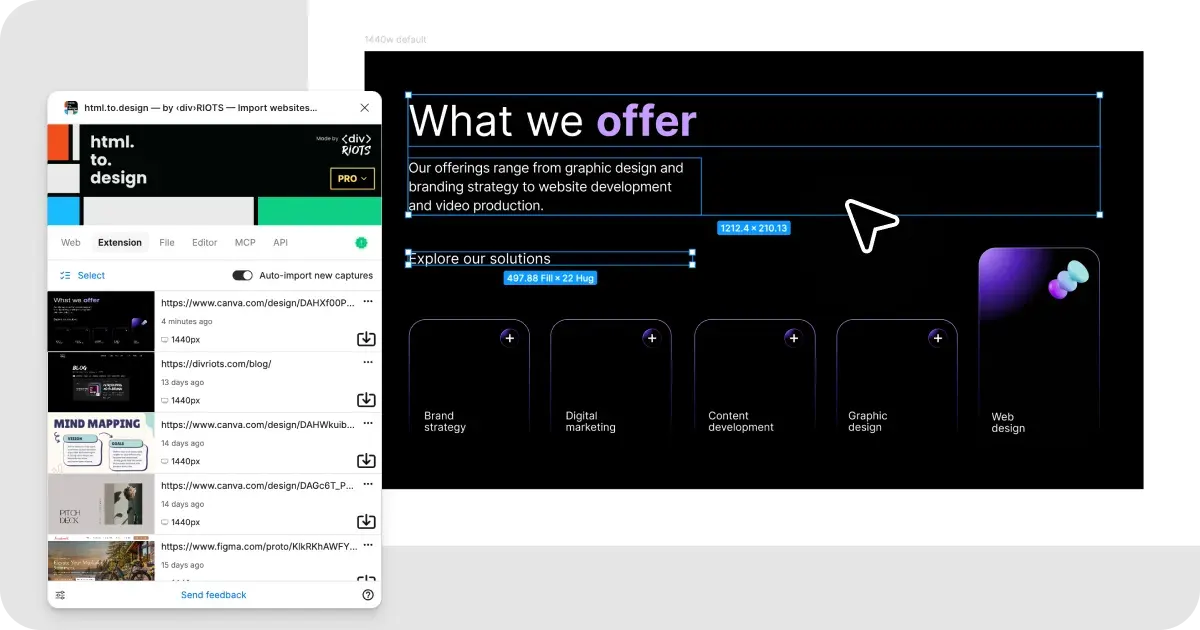
ℹ️ If your Canva design is published with a public link, you can also paste its URL straight into the html.to.design Figma plugin.
Benefits of converting Canva designs to Figma
- No manual rebuilding. Instead of recreating every text box and shape by hand, all three methods do the layer reconstruction for you.
- Editable layers, not flat images. Placing a Canva PNG export into Figma is common but only gives you a static image. Every method above produces real, editable vector and text layers instead.
- A method for every access level. Free-tier or Pro, private draft or public link — you’re not blocked from converting a Canva design just because you haven’t published it yet.
- Multi-page and multi-format support. The Chrome extension handles multi-page Canva presentations, splitting them into one Figma frame per page.
- Everything stays inside your existing tools. No third-party upload sites — conversion happens through a Figma plugin and a browser extension you already have installed.
Give it a try
Getting a Canva design into Figma doesn’t require rebuilding it by hand, and it doesn’t require the file to already be finished and shared. Capture both private and public Canva designs with the html.to.design Chrome extension to bring them into Figma as fully editable layers. Already have a public Canva link? Drop it straight into the html.to.design Figma plugin!
If you need to convert Canva designs to Figma at scale, or want to build this conversion directly into your own product instead of running it manually through the plugins, the ‹div›RIOTS API accepts PDF and HTML input and returns Figma-ready output, so you can trigger both the capture and the PDF workflows programmatically.
If your workflow regularly involves other file types moving into Figma, see our guides on importing any image format into Figma, bringing Adobe InDesign files into Figma, and importing office documents like PowerPoint and Keynote.
FAQ
Q: Does Canva have a native export to Figma?
No. Canva doesn’t currently offer a built-in “Export to Figma” option. The Chrome extension, plugin URL import, and PDF methods above are workarounds, and the fastest, most efficient ways to bring your Canva files into Figma.
Q: Will my Canva fonts carry over to Figma?
If the font is also available in Figma — installed locally or through Google Fonts — it transfers correctly. If not, html.to.design lets you remap it to an available font.
Q: Can I import a full Canva presentation, not just a single design?
Yes. The Chrome extension captures each page as its own Figma frame and imports the whole deck directly into both your Figma canvas and Figma Slides.